


Power Automate is a cloud-based feature that connects all the apps and services of Microsoft. It is the base medium to connect the apps of Microsoft to ensure the smooth flow and link between them. Advancement of this is that it can create a path that bridges the information between the connected apps. It is clear that the complexity of data flow from Business Central to the connected apps. It makes it easier to set up the business central for various apps as it can only be done through one setup that is done through Power Automate.
Entra auth in Power Automate
A large organisation used multiple tenants for their business purposes for security reasons and due to legal requirements. Now, the added thing is that a new tenant ID feature is available in Entra connections in Power Apps. This Id automatically matches the author’s tenant. Users can make changes to the id for the various tenants to make it more vast. End users of Power Apps that have a sql server connection need authentication credentials for other tenants.
Use SQL decimal type in Power Automate
In Power apps the floating point values are the default data type values for internal values. However it has some issues in dealing with fractional values. This is resolved by the power apps by giving a greater internal value in it. By these decimal values are preserved when putting the data into SQl server. With this decimal support you can manage other transactions with higher precision and greater confidence.
Re- editing of data source
When we do editing data source that made of stored procedures every time when we start editing sessions each editing sessions create a new data source. By this we have difficulty to find the which stored procedure are in which data source. And in case of several editing sessions there are several data source and there is difficulty in finding of specific stored procedure in a data source. So to get rid of these of problem a re- edit feature is given in this power automate.
How to use it ?
Procedure of using the power automate is with the placement of the power automate. In simple words you can say that where you find it.
So the answer is on the page of business central. Example on the Customers, Vendors, Sales orders, Purchase orders etc. Let’s see it with pics.
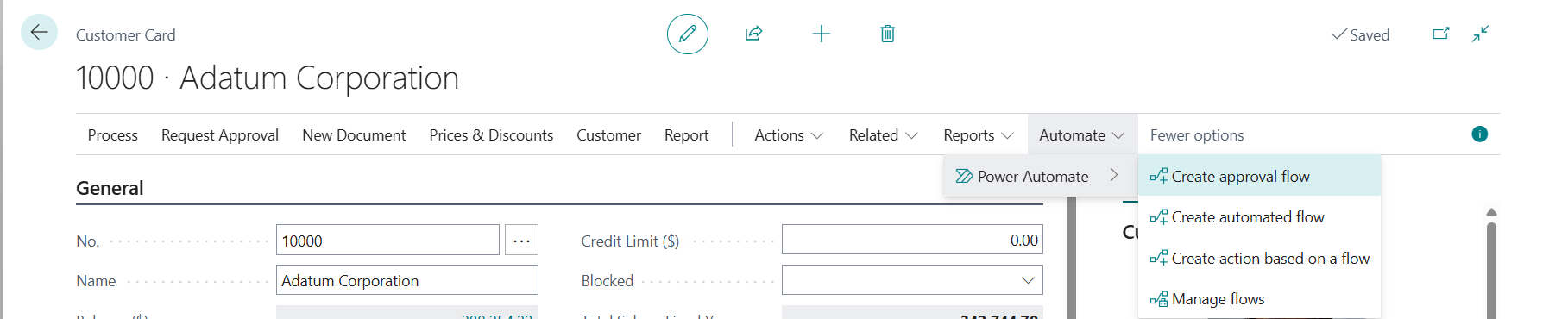
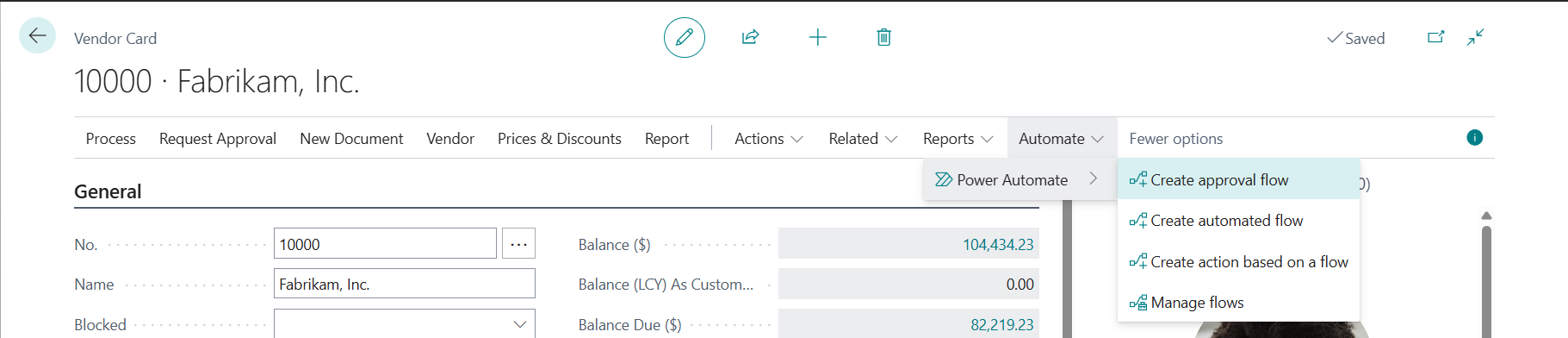
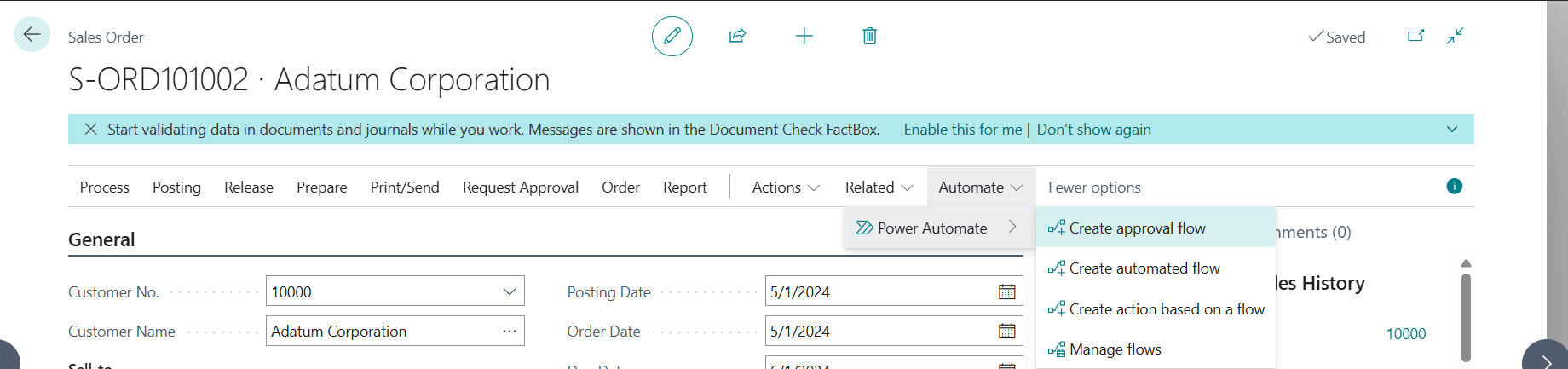
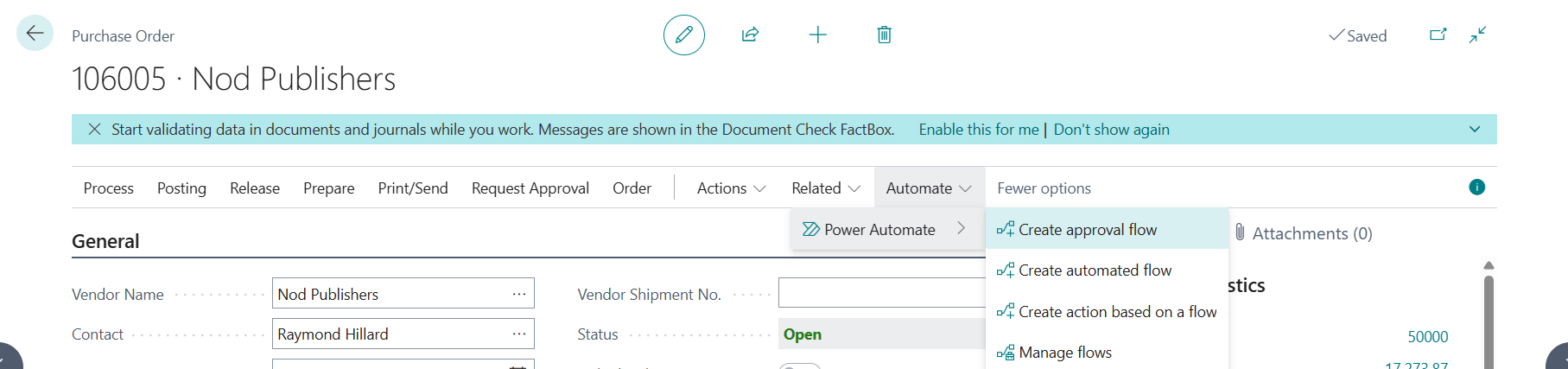
Now we are going to discuss all the four points that are see just left of the power automate function. They named as flow and they look they are showing their work.
1. Create workflow: – This defines the use of automate to make workflow just like in business central have in default. It is exactly look like a workflow that are in business central but the difference is the diagram and additional things that added difference to it. By clicking on the power platform action, a pop-up window is open.
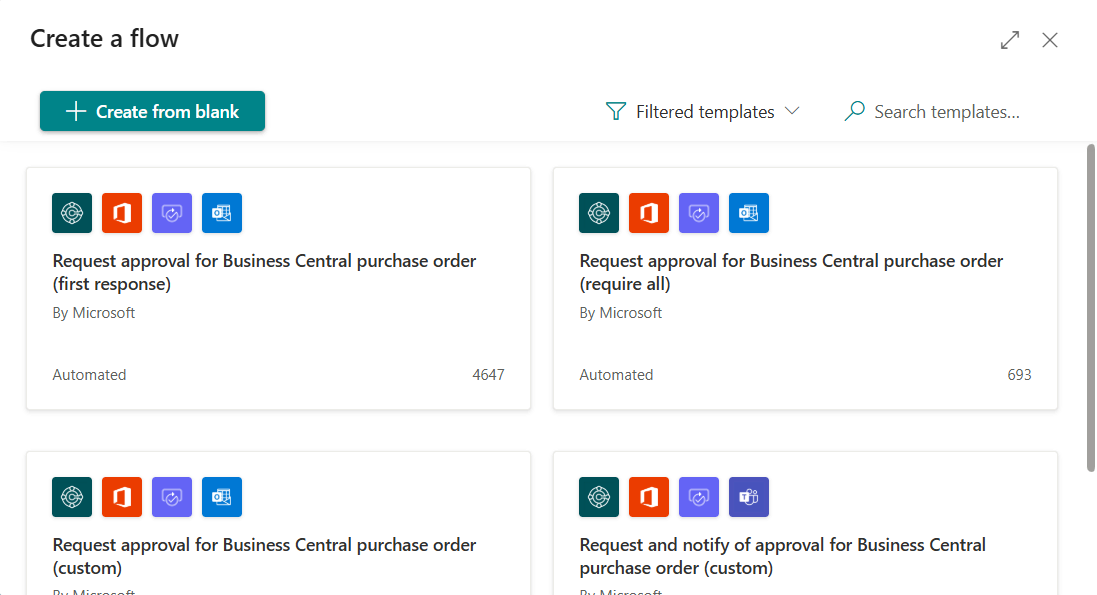
These four options are having the different properties but have one common thing is the flow that are made during the process.
2. This window shows that which other apps using this type of flow. So we can connect them.
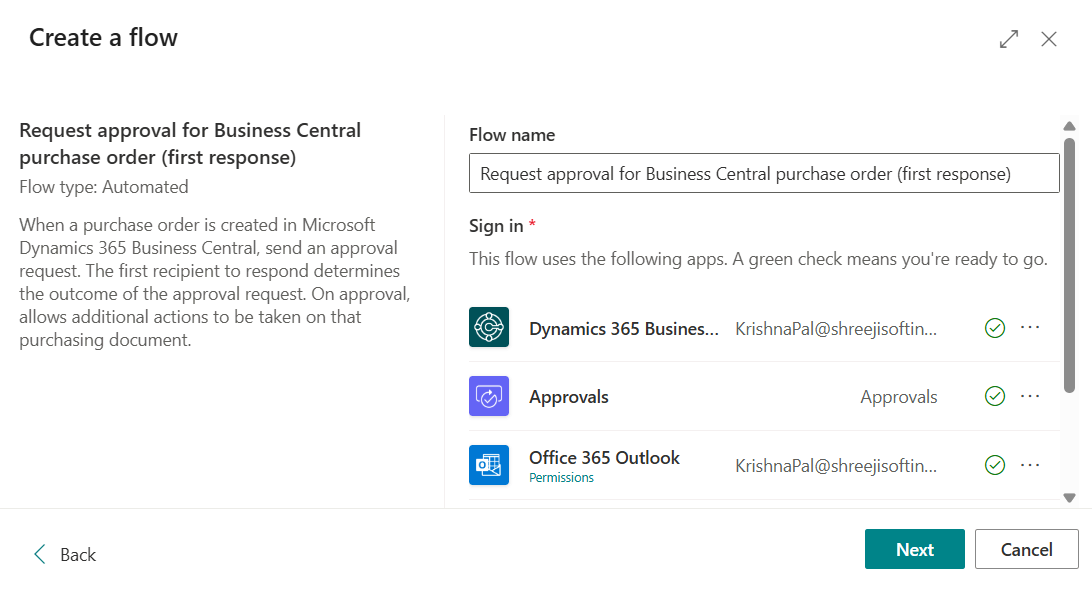
After clicking on the next it comes up to another window.
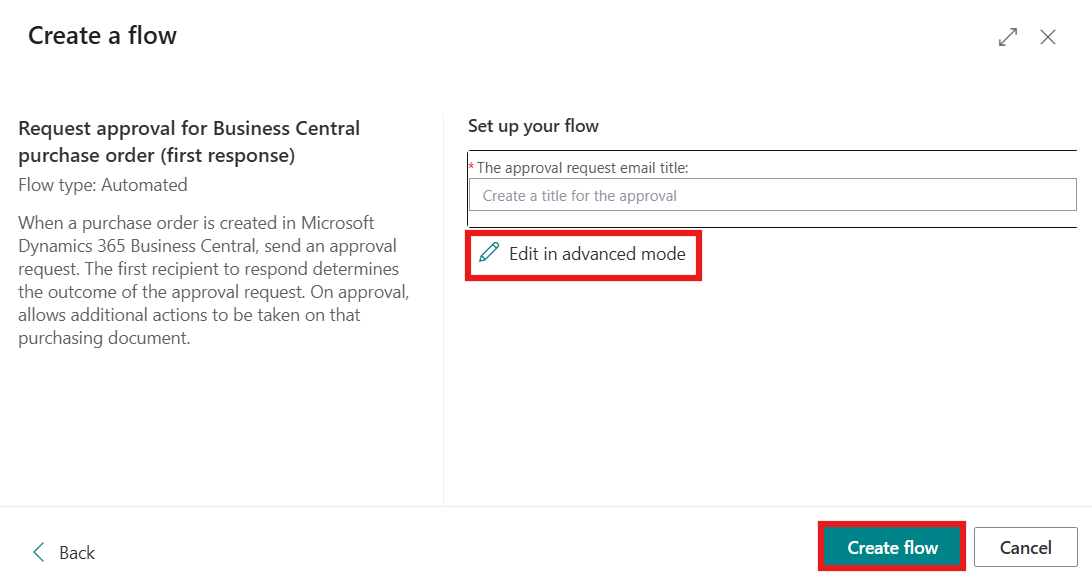
And when you click on the edit in advance mode or click on the create flow it will open up a power automate app with a flow structure.


By clicking on the marked area, a page is open to fill up the details which need to start the flow.
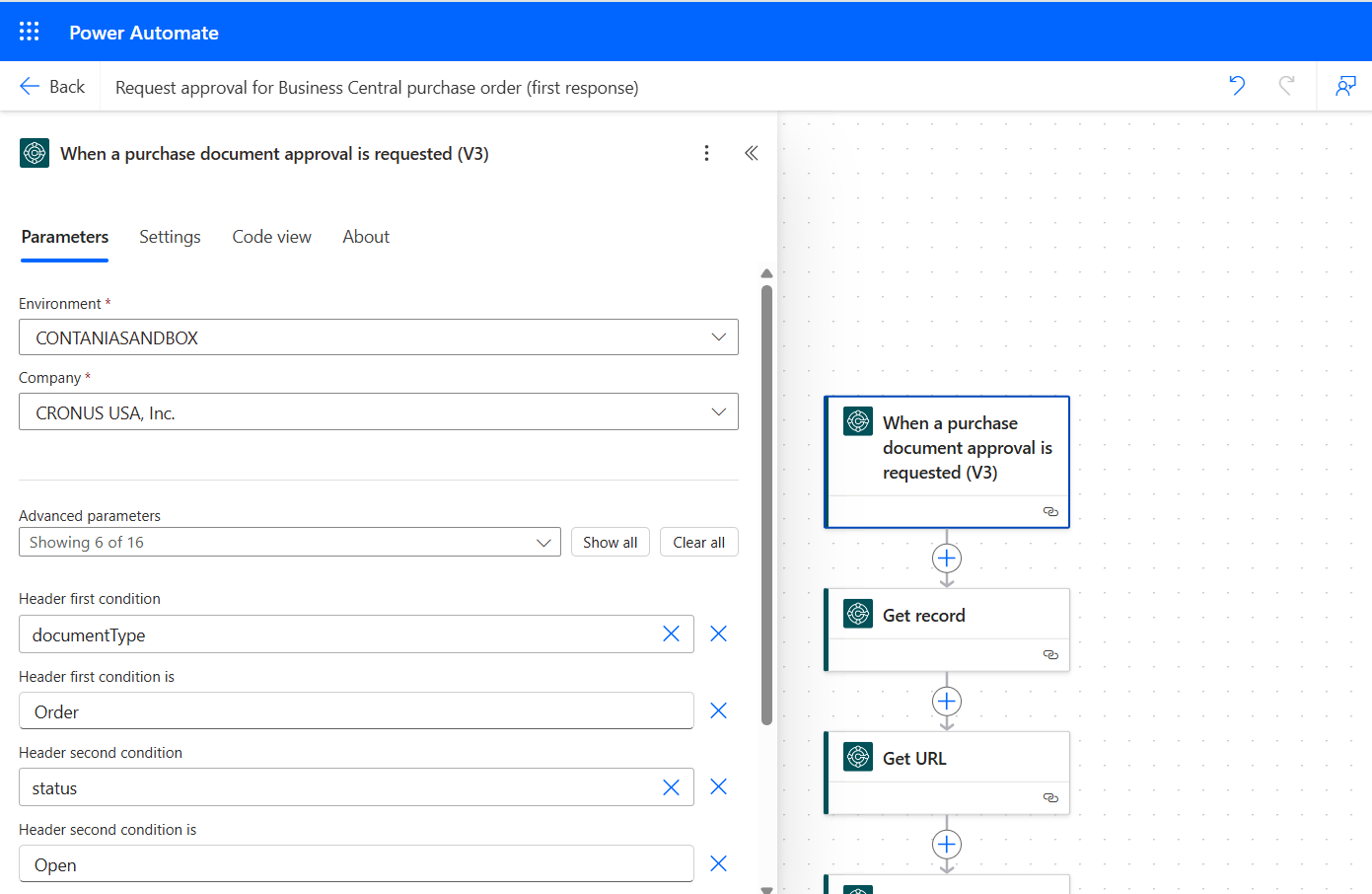
By filling all the details in each of step you just have to save it and then according to the condition and the information you are given in the flow started to act.
This is work as a reminder and as well notification and as mail for reminding purposes and as to automate the process with certain condition and with certain rules.
