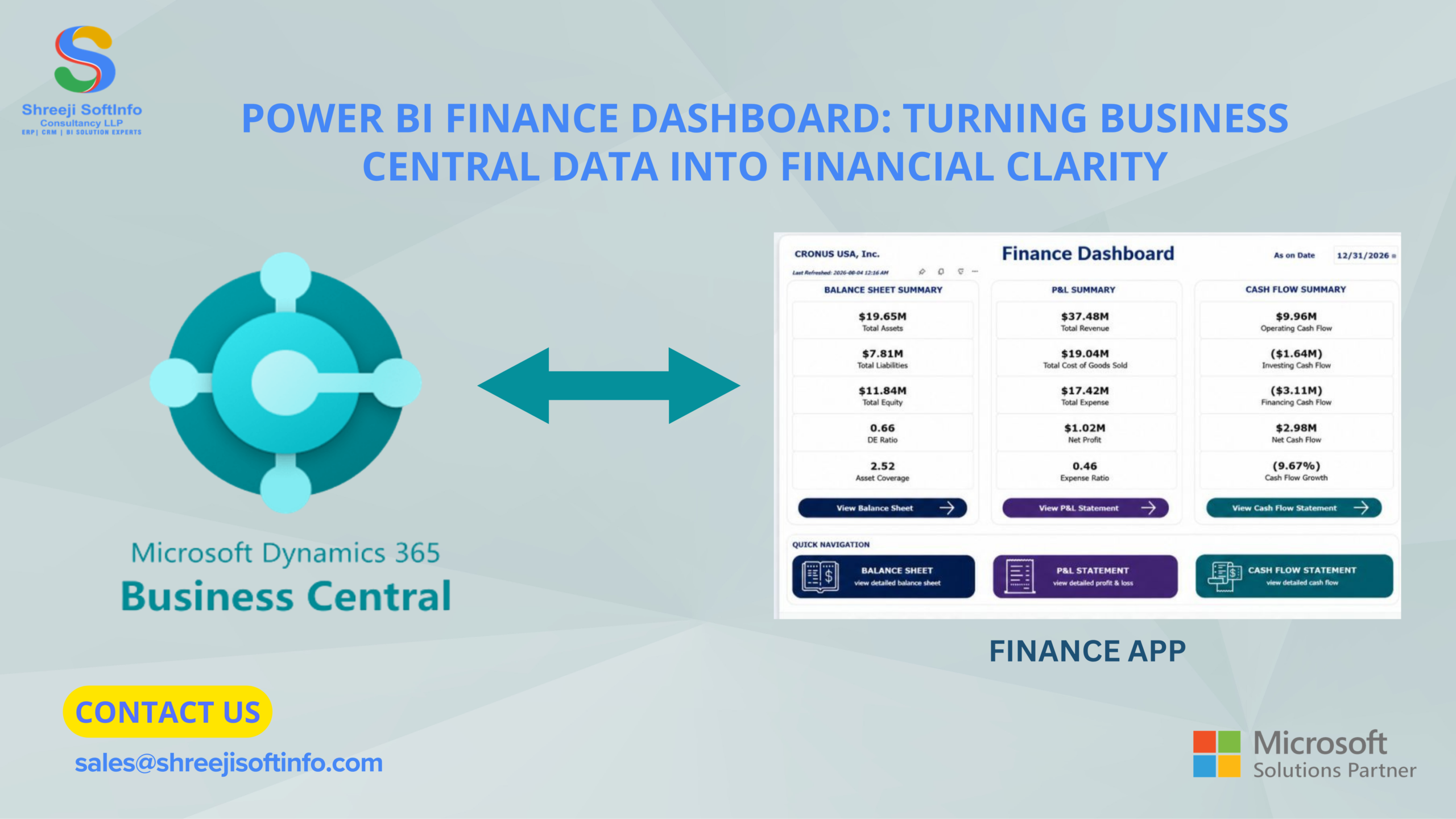
In Microsoft Dynamics 365 Business Central, the Customer Ledger Entries page records every invoice, payment, credit memo, and adjustment posted against a customer. The receivables dashboard turns that data into live tiles, aging buckets, and KPIs. Used together, they show finance teams exactly who owes money, how overdue it is, and where to act first.
Late payments quietly drain working capital. Most finance teams don’t lack data; they lack a clear view of it. This guide covers three things:
- How the customer ledger works in Microsoft Dynamics 365 Business Central.
- How to build a receivables dashboard your team will actually use.
- The practical habits that shorten your collection cycle.
It is written by the ERP consultants at Shreeji Softinfo Consultancy LLP, drawing on what we see across real Business Central implementations.
What Is the Customer Ledger in Microsoft Dynamics 365 Business Central?
The customer ledger is the detailed transaction history behind every customer balance. Whenever a sales invoice, credit memo, payment, or refund is posted, Business Central creates a customer ledger entry. Each entry is linked to the customer card and to the receivables account in the general ledger, which is defined in the customer posting group.
Each entry stores the information you need to understand a balance at a glance:
- Posting date and due date: the basis for aging and overdue analysis.
- Document type and number: invoice, payment, credit memo or refund.
- Original amount and remaining amount: what was billed versus what is still open.
- Open status: whether the entry has been fully applied and closed.
- Dimensions: such as region, department or salesperson, for deeper reporting.
Behind each entry sits a detailed customer ledger entry. It captures applications, payment discounts, and realised or unrealised currency gains and losses. That audit trail is what makes the ledger trustworthy at month-end.
How to Open and Read Customer Ledger Entries
You can reach the ledger in a few clicks from any role centre:
- Search for Customers using the “Tell me” search (Alt+Q) and open the customer card.
- Choose Ledger Entries from the action bar, or press Ctrl+F7.
- Filter on Open = Yes to see only unpaid documents.
- Sort by Due Date to bring the oldest overdue items to the top.
- Use Apply Entries to match an incoming payment against the correct invoices.
A common problem we fix for clients at Shreeji Softinfo Consultancy LLP is unapplied payments. When cash is posted but not applied, the invoice still looks overdue and the customer receives an unnecessary reminder.
To prevent this, apply payments regularly, or use the Payment Registration and Payment Reconciliation Journal features. Either approach keeps the ledger clean and the dashboard accurate.
Building a Receivables Dashboard in Microsoft Dynamics 365 Business Central
A receivables dashboard is only as useful as the questions it answers. Microsoft Dynamics 365 Business Central gives you three layers to work with, and most growing businesses benefit from all three.
1. Role Center Cues and Tiles
The Business Manager and Accountant role centres include activity cues, such as overdue sales invoices and ongoing sales documents. These tiles refresh automatically and let users drill straight into the underlying entries.
You can personalise the page to keep the receivables cues visible and hide the ones your team never uses.
2. Built-In Receivables Reports
For structured analysis, these standard reports cover most needs:
- Aged Accounts Receivable: balances grouped into aging periods you define.
- Customer – Balance to Date: open entries and balances as of any chosen date.
- Customer – Detail Trial Balance: every movement on each account for a period.
- Customer Statement: a customer-ready summary for collection follow-ups.
3. Power BI Analytics
For visual, management-level reporting, Business Central connects natively to Power BI. Finance reports and embedded Power BI parts can display aging trends, DSO and top debtors directly inside the role centre. That way, leadership sees the same numbers as the collections team.
Key KPIs Every Receivables Dashboard Should Track
Whatever tool you use, focus the dashboard on a small set of measures that drive decisions:
- Total Receivables: the sum of all open customer balances across the ledger.
- Overdue Amount: the value of invoices past their due date, and your immediate collection priority.
- Days Sales Outstanding (DSO): the average number of days it takes to convert a sale into cash.
- Aging Buckets: balances split into Current, 1–30, 31–60, 61–90 and 90+ days.
- Top Debtors: the customers holding the largest outstanding balances.
- Credit Limit Utilisation: how close each customer is to their approved credit limit.
If a tile does not change what someone does next, remove it. A focused dashboard gets opened every morning; a crowded one gets ignored.
Best Practices to Improve Collections
Visibility is the first step; process is what moves cash. These practices consistently deliver results for Microsoft Dynamics 365 Business Central users:
- Set credit limits on every customer card and enable credit warnings on sales documents.
- Automate reminders and finance charge memos using reminder terms with escalating levels.
- Standardise payment terms so due dates and aging stay consistent across customers.
- Apply payments daily, not at month-end, to keep the ledger and dashboard reliable.
- Use dimensions to compare receivables by region, branch or salesperson.
- Review the aged report weekly with sales, so collection becomes a shared responsibility.
How Shreeji Softinfo Consultancy LLP Helps You Get More From Business Central
Configuring the ledger correctly is technical. The real value comes from fitting it to how your business actually sells and collects. As a Microsoft Dynamics 365 Business Central consulting partner, Shreeji Softinfo Consultancy LLP helps organisations:
- Design customer posting groups, payment terms and reminder structures.
- Build role-based receivables dashboards and Power BI reports.
- Clean up legacy open entries during migration from Tally, SAP B1 or older Dynamics NAV systems.
- Train finance teams on daily application, reconciliation and collection workflows.
The aim is simple: fewer surprises at month-end and faster cash in the bank.
Conclusion
The customer ledger is the single source of truth for what your customers owe. The receivables dashboard is how you turn that truth into action. With clean entries, a few well-chosen KPIs and disciplined processes, Microsoft Dynamics 365 Business Central can noticeably reduce overdue balances and improve cash flow.
Ready to take control of your receivables? Talk to the Business Central experts at Shreeji Softinfo Consultancy LLP for a free consultation and a quick review of your current receivables setup.
Frequently Asked Questions
Q: What is a customer ledger entry in Microsoft Dynamics 365 Business Central?
A: A customer ledger entry is a posted record of a transaction with a customer, such as an invoice, payment or credit memo. It stores the amount, remaining balance, due date and open status. It is the basis for every receivables report in Business Central.
Q: How do I check overdue customer invoices in Business Central?
A: Open the Customer Ledger Entries page, filter on Open = Yes and set a due date filter earlier than today. You can also use the overdue invoice cues on the role centre or run the Aged Accounts Receivable report.
Q: How can a Power BI dashboard improve financial reporting in Business Central?
A: Power BI dashboards connect with Microsoft Dynamics 365 Business Central to turn financial data into interactive visual reports. Finance teams can monitor accounts receivable, overdue invoices, cash flow, sales performance and outstanding balances in real time, helping them identify trends, track key performance indicators (KPIs) and make data-driven business decisions.
Q: What is the Aged Accounts Receivable report used for?
A: It groups open customer balances into aging periods, such as 30, 60 and 90+ days. Finance teams use it to prioritise collections, estimate bad-debt risk and review credit exposure by customers.
Q: Why choose Shreeji Softinfo Consultancy LLP for Power BI dashboard development?
A: Shreeji Softinfo Consultancy LLP provides Power BI dashboard development, data integration and reporting solutions tailored to business needs. Its team helps organisations turn complex data into meaningful insights, improve reporting efficiency and make informed decisions.