
With the introduction of the new Wave Plan, Microsoft has enhanced several features related to e-document handling to streamline and improve digital document workflows. These updates include the ability to process e-documents more efficiently, generate multiple incoming e-documents in one go, and create new e-documents seamlessly. In addition, users can now delete incorrect e-documents to maintain data accuracy, and manage payments directly through the e-document interface. We will explore each of these functionalities in detail in the sections below.
1. Process E-Documents
This feature simplifies the handling of electronic documents within the system. Users can now validate, post, and archive e-documents directly from the interface. It helps maintain audit trails and ensures compliance with digital documentation standards.
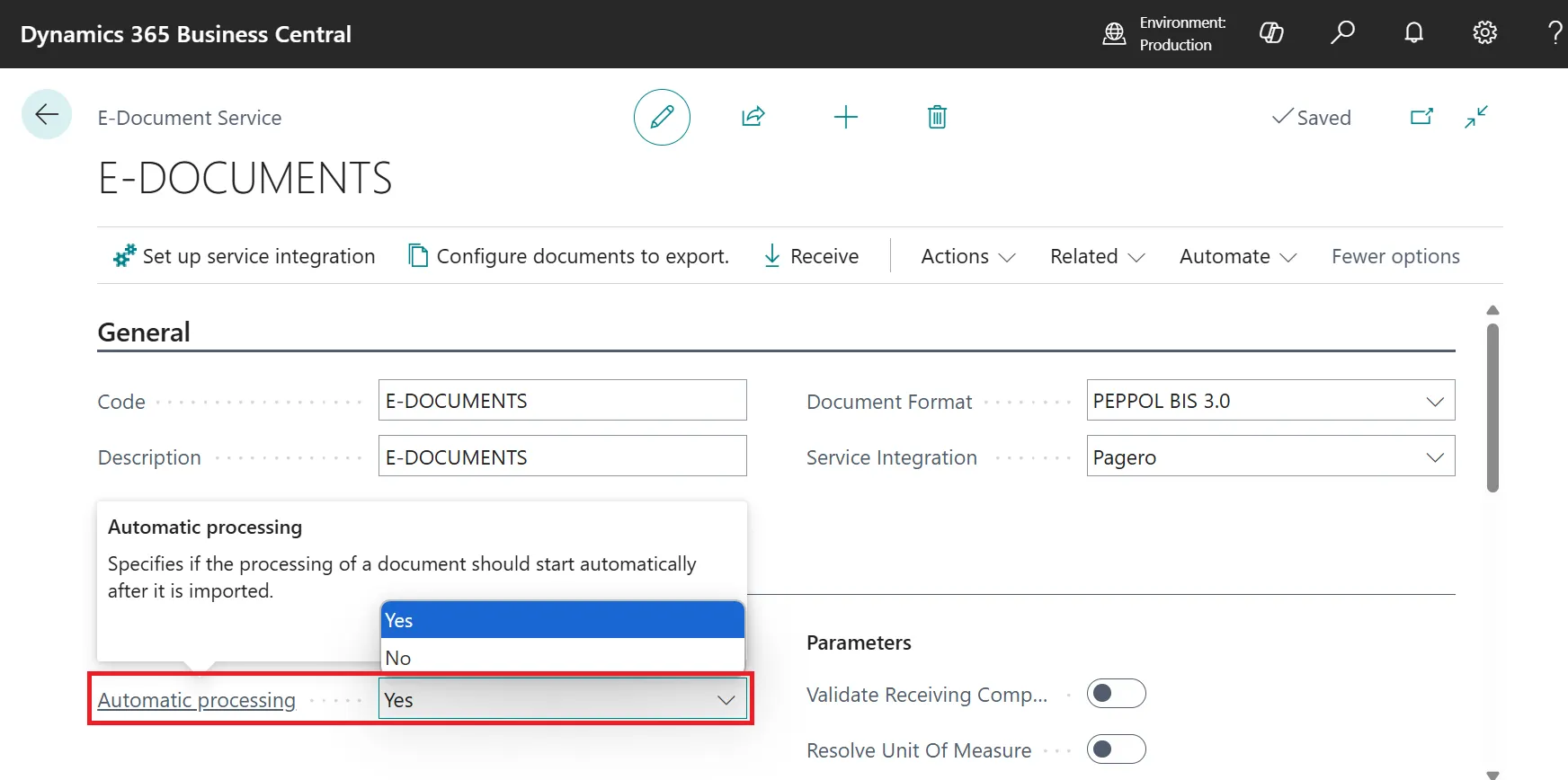
In Business Central, purchase documents can be created either automatically or through a two-step manual process. With automatic processing, the system instantly generates the purchase document from the e-document. Alternatively, in the manual mode, the e-document is first created, and the user must confirm before the purchase document is generated—allowing for additional review and control.
To configure how Business Central handles e-documents, use the Automatic processing toggle on the E-Documents Service page.
- Turned on: Purchase documents are created automatically upon receipt of an e-document.
- Turned off: The system generates the e-document, but users must manually initiate purchase document creation—allowing time to review the contents beforehand.
2. Generate Multiple Incoming E-Documents
You can now create several incoming e-documents at once, especially useful when dealing with batch transactions such as vendor invoices. This reduces manual input and saves time, especially for high-volume operations.
If you’re not using an external endpoint to receive e-documents, you can save time by uploading multiple attachments at once. This allows the system to generate multiple incoming e-documents in one step, instead of creating them individually.
To generate multiple new incoming e-documents, go to the E-Documents page and select the ‘New From File’ action.

Then, choose the relevant service that matches the required Document Format and upload several files.
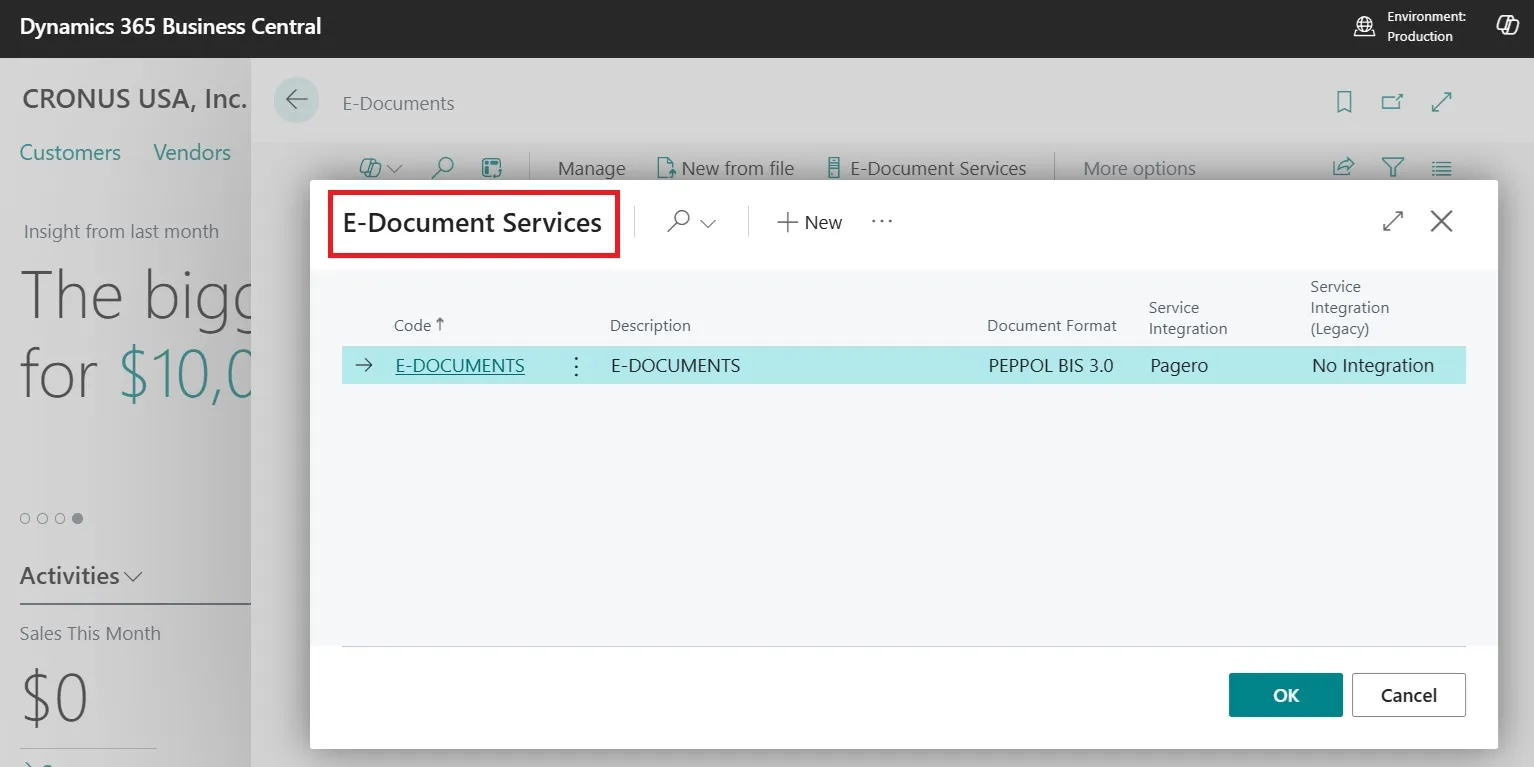
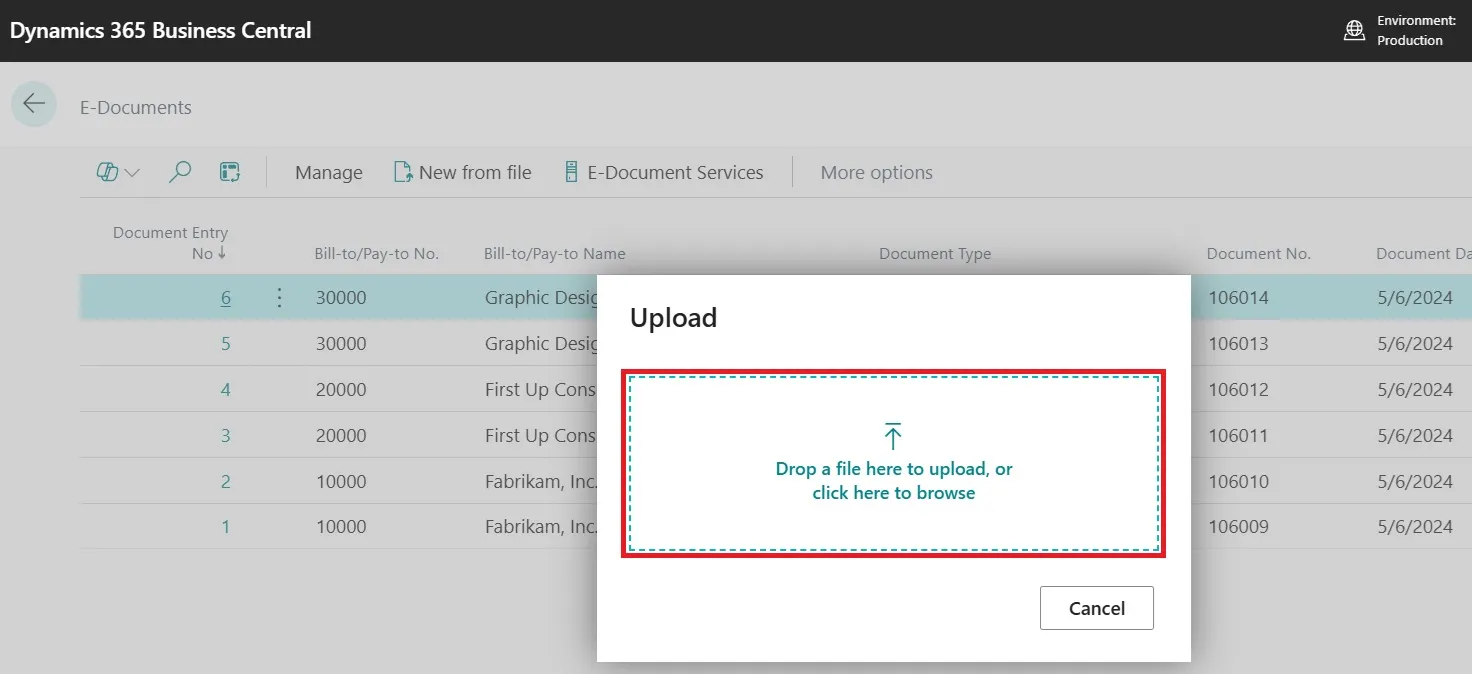
Business Central will process each uploaded file and create a separate incoming e-document for every one that aligns with the selected Document Format.
3. Create E-Documents
The system offers more flexibility and intuitive tools to generate new e-documents. Whether it’s an invoice, shipment notice, or credit memo, the creation process is more streamlined with pre-filled templates and integration with master data.
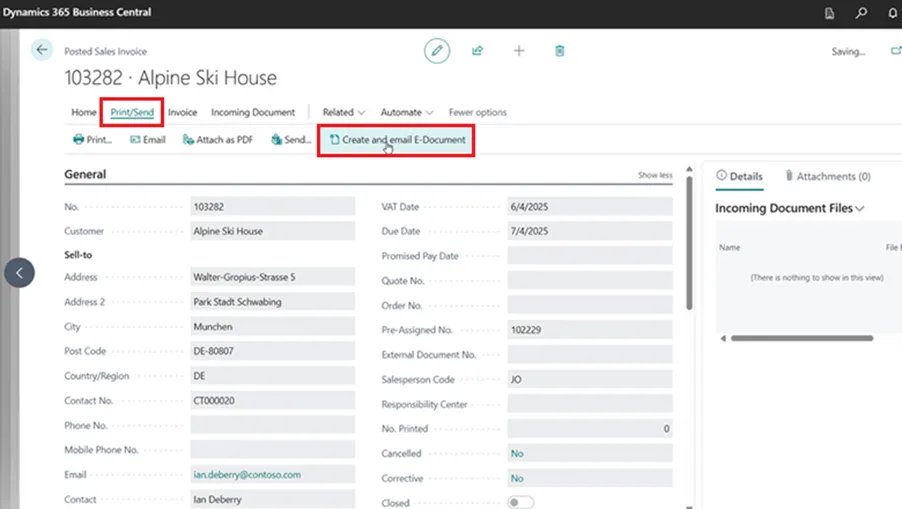
E-documents like invoices and receipts require setup before use. If posting sales documents fails to generate e-documents in Business Central, you can manually create them afterward to maintain compliance with legal or industry standards.
If your e-document setup wasn’t configured correctly and Business Central didn’t generate an e-document when posting a sales invoice, you can manually create it.
Go to the Posted Sales Invoice page and select Open E-Document to check if one exists.
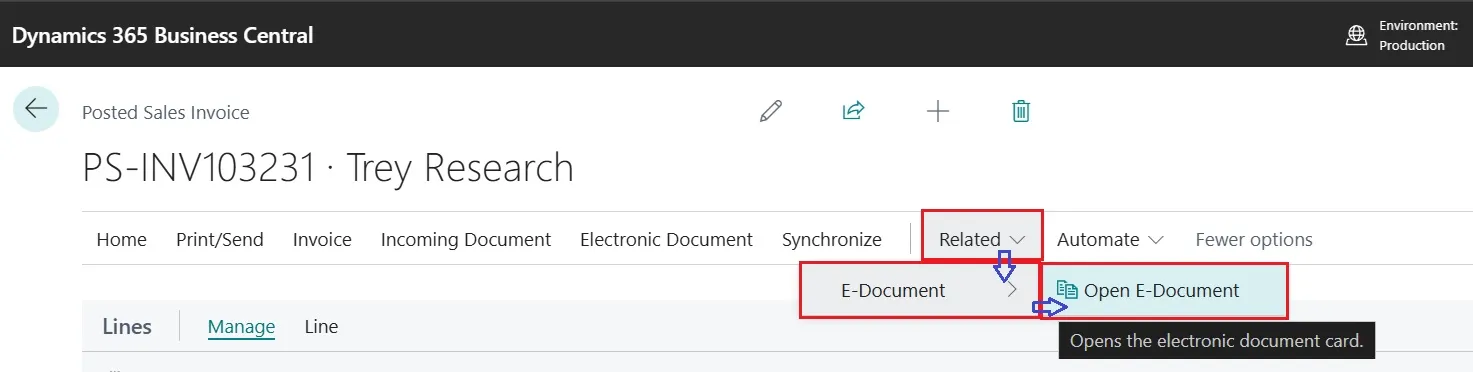
If not, use Create New E-Document to generate it based on the workflow. This option is unavailable if an e-document already exists.
4. Delete Incorrect E-Documents
Users can now remove erroneous or misentered e-documents with ease. This feature improves data accuracy and prevents clutter in the system by allowing quick rectification before posting.
Business Central does not generate new incoming e-documents when a batch import includes duplicates—defined as documents sharing the same vendor, external document number, and date.
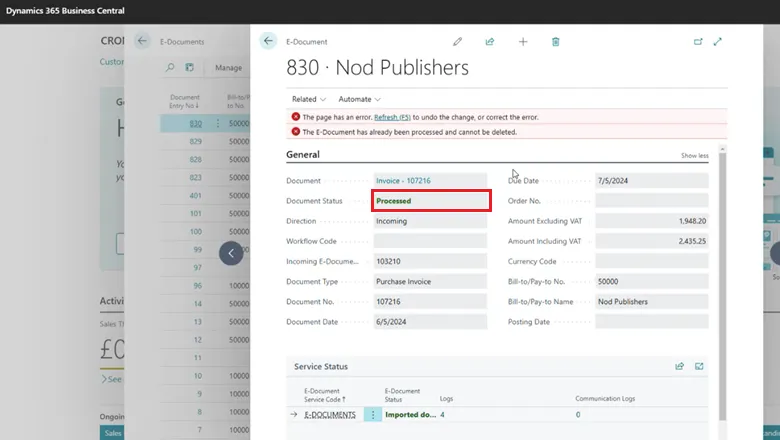
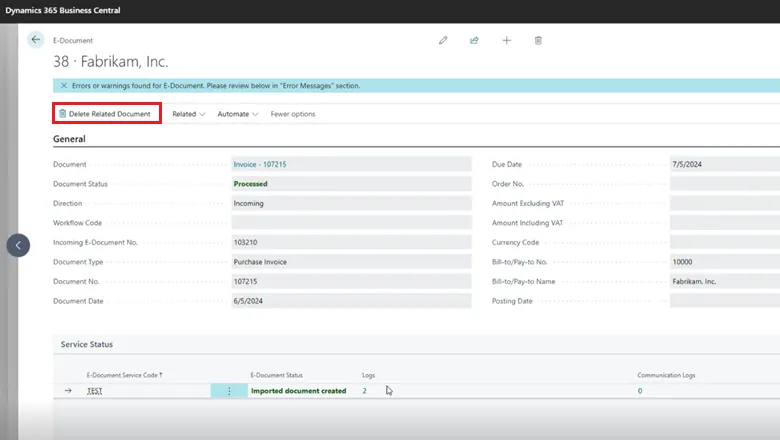
If an existing e-document in Business Central is identified as a duplicate or contains errors, administrators can remove it using the Delete Related Document action. However, e-documents that have already been processed and are linked to purchase documents cannot be deleted.
5. Payments with the E-Document
This enhancement enables payments to be initiated or tracked directly through the related e-document. It brings financial operations and documentation closer together, enhancing traceability and reducing reconciliation efforts.
Boost your productivity with improved e-document tracking—you can now quickly determine whether each document is fully paid, partially paid, or unpaid. This streamlined visibility also supports compliance with legal requirements in select countries.
E-documents can be tagged to reflect their payment status—fully paid, partially paid, or unpaid. This status is transmitted (for accounts payable) or received (for accounts receivable) via access points, depending on your e-document setup.
The payment tracking functionality provides key insights, including:
- Date of payment collection
- Total amount collected, inclusive of VAT
- Base amount and VAT amount applicable at the time of payment