
Posting a purchase invoice can automatically generate multiple fixed asset cards, streamlining asset management. This reduces manual effort, enhances accuracy, and boosts operational efficiency. The feature enables businesses to manage bulk purchases with ease, ensuring each asset is properly recorded and tracked without manual entry.
About the Feature
This feature enables automatic creation of one or more fixed assets when posting purchase invoices. For instance, if your company buys 10 computers from a single vendor, Business Central generates a fixed asset card for each computer without manual input. This streamlines asset management by ensuring bulk purchases are recorded and tracked accurately and efficiently
To create multiple fixed assets from a purchase order, follow these steps:
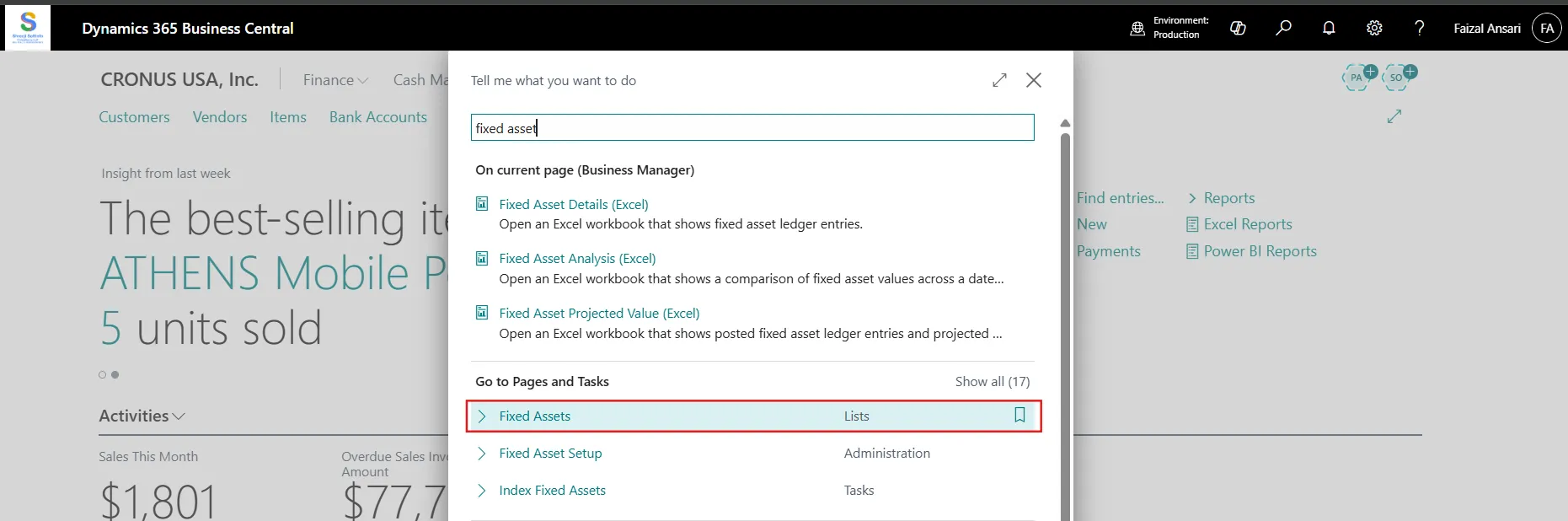
1. Navigate the Search bar and type the Fixed Asset.
2. Open the Fixed Assets List page, and then select the New action.

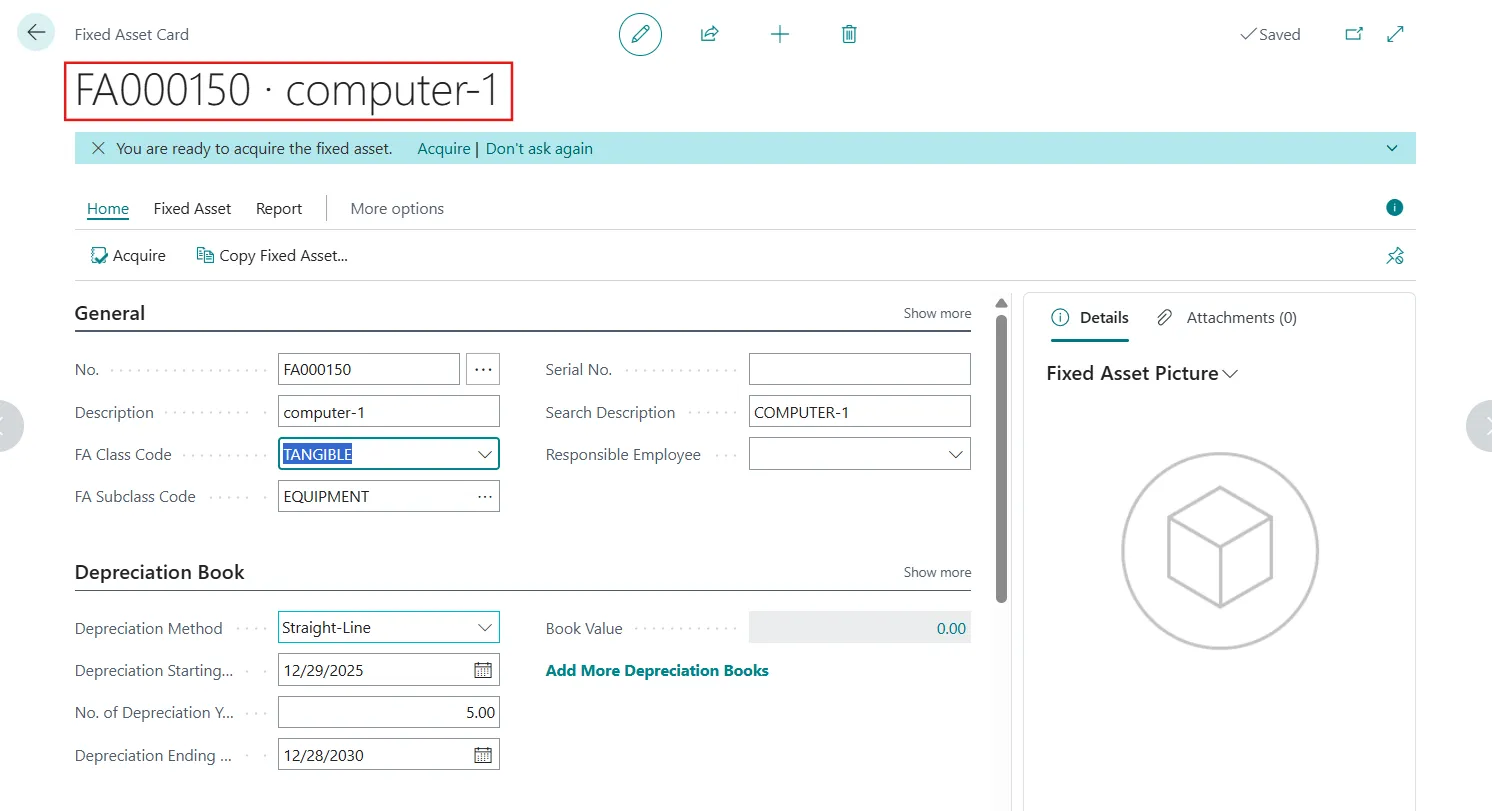
3. On the Fixed Asset Card page, fill in the relevant fields.
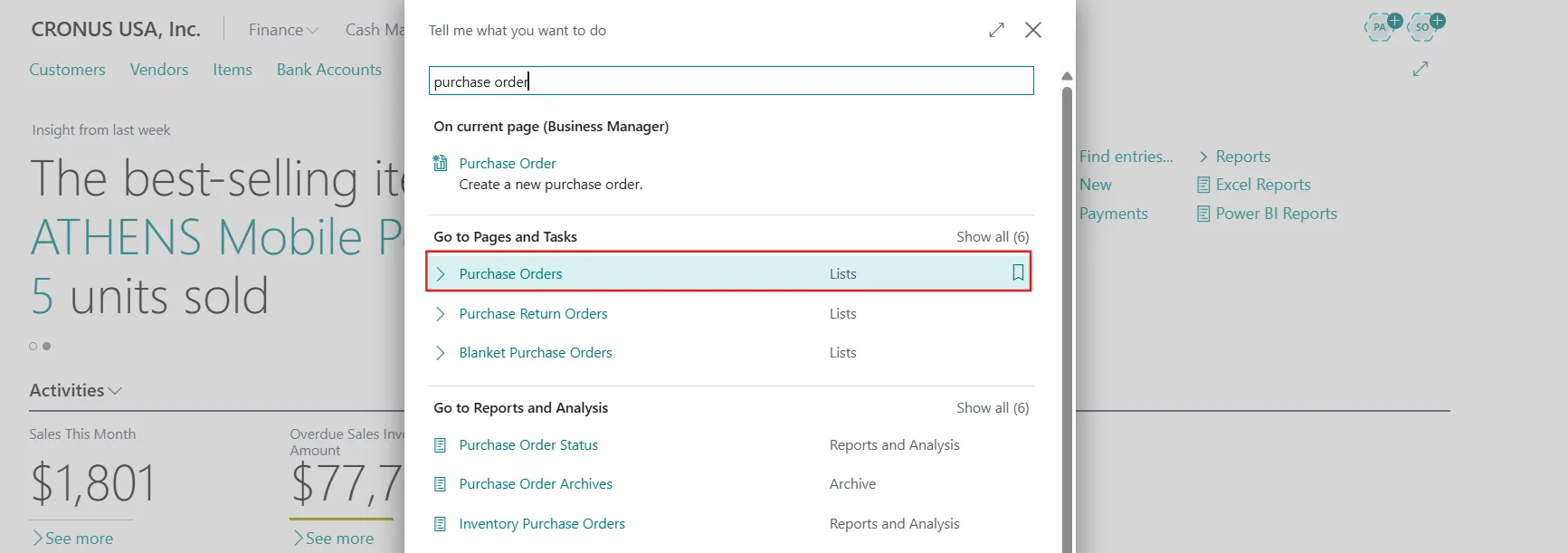
4. Create a new Purchase Order or open the existing purchase order.
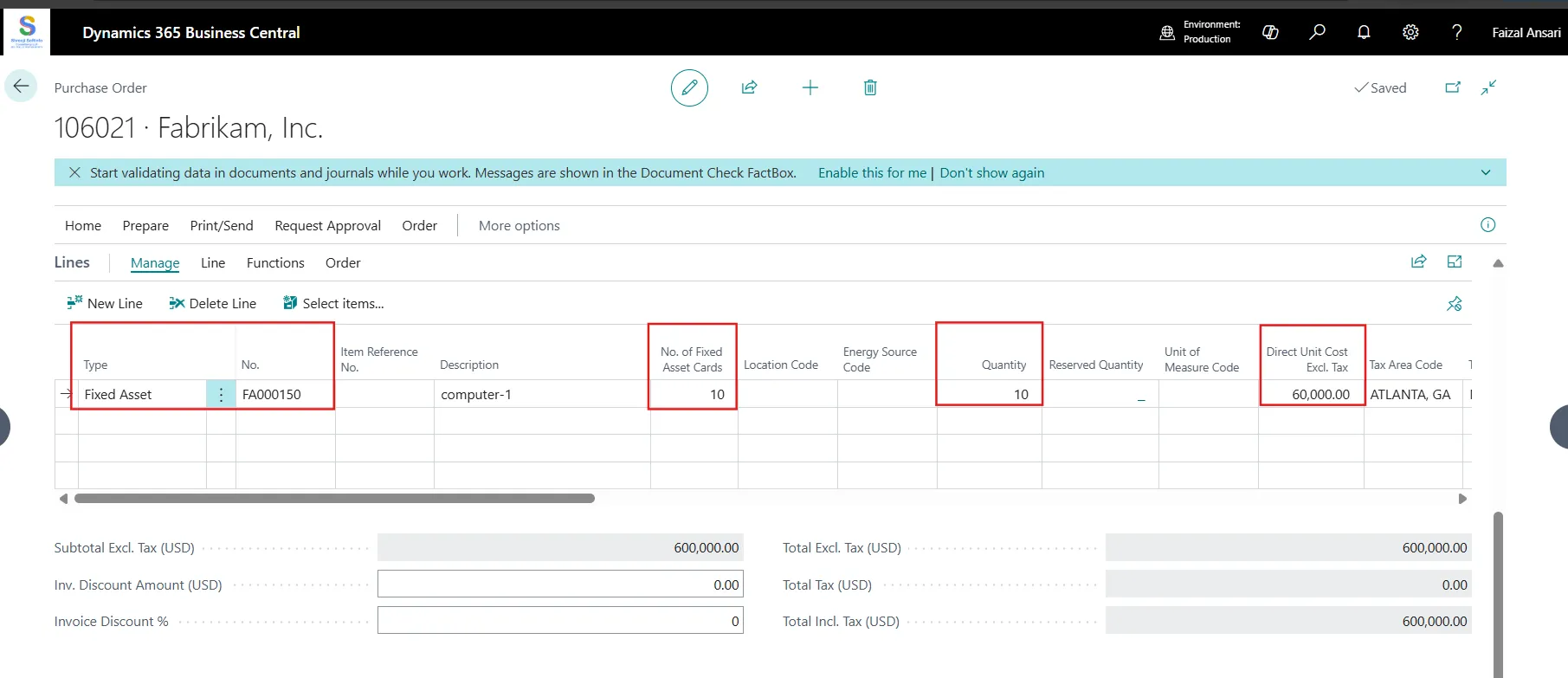
5. Fill in the following fields:
- In the Type field, select Fixed Asset.
- In the No. field, specify the same fixed asset number that you entered in the Fixed Asset list.
- In the No. of Fixed Asset Cards field, specify the relevant number of duplicates for your fixed asset.
- Mentioned the quantity in the Quantity field.
6. Post the purchase order as an invoice.

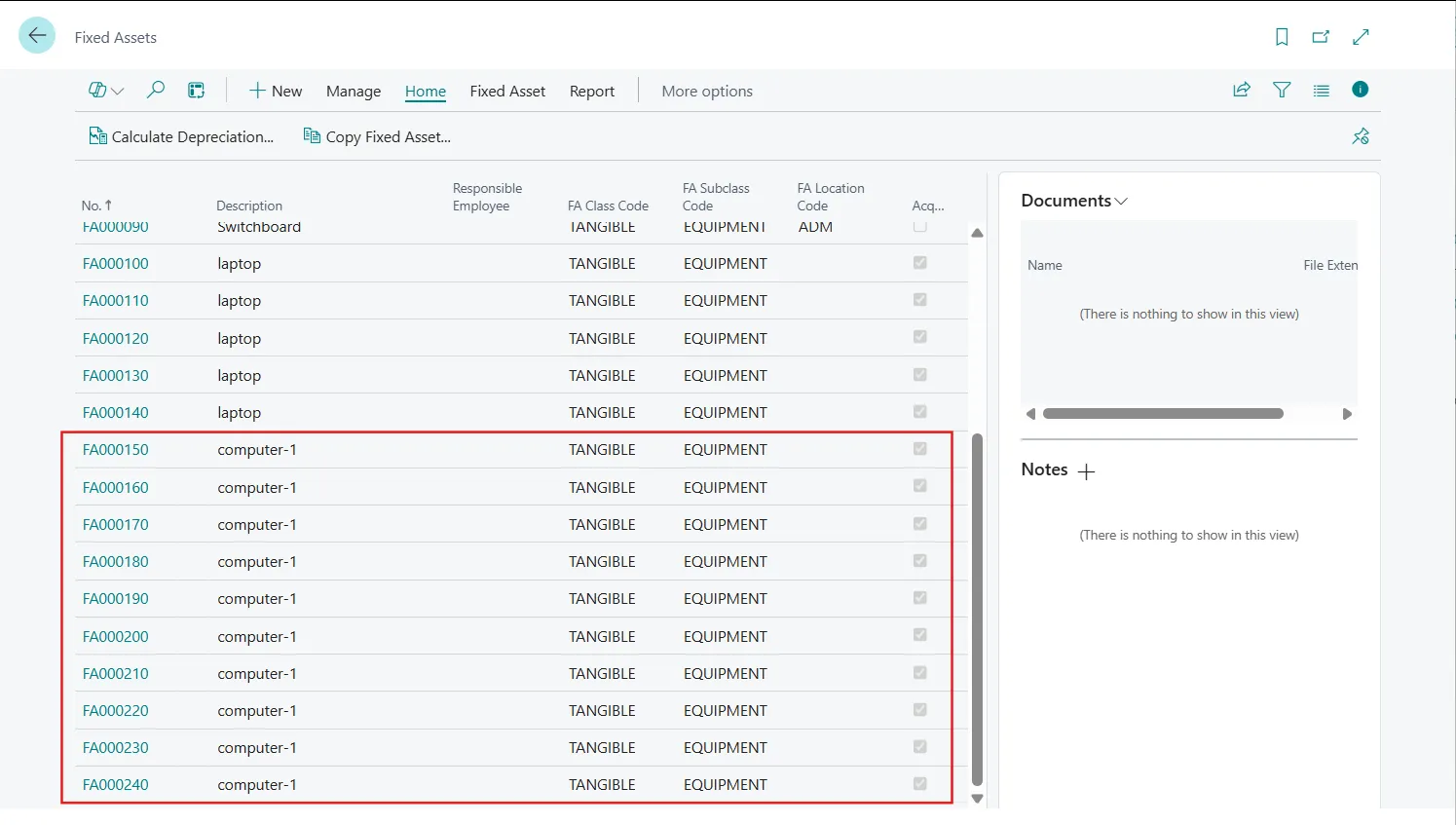
7. When you post the order as an invoice, 10 fixed assets are automatically generated and added to the fixed asset list.