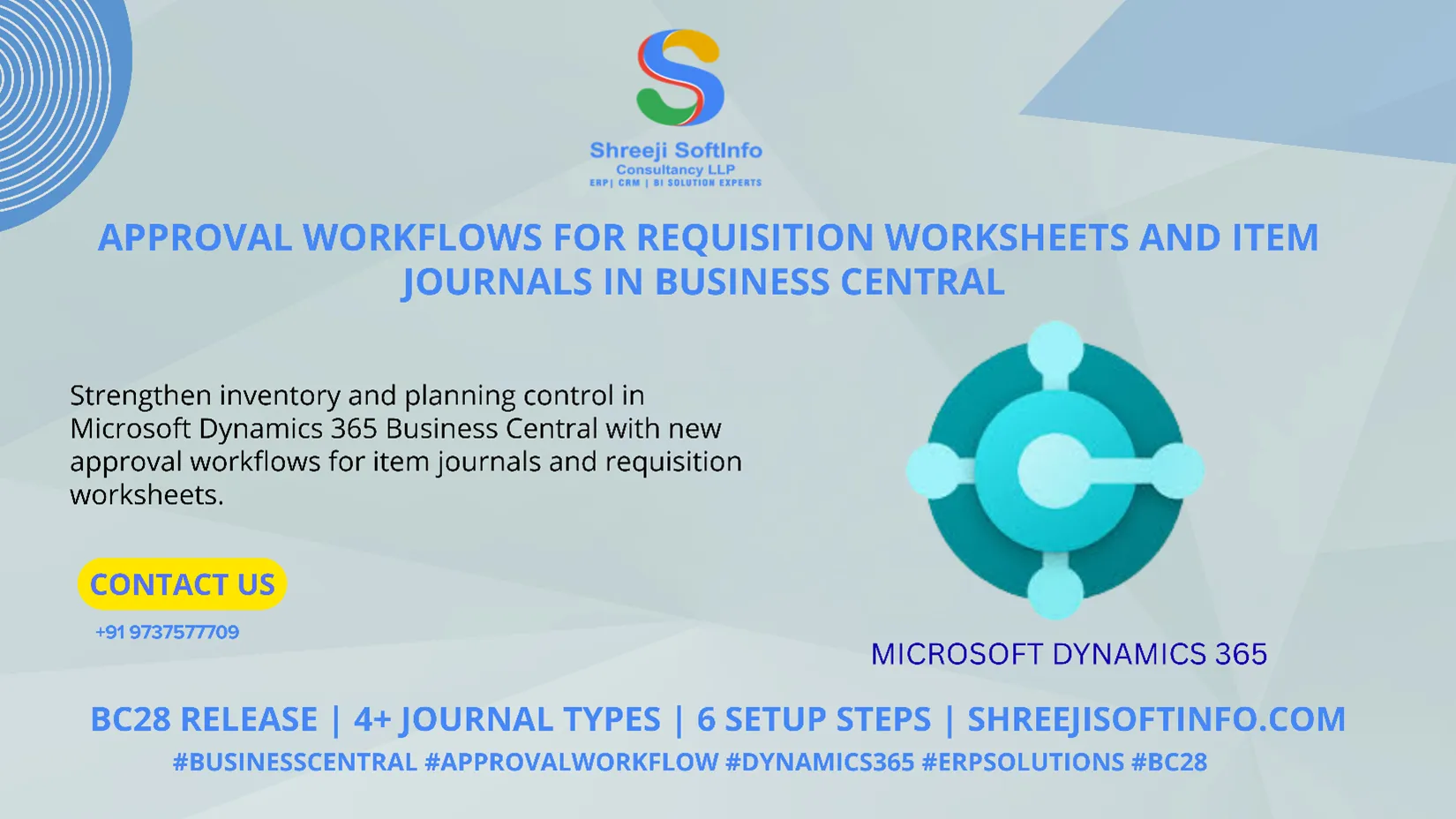
Previously: Approval workflows were available for documents such as purchase orders and general journals, but not for item journals or requisition/planning worksheets.
Now: Approval workflows have been extended to:
- Item Journals → inventory adjustments, consumption postings, transfers.
- Requisition & Planning Worksheets → purchase document creation and planning suggestions.
Approval workflows for item journals
Item journals now support the same approval workflow capabilities as general journal batches. You can send batches for approval from the following journals:
- Item Journal
- Physical Inventory Journal
- Output Journal
- Consumption Journal
Key Points:
- When a journal batch has an approval entry in progress, you cannot edit, delete, or post the record until the approval is completed or cancelled.
- The workflow status is displayed on journal pages.
- Approval actions available: Approve, Reject, Delegate, and Comments.
Requisition and Planning Worksheet Approval Workflows
Requisition and planning worksheets now include full approval workflow support at the worksheet batch level. You can send a worksheet batch for approval before carrying out planning or converting requisition lines into purchase documents.
Key Points:
- When an approval request is created for a worksheet batch:
- You cannot insert, modify, or delete requisition or planning lines.
- The workflow status is displayed on worksheet pages.
- Approval actions available: Approve, Reject, Delegate.
- Worksheet-level approval prevents changes to planning data while decisions are pending.
Step-by-Step: Setting Up Approval Workflow
1. Enable Workflow Module
- Go to Search → type Workflows.
- Open the Workflow page where all templates are listed.
2. Choose the Correct Template
- Look for new templates introduced in BC28:
- Item Journal Approval Workflow
- Requisition Worksheet Approval Workflow
- Select the template and click New Workflow from Template.
3. Configure Approval Users
- Navigate to Approval User Setup.
- Define:
- Approver for each user.
- Approval limits (amounts, conditions).
- Substitute approvers (optional).
- Ensure email notifications are enabled via SMTP Mail Setup.
4. Define Workflow Conditions
- For Item Journals:
- Trigger approval when posting inventory adjustments, transfers, or consumption.
- For Requisition Worksheets:
- Trigger approval when creating purchase documents from planning/requisition lines.
- You can add conditions such as location, item category, or amount thresholds.
5. Configure Workflow Responses
- Typical responses include:
- Create an approval request.
- Send notification to approver.
- Block posting until approved.
- You can also configure escalation rules if approval is delayed.
6. Test the Workflow
- set Enabled = Yes on that workflow.
- The workflow will now apply to all relevant transactions
- Create a sample Item Journal or Requisition Worksheet.
- Try to post or carry out action messages.
- The system should prompt for approval before allowing posting.
- Approve the entry and then you will post the transaction.
Conclusion:
The introduction of approval workflows for item journals and requisition/planning worksheets in Business Central (BC28) significantly strengthens internal controls and audit compliance. By extending approval capabilities beyond purchase orders and general journals, organizations can now ensure that inventory adjustments, consumption postings, transfers, and planning/requisition activities are properly reviewed before execution.
Frequently Asked Questions
Q: What is new in BC28 regarding approval workflows?
A: BC28 extends approval workflows to Item Journals and Requisition/Planning Worksheets — beyond the earlier scope of only purchase orders and general journals. This means inventory adjustments, consumption postings, transfers, and planning suggestions now require formal approval before execution.
Q: Which item journals support approval workflows in BC28?
A: Four journal types now fully support approval workflows:
- Item Journal — general inventory adjustments
- Physical Inventory Journal — stock counts and reconciliation
- Output Journal — manufacturing output postings
- Consumption Journal — material consumption postings
Q: Can users edit or post a journal batch while approval is pending?
A: No. When a journal batch has an approval entry in progress, the system blocks all edits, deletions, and postings until the approval is either completed or cancelled. The workflow status is displayed directly on the journal page for full visibility.
Q: What approval actions are available in these workflows?
A: For Item Journals: Approve, Reject, Delegate, and add Comments.
For Requisition & Planning Worksheets: Approve, Reject, and Delegate. These actions are available to the defined approver directly from the workflow notification or the Business Central interface.
Q: How do I set up the approval workflow in Business Central?
A: Follow these six steps:
- Go to Search → Workflows to open the Workflow page.
- Select the BC28 template: Item Journal Approval Workflow or Requisition Worksheet Approval Workflow.
- Configure Approval User Setup — define approvers, limits, and substitutes.
- Define workflow conditions (location, item category, amount thresholds).
- Set workflow responses — create request, notify approver, block posting.
- Set Enabled = Yes and test with a sample journal or worksheet.
Q: Why is worksheet-level approval important for planning?
A: Worksheet-level approval prevents any changes to planning data while decisions are pending. This ensures no planning lines are inserted, modified, or deleted between the time an approval request is raised and when it is acted upon — protecting the integrity of procurement and supply chain decisions.
Q: Does Business Central support escalation if approval is delayed?
A: Yes. You can configure escalation rules in the workflow responses. If an approval is not acted upon within a defined time, the system can automatically escalate to a substitute approver or send reminder notifications, ensuring no bottlenecks in your approval process.