This section outlines the setup required for staff users, including how staff are configured in the Shopify store, along with the necessary configurations in Microsoft Dynamics 365 Business Central for item and customer synchronization. Additionally, we demonstrate the order processing in the Shopify Point of Sale mobile app and how the same order is synchronized and processed in Business Central.
1. Setting up the Staff in Shopify Store.
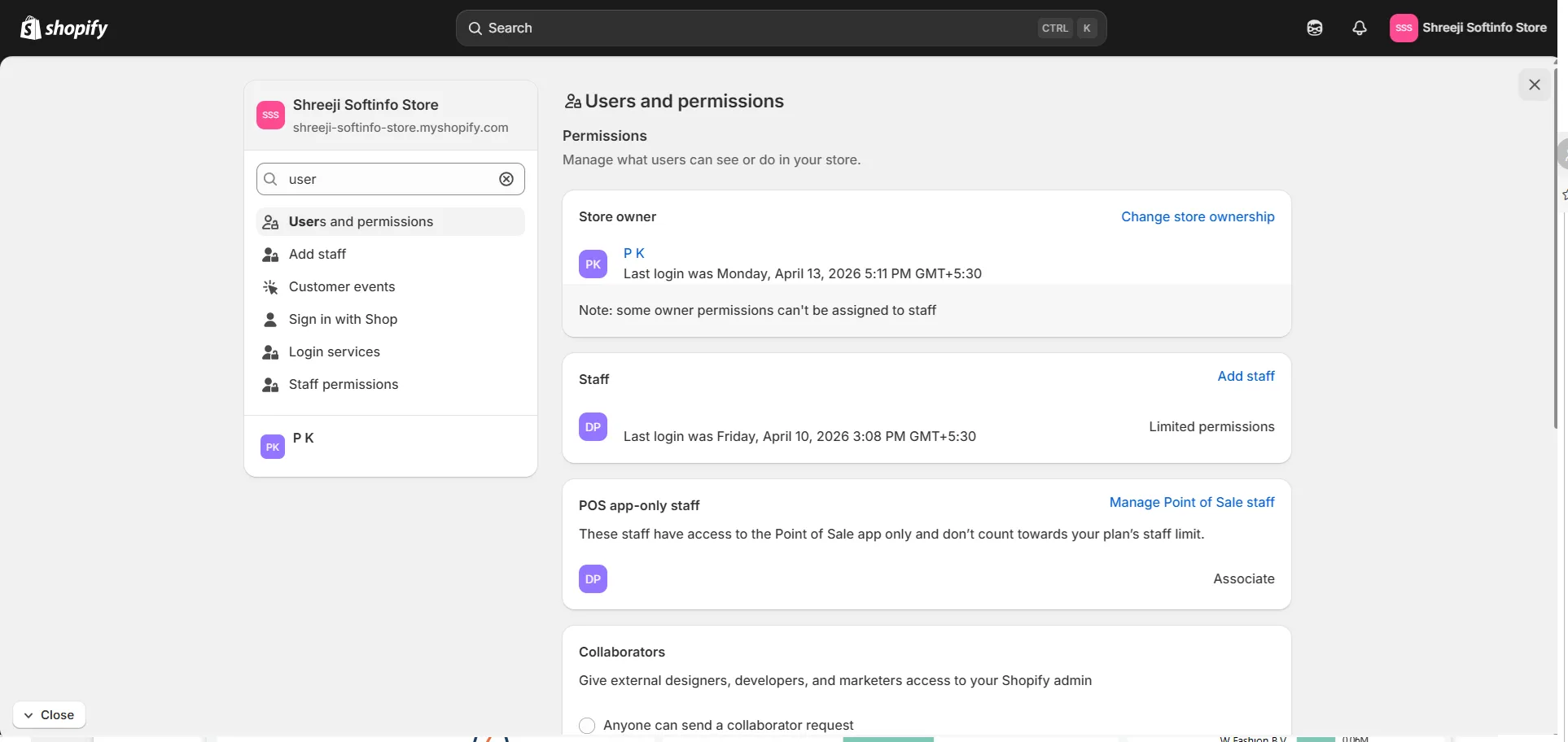
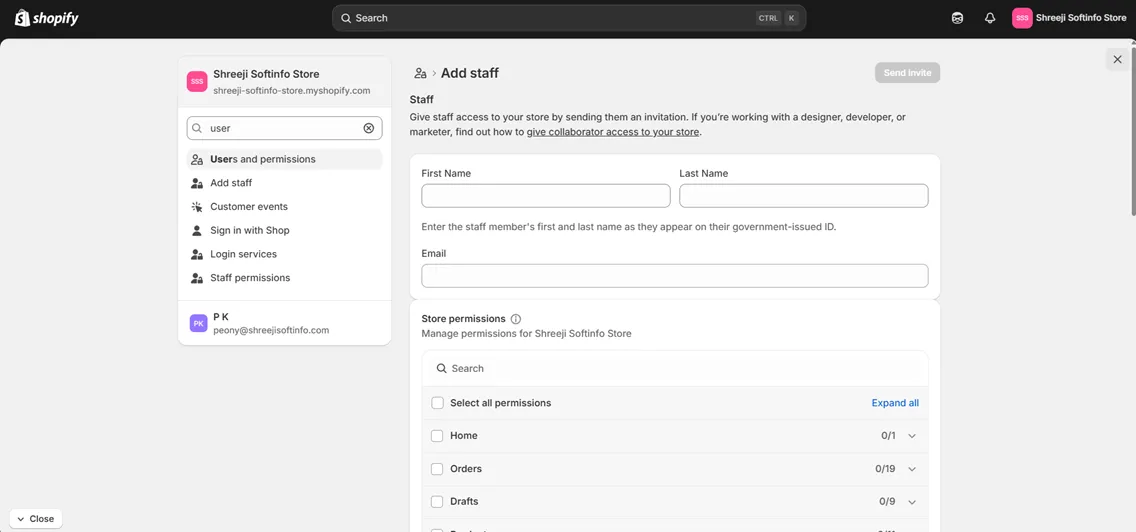
2. Add the staff’s name and email and assign the required permissions to the staff.
3. The staff then needs to download the Shopify POS in their mobile.
4. Define users as staff in Shopify store under Point of Sale section.
5. Log in to Shopify POS using the staff user ID and password.
6. To place an order, the staff navigates to the Products section and selects the product for which the order needs to be created.
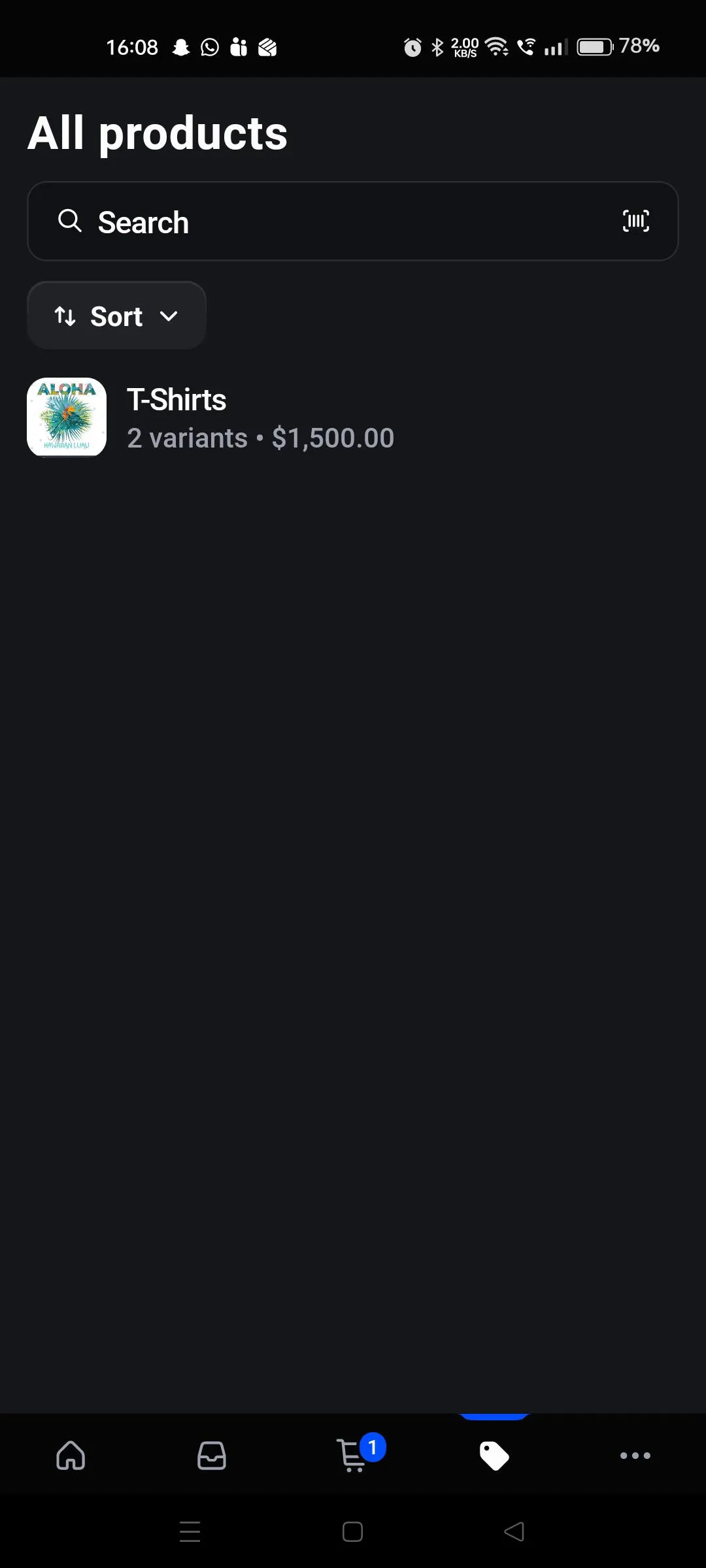
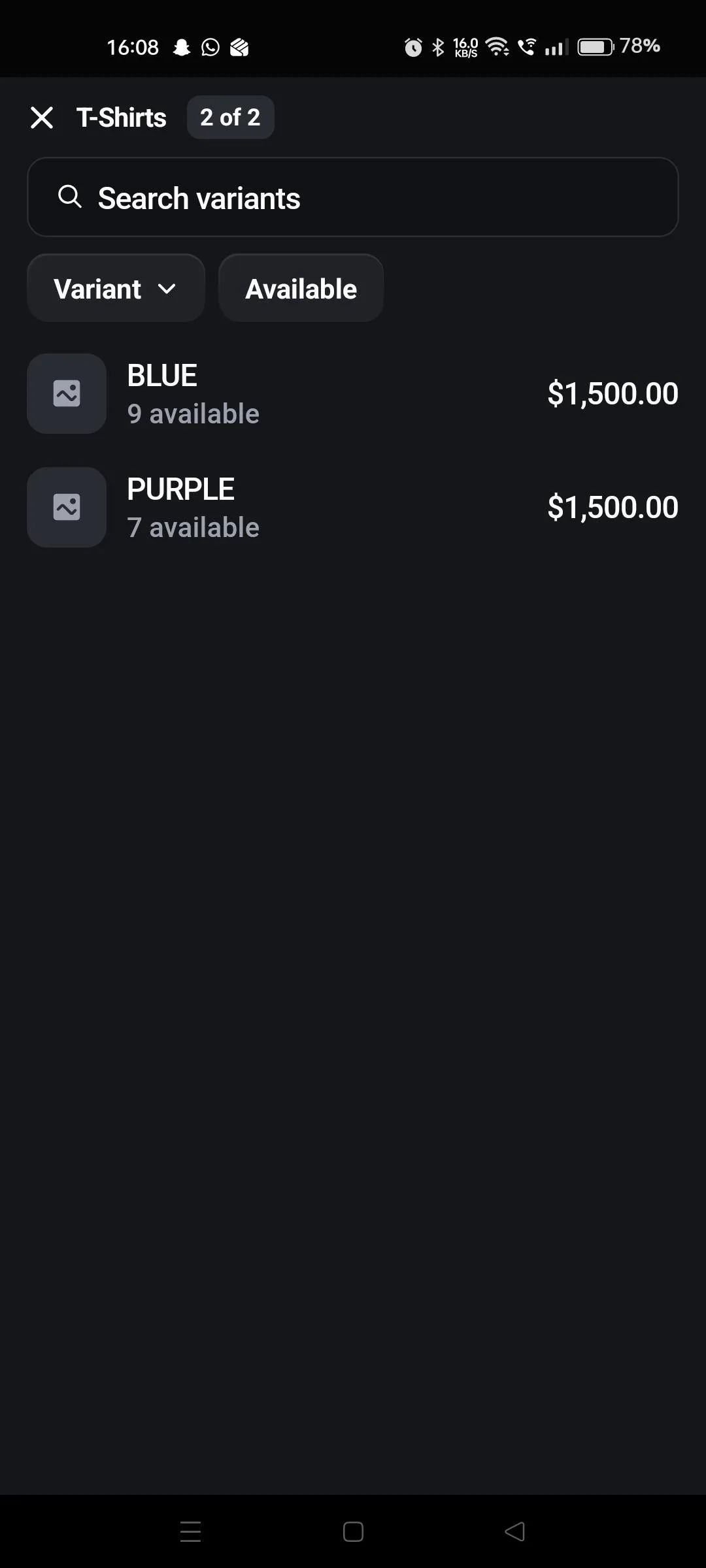
7. Select the product variant based on the customer’s preference.
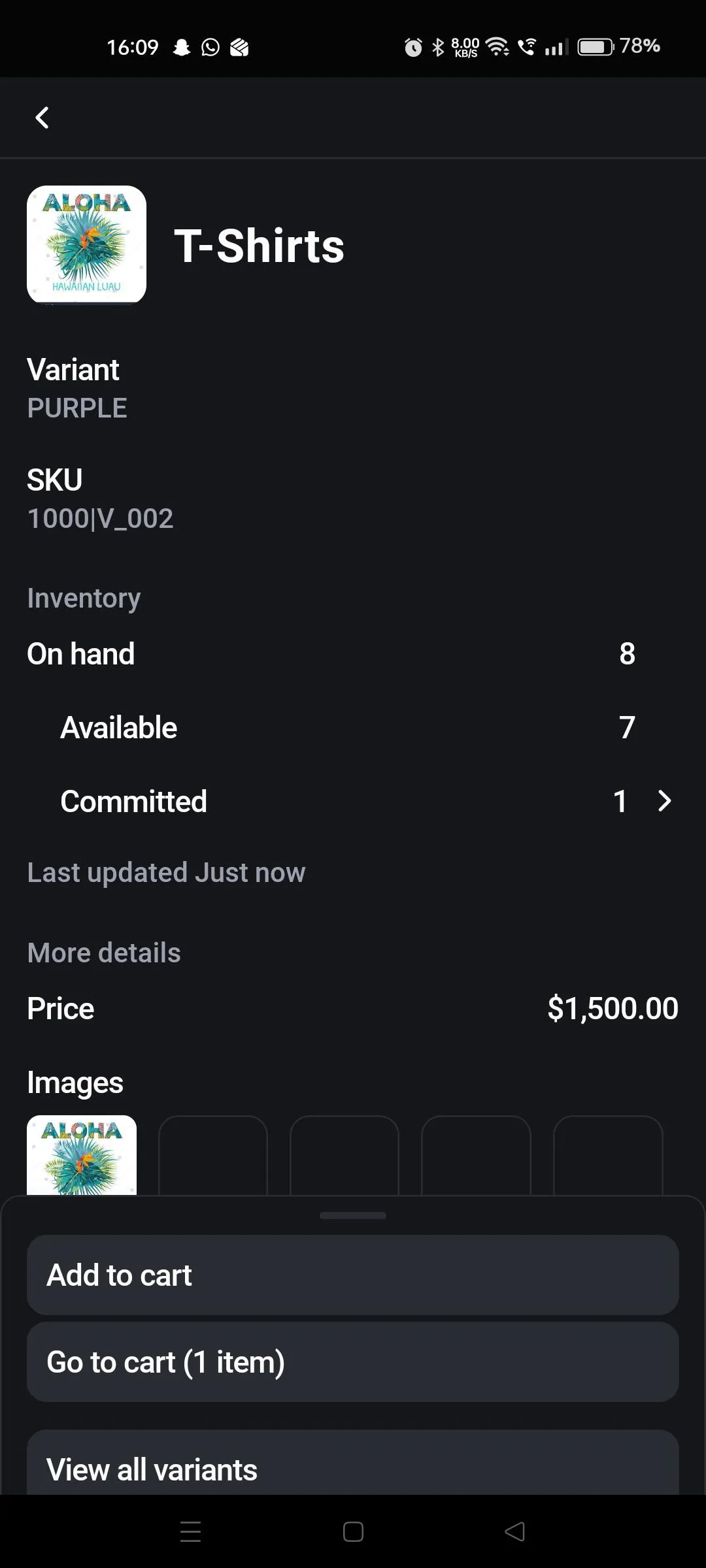
8. The product price and inventory details are displayed. Add the product to the cart and proceed to the cart to complete the payment process.
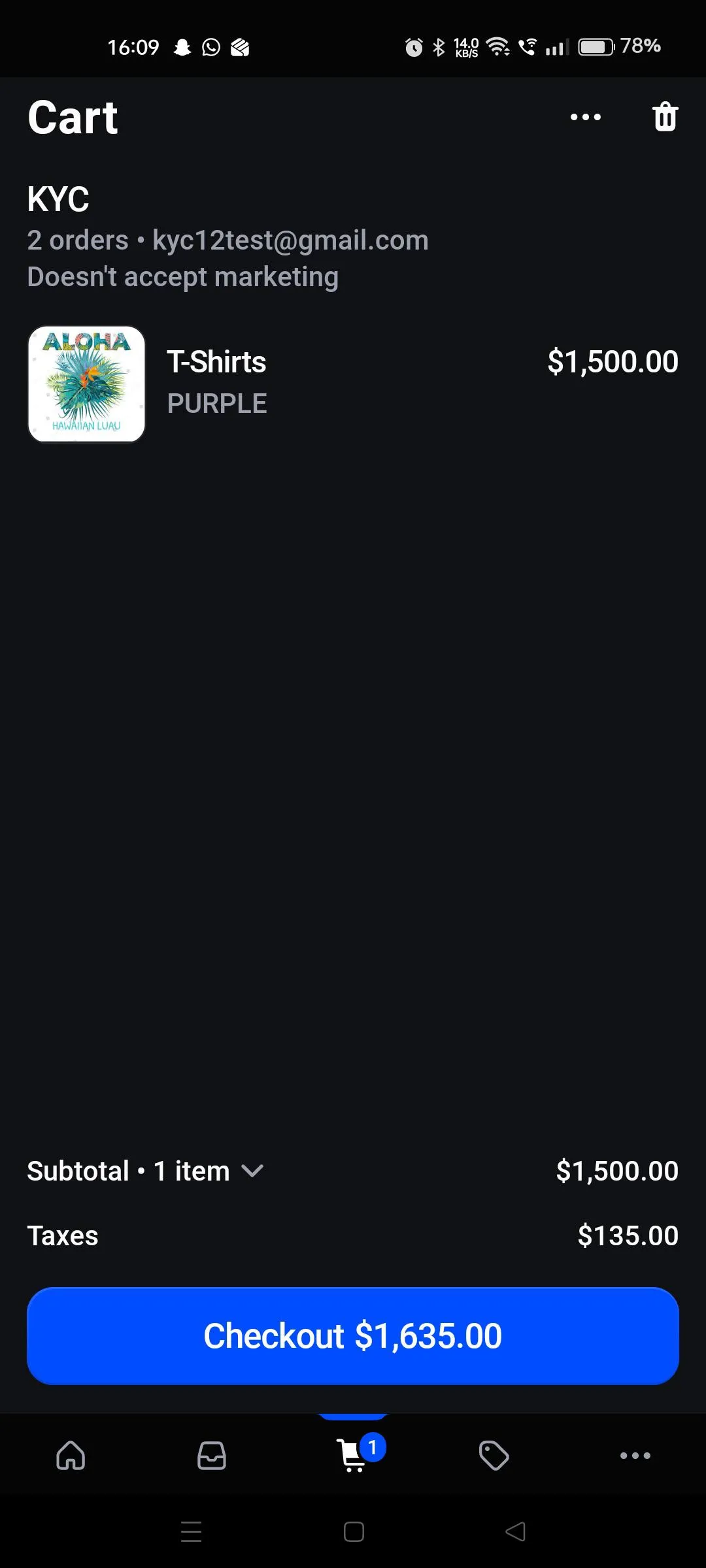
9. In the cart, the product price and applicable tax details are displayed clearly.
10. The staff selects whether the order is marked as paid or unpaid.
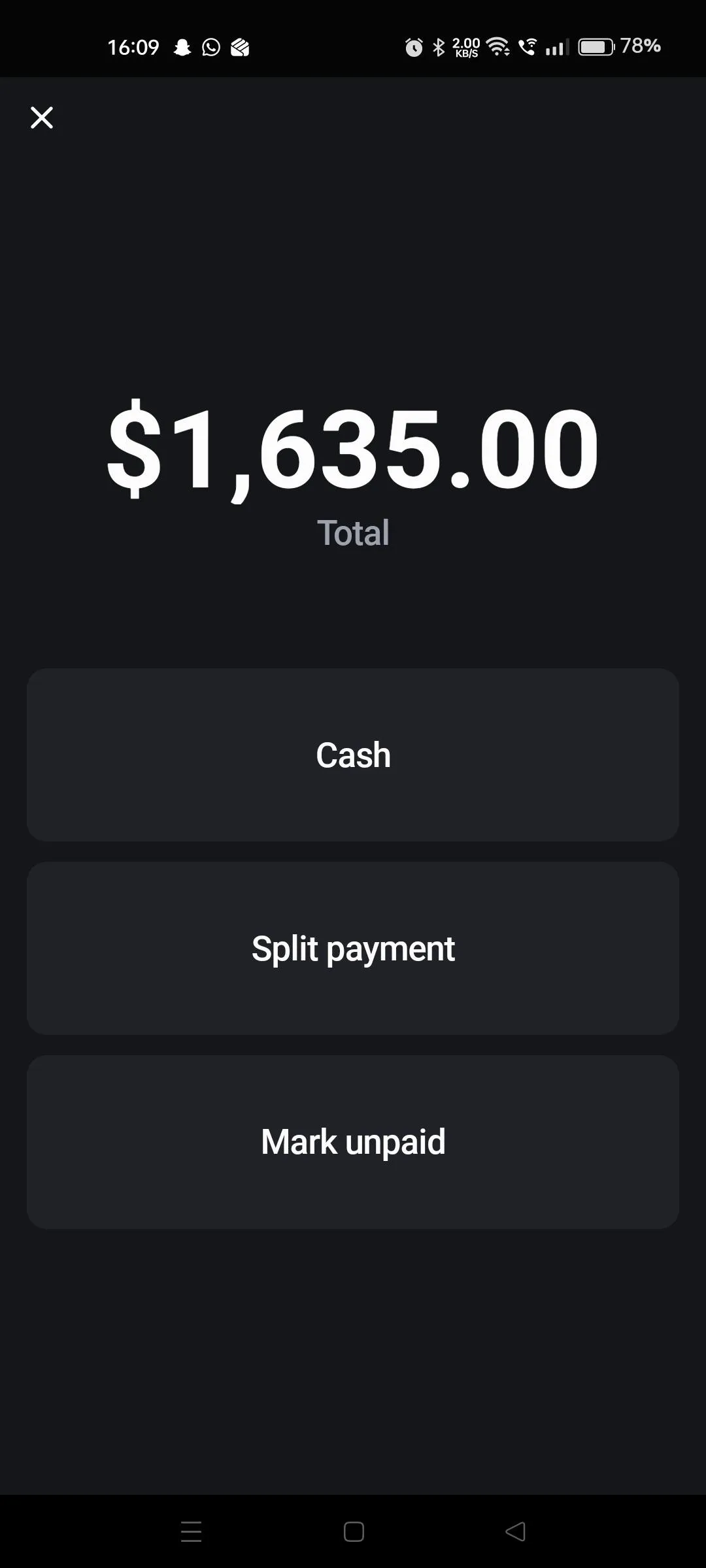
11. The staff can send the order details to the customer via email or text message and then complete the process.
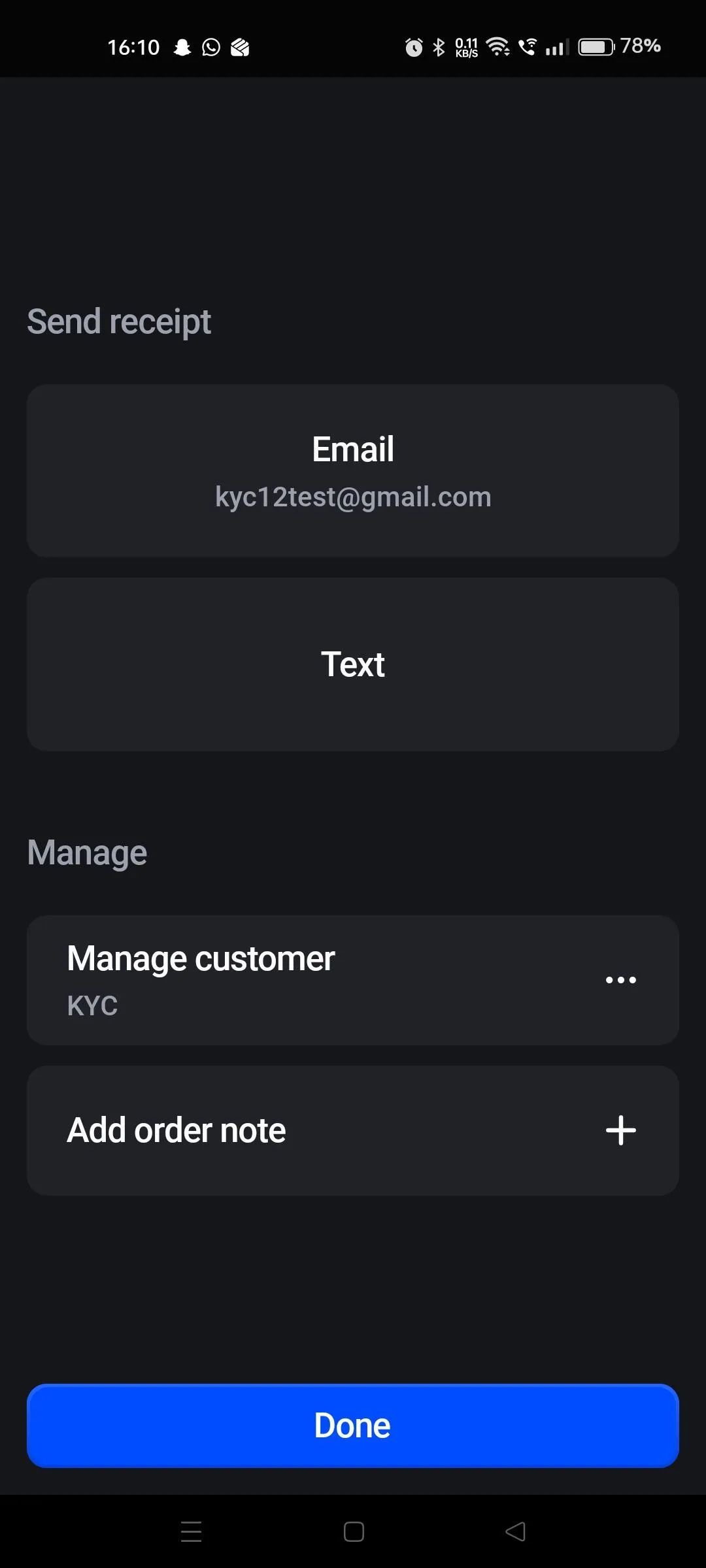
12. After processing the order in Shopify POS let’s see how the same order is processed in Business Central.
13. Before processing the Order these things are need to be keep in mind, items must be there in Shopify as well as in Business Central.
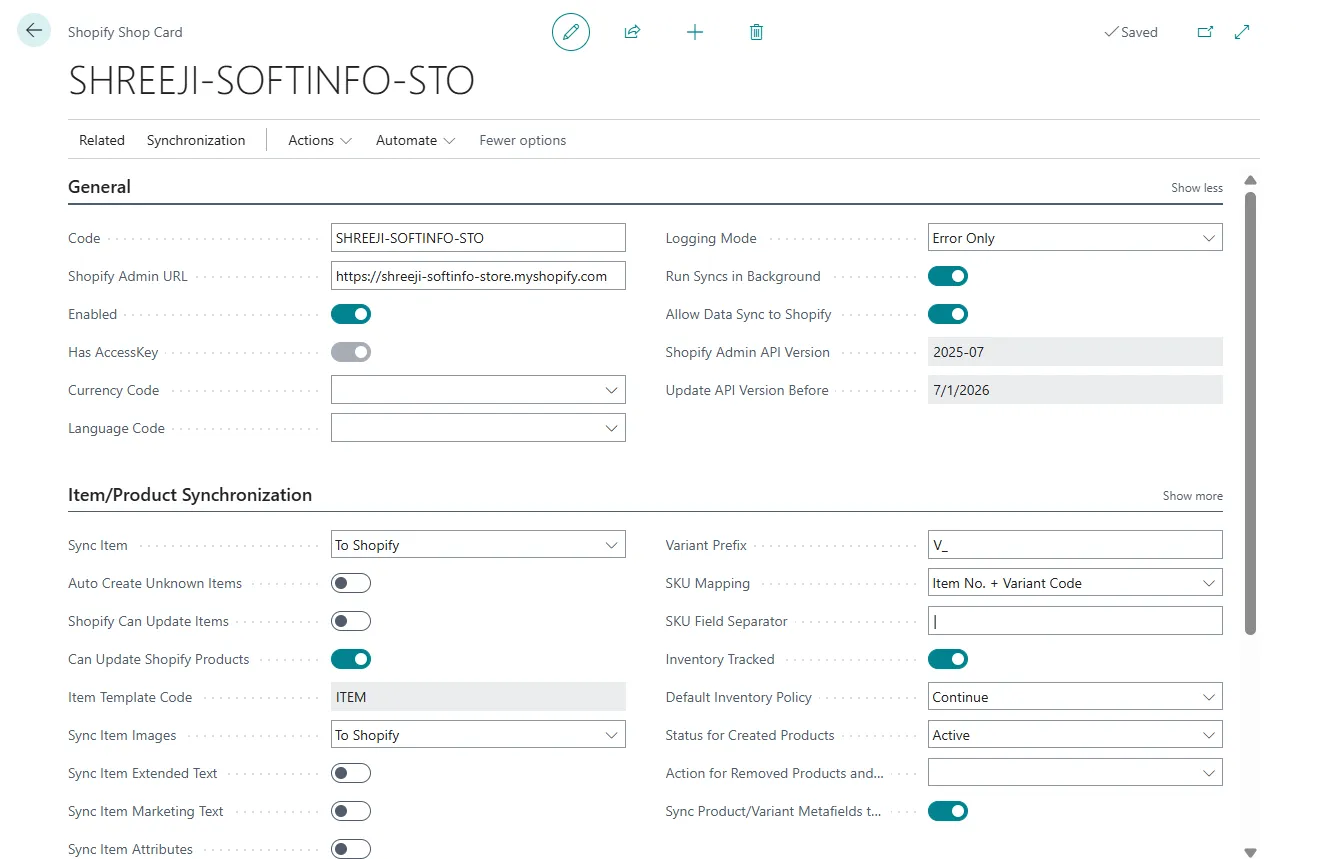
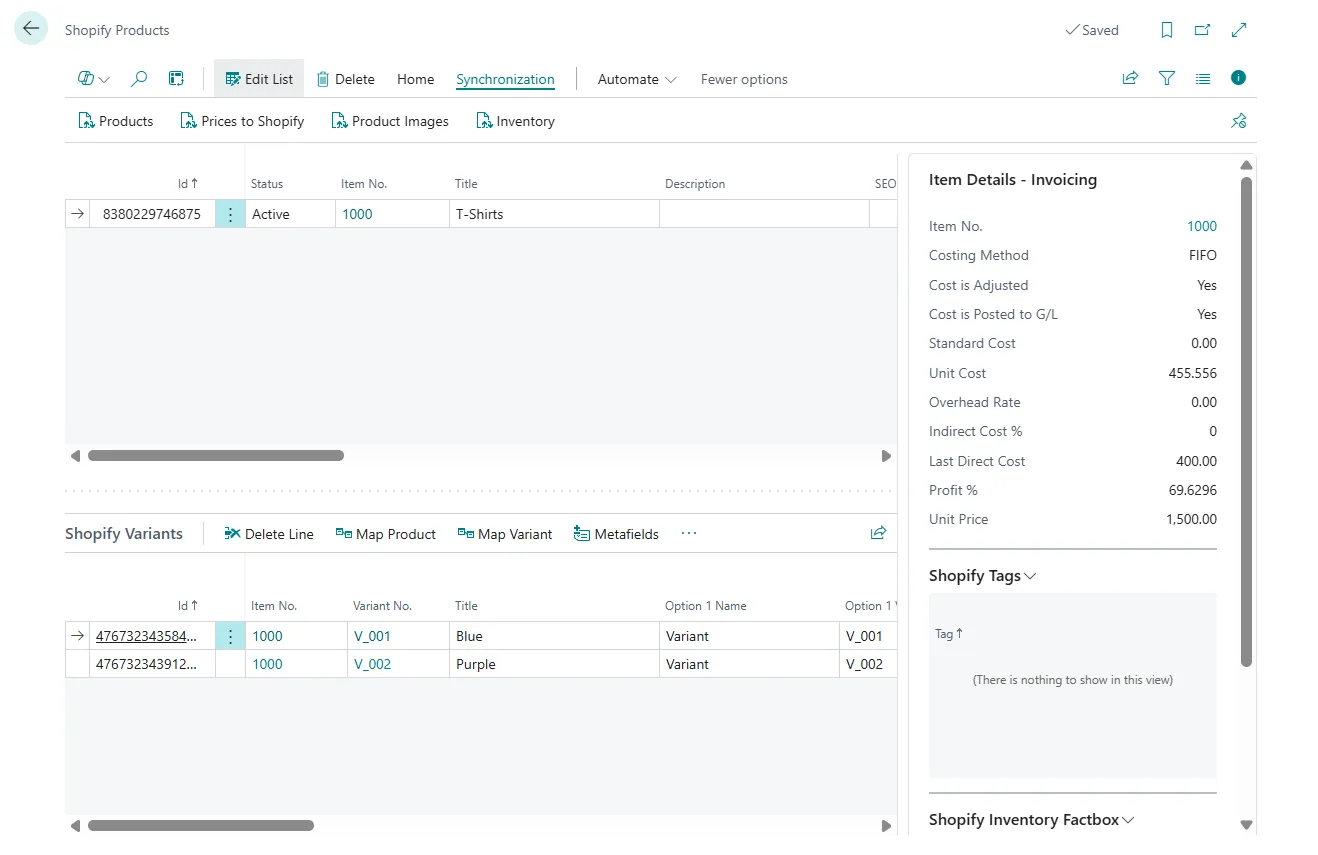
14. You also need to synchronize the customers/companies if they already exist in Business Central.
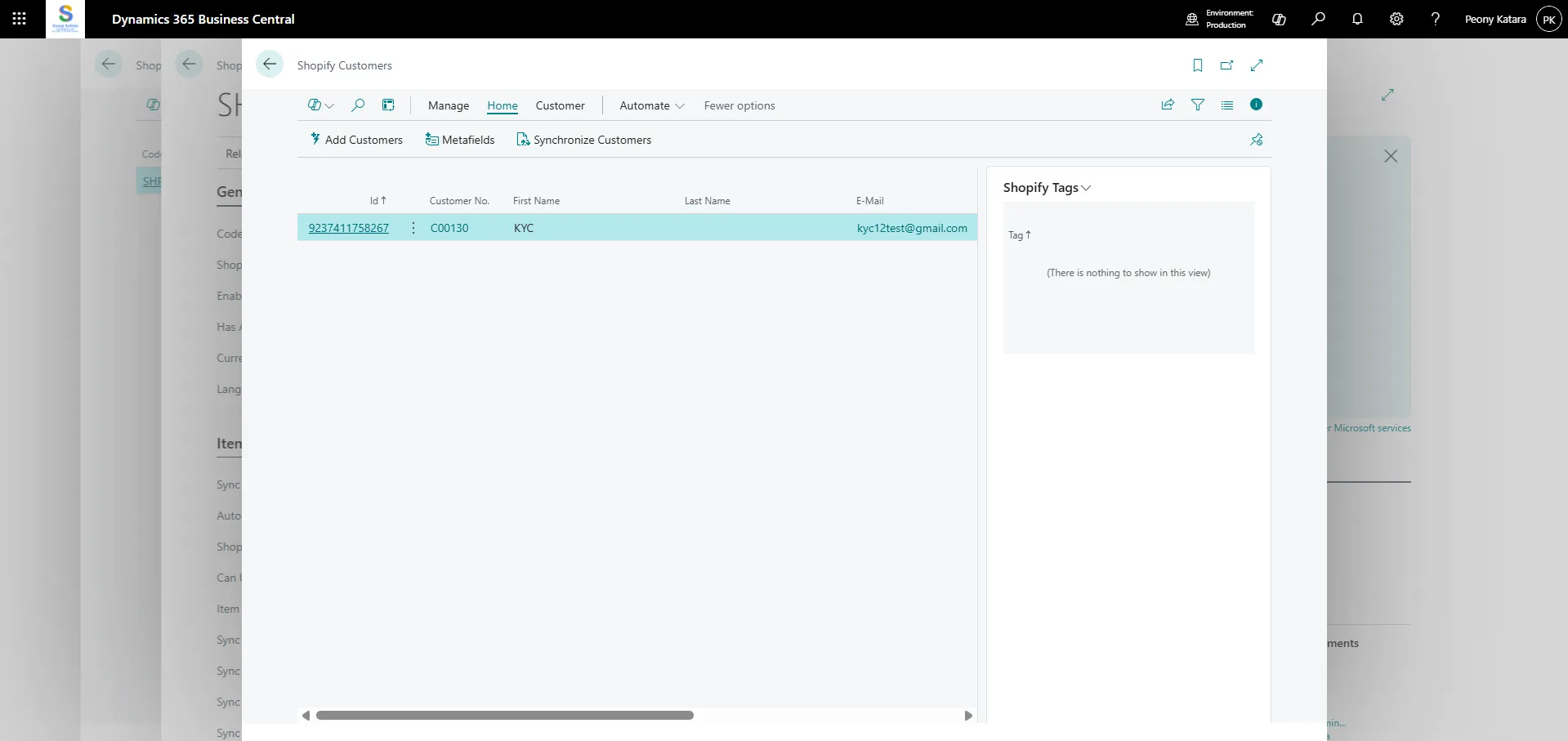
15. After syncing the items and customers create an order through Shopify POS.
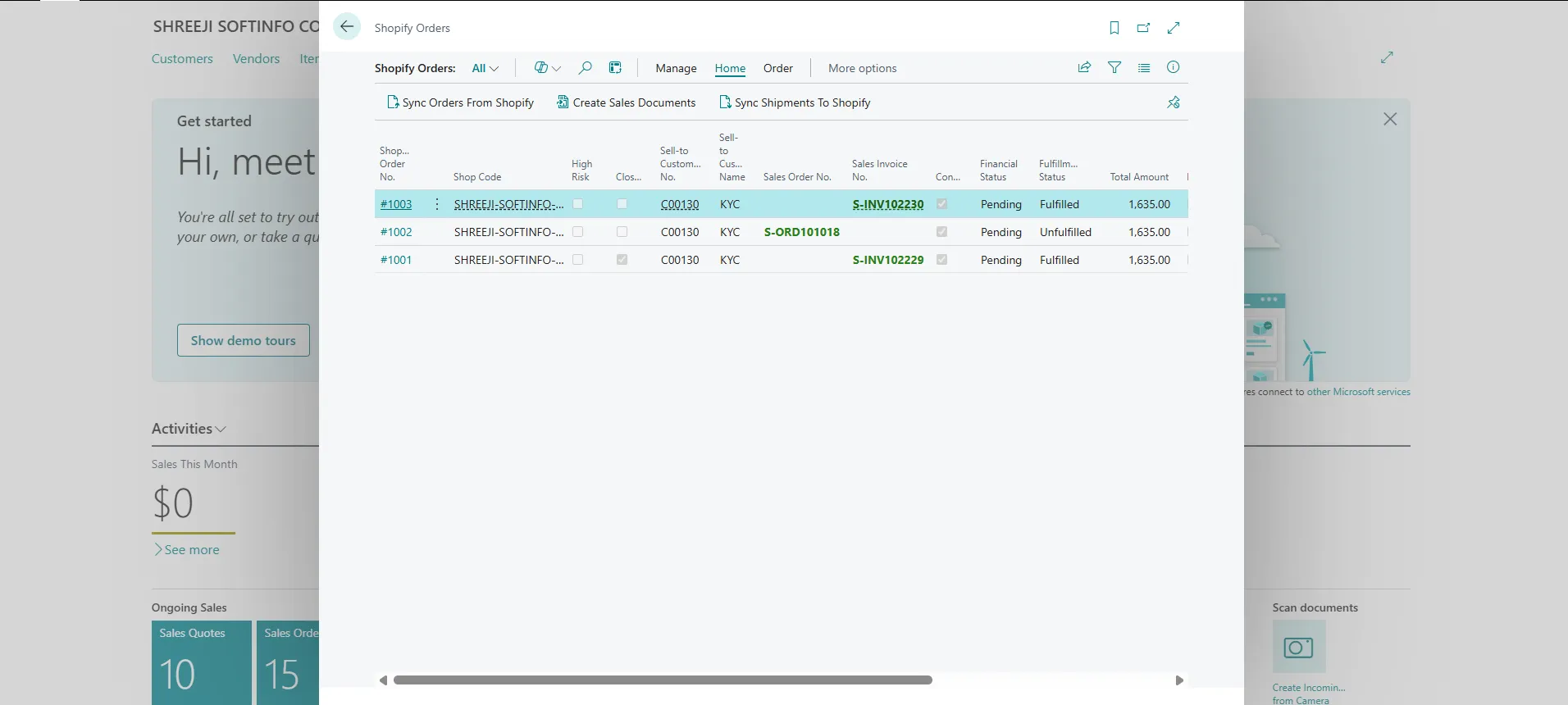
16. In Business Central, navigating to Shopify Orders allows users to view all orders fetched from Shopify. The Shop Code represents the Shopify store from which the orders are imported.
The Sell‑to Customer No. and Customer Name fields are automatically populated by the system. Based on the order status, Business Central automatically creates the required sales documents.
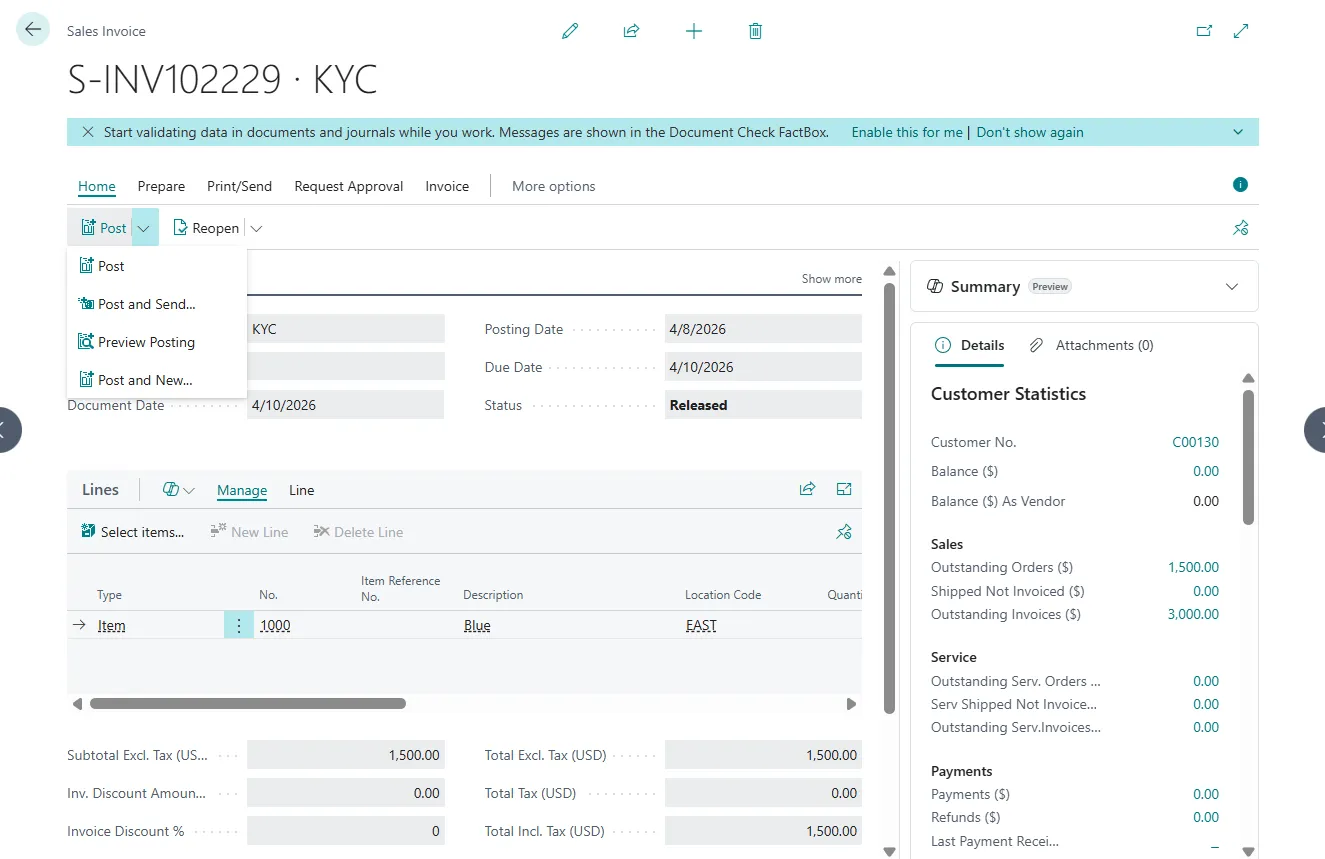
For Shopify Order No. #1001, the fulfillment status is Fulfilled. Based on this status, the system automatically generates a Sales Invoice. However, if automatic invoice creation is not required, the system provides functionality to disable this process.
For Shopify Order No. #1002, the fulfillment status is Unfulfilled. As the items have not yet been dispatched, the system automatically creates a Sales Order instead.
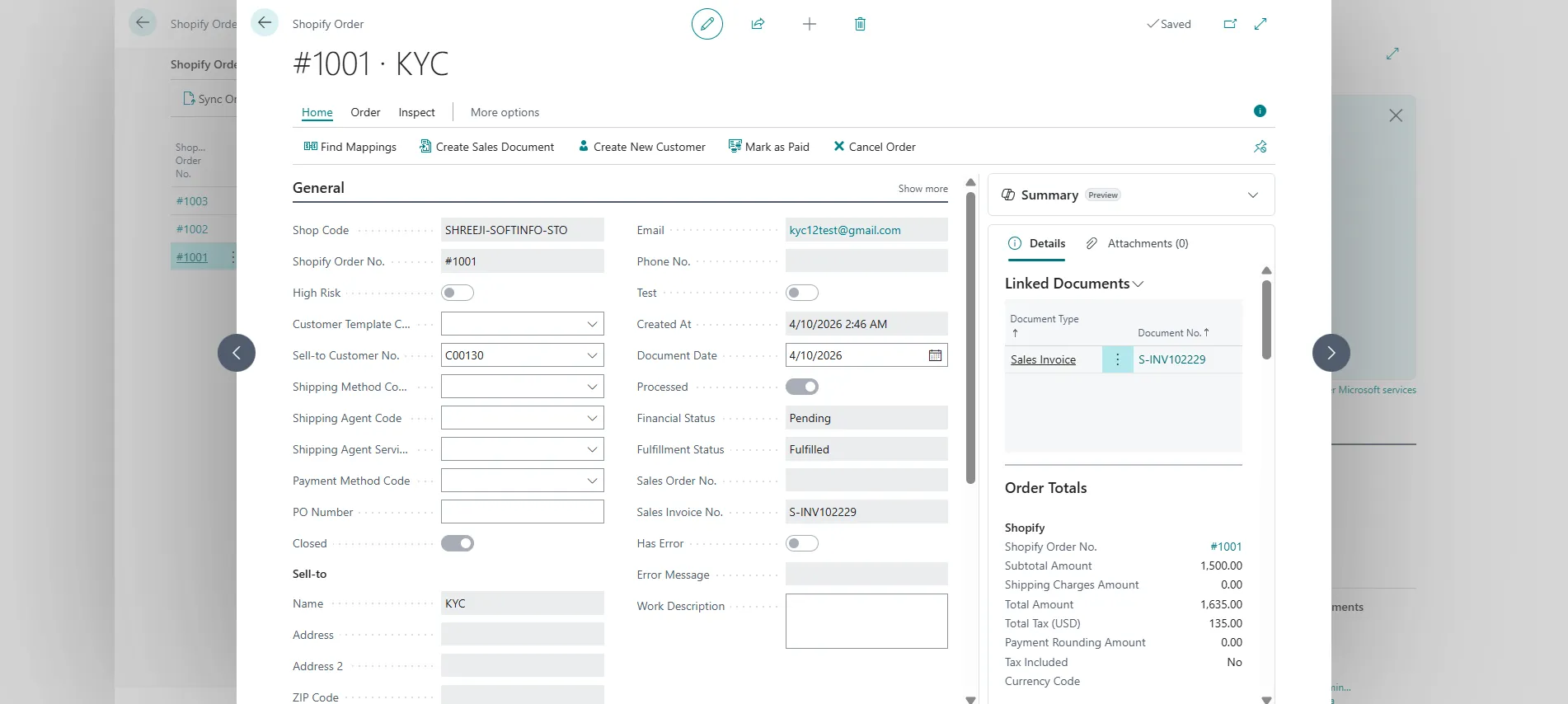
17. In Shopify Orders within Business Central, orders can be marked as paid or cancelled as required. Users also have the option to create a new customer directly from the Shopify order. Additionally, a sales document can be manually generated using the Create Sales Document
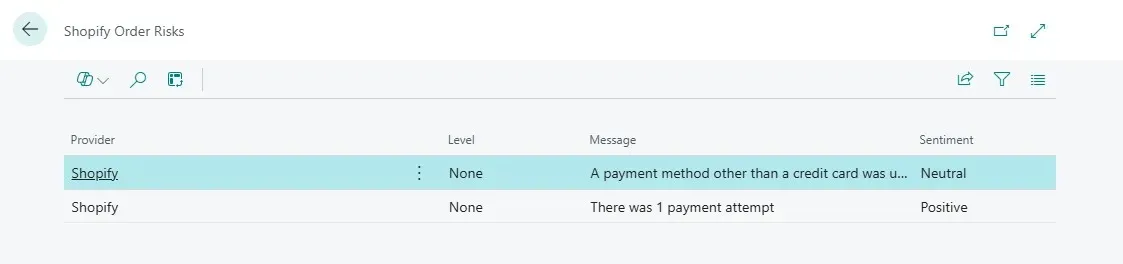
18. Any risks associated with the order can be reviewed from the Risk In the ribbon, navigate to Order → Risk to view the risks linked to the selected order.
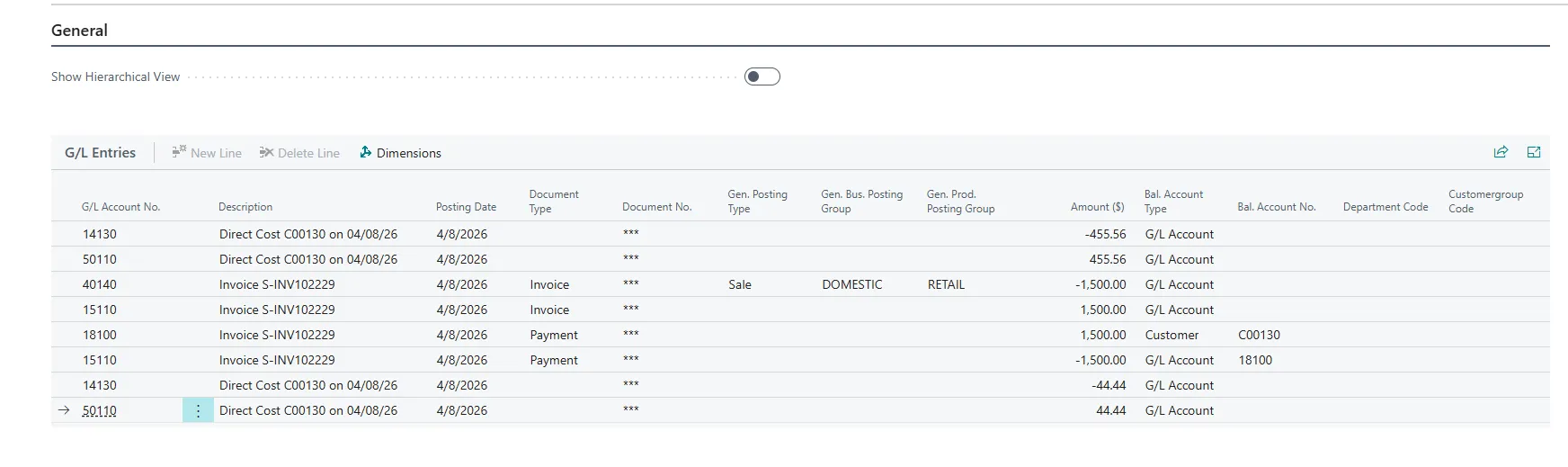
19. Based on this information, you can decide whether the invoice should be posted in the system or not.
20. The Payment is On receipt of the payment, the system updates the sentiment to positive, and the associated risks are automatically updated accordingly.
21.On receipt of the payment, the system updates the sentiment to positive, and the associated risks are automatically updated accordingly.
22. The invoice can now be posted successfully.