
Business Central stores contact details (email, phone, etc.) for people and organizations you work with, such as customers, vendors, banks, and leads.
When working in Outlook or Microsoft Teams, users often need quick access to these business contacts.
Switching between Business Central and Outlook/Teams can interrupt the flow of work.
To solve this, Business Central provides a contact synchronization feature.
This feature saves business contacts from Business Central to Microsoft Outlook and Teams.
Synced contacts are stored in your Microsoft 365 contacts list.
These contacts appear on the People page in Outlook and Teams.
The synchronized contacts are visible only to the individual user, not organization-wide.
Once synced, you can:
- Search contacts directly from the To field when composing emails
- Create group chats in Teams
- Call contacts or schedule meetings easily
Overall, the feature helps users stay productive and work seamlessly within Outlook and Teams without switching applications.
Prerequisites
- Your work account has a license to use Business Central and Microsoft 365.
- You have access to Microsoft Outlook or Microsoft Teams on your desktop, browser, or mobile device.
- You have access to Contacts in Business Central.
Process to save Business Central contacts to Outlook and Teams
Here is a concise, point‑wise summary of the steps to save Business Central contacts to Outlook and Teams:
- Open Business Central and search for Contacts using Alt+Q or the search icon.

- Navigate to the Contacts list page.
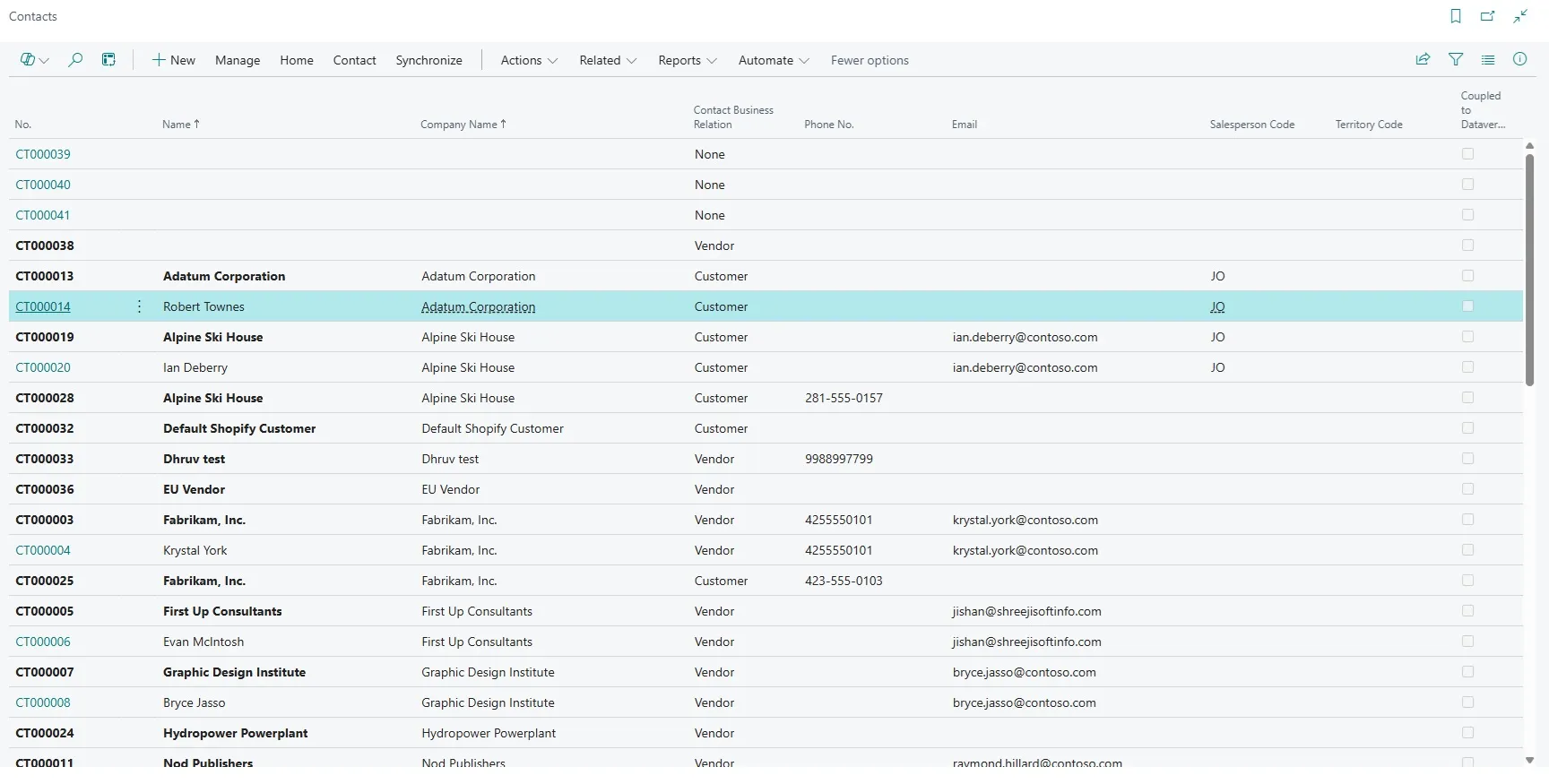
- From the action bar, go to More options → Actions → Synchronize with Outlook.
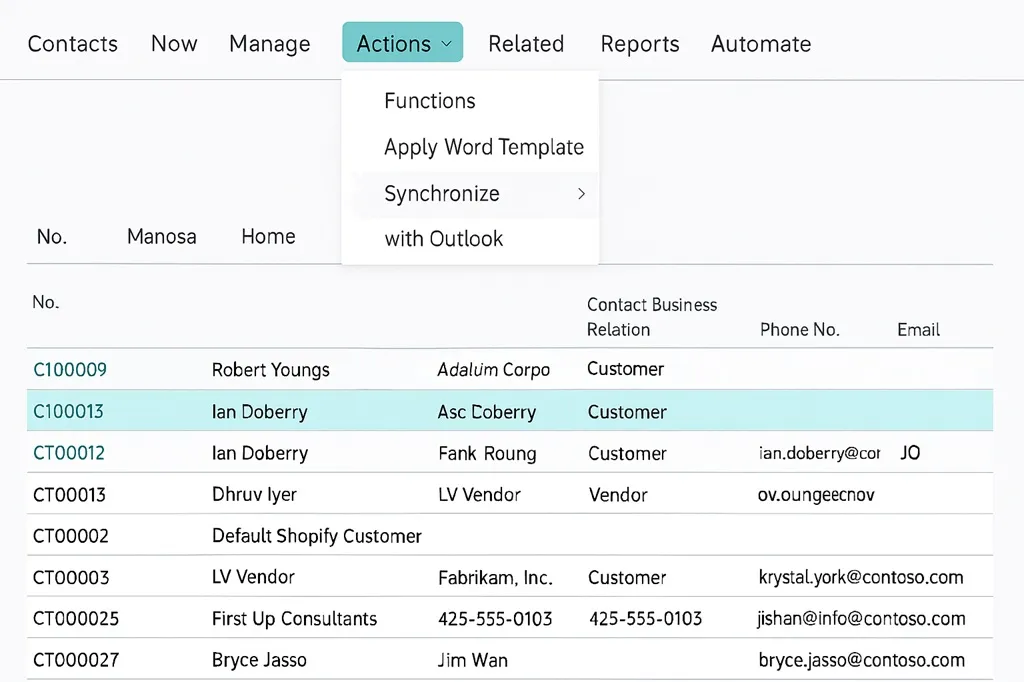
- Select Next to start the setup.
- Configure synchronization settings:
- Filter which contacts to sync using Choose contacts (for example by salesperson, city, country, etc.).
- Select the Outlook Contacts folder where the business contacts will be stored.
- For first-time sync, Business Central performs a full synchronization by default.
- Select Next to let Business Central search and match contacts based on the selected filters.
- Preview synchronization results:
- Review contacts from Business Central that will be added to Outlook and exclude any if required.
- Review contacts already in Outlook that do not exist in Business Central.
- By default, synchronization is one-way (Business Central → Outlook); two-way sync should be used only after understanding the risks.
- Select Synchronize to copy contacts to Outlook (this may take a few minutes).
- Review the summary report showing processed contacts, duration, and any errors.
- Select Close to finish the process.
- After completion, the contacts are available in Outlook and Microsoft Teams under your Microsoft 365 contacts.
Tips and Tricks
1. Conditions for synchronizing contacts
- Only Person-type contacts are synchronized; Company-type contacts are ignored.
- Contacts must have an email address to be synchronized.
- If a contact with the same email already exists in Outlook, it is not duplicated or overwritten.
- Changing a contact’s email in Business Central creates a duplicate in Outlook on the next sync.
- Changes to non-email fields in Business Central do not update existing Outlook contacts.
- If a contact is deleted in Outlook but exists in Business Central, it will be recreated during the next sync.
2. Choosing contacts to synchronize
- Contacts are selected using filters in the Synchronize Contacts page.
- Filters can be applied based on salesperson, city, country/region, and other fields.
- Filtering directly on the Contacts list page does not affect synchronization.
3. Keeping business contacts separate
- Outlook and Teams allow organizing contacts via folders, lists, or categories.
- Choosing the Default folder mixes business and personal contacts.
- Using a dedicated contact folder keeps Business Central contacts separate.
4. Working with multiple companies
- Only contacts from the currently selected Business Central company are synchronized.
- To sync contacts from multiple companies, you must switch companies and sync again.
- For better organization, create separate Outlook folders per company and sync accordingly.
5. Large contact lists
- Synchronizing large volumes takes time.
- On average, 1,000 contacts take about 3 minutes to synchronize.
6. Synchronization and security
- Synchronization does not grant access or permissions to Business Central or company data.
- Contacts saved to Microsoft 365 are private to the user.
- Contacts saved from Outlook to Business Central become visible to others in the organization.
7. External users
- Synchronization is not supported for guest, external, or B2B Direct users.
8. Exchange Server limitations
- Synchronization relies on Microsoft Graph.
- Organizations using Exchange Server (on‑premises) are not supported.
9. Business Central on‑premises
- Contact synchronization is supported only if Exchange Online is used.
- Synchronization may take longer compared to cloud environments.
10.Older Business Central versions
- From version 28 onward, background sync jobs are removed.
- Each user must sync contacts individually to their Microsoft 365 account.
- Contact merging between Business Central and Outlook is not possible.
11. Troubleshooting synchronization
- Changes or duplicates can occur over time.
- Use Force full sync to ignore previous sync history and resynchronize all contacts.
Updating Business Central by saving contacts from Outlook and Teams:
- Business Central supports an advanced two‑way synchronization between Outlook/Teams and Business Central contacts.
- By default, updates made only in Outlook do NOT update Business Central.
- If the “What to update” option is set to “Business Central and Outlook”, contacts from the selected Outlook/Teams folder are:
- Copied back into Business Central
- Potentially visible to other users in the organization
- Two‑way synchronization is not recommended and should be used with caution.
- Risks of enabling two‑way sync include:
- Accidental sharing of personal contacts
- Syncing internal or unrelated external contacts into Business Central
- You should enable this option only if you fully understand the contents of the Outlook contacts folder and are prepared to share them organization‑wide.
- Microsoft has indicated that two‑way synchronization may be removed in the future, so reliance on this feature is discouraged.
Best practice: Use one‑way sync (Business Central → Outlook) to avoid data exposure and unintended contact sharing.