In This Article
- Understanding Business Central’s update architecture
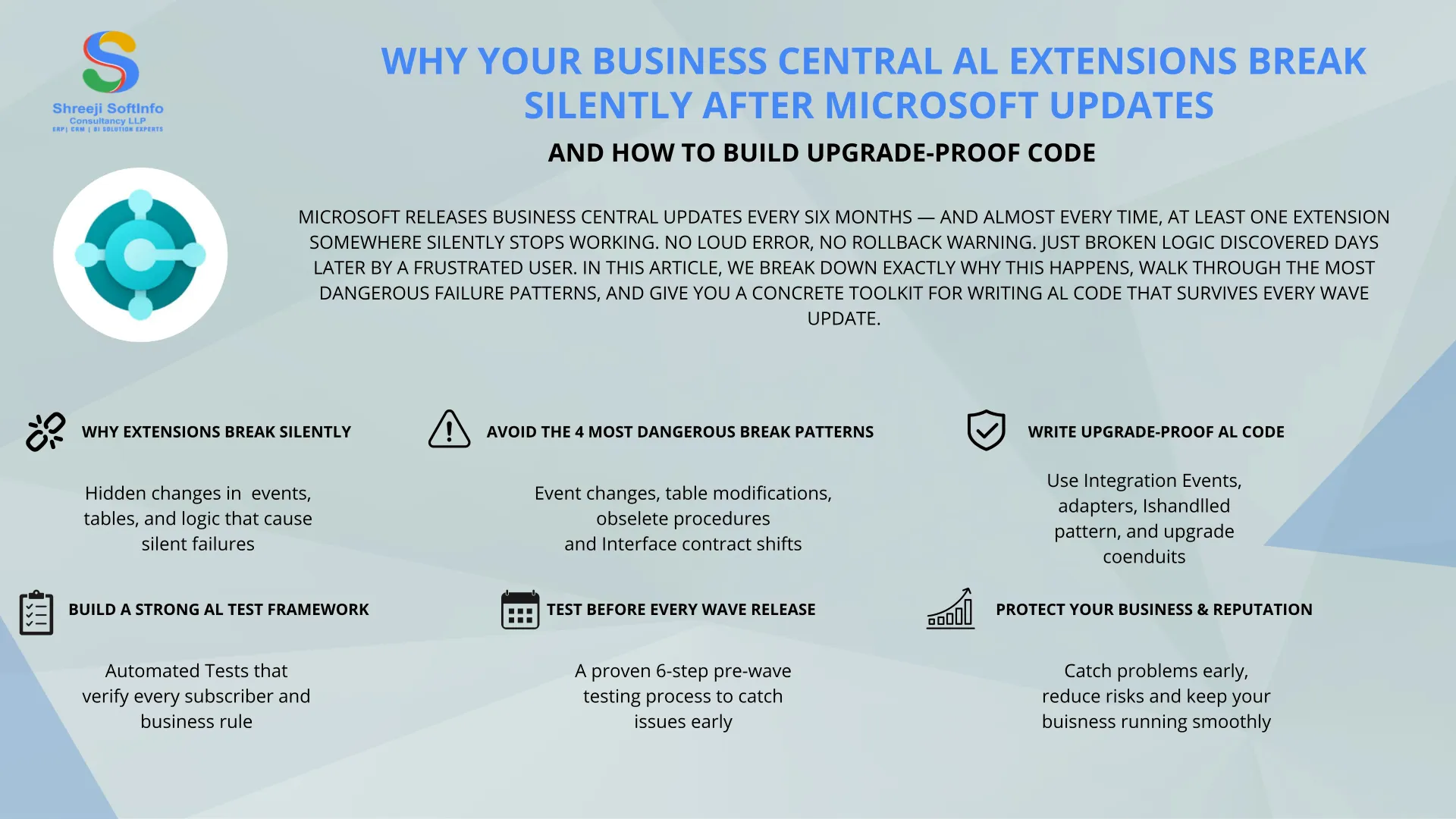
- Why extensions break silently
- The four most dangerous break patterns
- How to write upgrade-proof AL code
- Setting up a proper AL test framework
- Testing before every wave release
- Real-world case study: a silent posting failure
- Upgrade-proof checklist
- Frequently asked questions
1. Understanding Business Central’s Update Architecture
Microsoft ships Business Central in two major waves per year — Wave 1 in April and Wave 2 in October.
Each wave can include changes to the base application, platform-level APIs, table schemas, codeunit logic, and event publishers. Extensions built on top of the base app are compiled against a specific version of the base application symbols.
When a wave update arrives, your extension is recompiled against the new symbols. If the symbols match, the extension is considered compatible — but that compatibility check only covers the compiler. It does not verify that runtime behavior, event firing order, or data flow is intact.
What the Compiler Checks
- Symbol availability
- Procedure signatures
- Table field existence
- Type compatibility
What the Compiler Does Not Check
- Whether an event still fires
- Whether a workflow step still executes
- Whether data migration ran correctly
- Whether business logic still runs in the right transaction order
2. Why Extensions Break Silently
The AL extension model is built on events and subscribers. Your code does not directly modify base application objects. Instead, it listens for events those objects publish and runs your custom logic in response.
This is elegant, but it creates an invisible contract between your code and Microsoft’s base application.
When Microsoft changes the base application, that contract can break in ways that produce no compilation error and no runtime exception. The subscriber simply never fires.
Three Common Silent Break Scenarios
- Event removed: Microsoft removes a publisher entirely. Your subscriber is registered but never called.
- Event renamed: The publisher gets a new name. The old name disappears silently from the symbol table.
- Calling order changed: The event still fires, but at a different point in the transaction — after your custom validation would have been meaningful.
Key Insight: Business Central will not tell you when a subscriber stops firing. There is no warning in the event log, no alert in the admin center, and no compilation failure. The only signal is a business process that quietly produces wrong results.
3. The Four Most Dangerous Break Patterns
Event Publisher Changes
Microsoft modifies or removes an event publisher in a base codeunit. Your subscriber is never called — and no error is raised.
Table Field Modifications
A base table field changes its data type, length, or gets obsoleted. Your extension may silently read stale or broken data.
Obsoleted Procedures
A procedure is marked obsolete in one wave and removed two waves later. This is often missed until production breaks.
Interface Contract Changes
An AL interface that your codeunit implements changes its method signatures. Compilation may pass, but runtime behavior can fail.
A Dangerous Pattern in Real AL Code
// DANGEROUS: subscribing to an internal event

[EventSubscriber(ObjectType::Codeunit, Codeunit::"Sales-Post",
'OnBeforePostSalesDoc', '', false, false)]
local procedure MyCustomValidation(var SalesHeader: Record "Sales Header")
begin
    // If Microsoft removes or renames OnBeforePostSalesDoc,
    // this procedure NEVER runs. Zero errors. Zero warnings.

    ValidateApprovalStatus(SalesHeader);
    CheckCustomerCreditLimit(SalesHeader);
end;
4. How to Write Upgrade-Proof AL Code
4.1 Always Prefer Integration Events
Microsoft commits to backward compatibility for integration events — those explicitly marked with the IntegrationEvent attribute. Internal events have no such guarantee.
Before you subscribe to any event, check Microsoft’s documentation or the base app source to confirm it is an integration event.
// Check that the event is an IntegrationEvent before subscribing

[IntegrationEvent(false, false)]
local procedure OnBeforeValidateCustomField(
    var Rec: Record "Sales Header";
    var IsHandled: Boolean)
begin
end;

// Correct subscriber — integration event is safer across waves

[EventSubscriber(ObjectType::Codeunit, Codeunit::"Sales-Post",
'OnBeforeValidateCustomField', '', false, false)]
local procedure HandleCustomValidation(
    var Rec: Record "Sales Header";
    var IsHandled: Boolean)
begin
    if IsHandled then
        exit;

    ValidateApprovalStatus(Rec);
    IsHandled := true;
end;
4.2 Use an Adapter Codeunit to Isolate Base App Calls
Instead of scattering calls to base application codeunits throughout your extension, centralize them in a single adapter codeunit.
When Microsoft changes something in wave N+1, you update one file — not twenty. This also makes it easier to mock base app calls in unit tests.
// adapter/SalesPostAdapter.al

codeunit 50100 "Sales Post Adapter"
{
    procedure PostSalesOrder(var SalesHeader: Record "Sales Header")
    var
        SalesPost: Codeunit "Sales-Post";
    begin
        // ONE place to update when Microsoft changes Sales-Post
        SalesPost.Run(SalesHeader);
    end;

    procedure GetCustomerBalance(CustomerNo: Code[20]): Decimal
    var
        Customer: Record Customer;
    begin
        Customer.Get(CustomerNo);
        exit(Customer."Balance (LCY)");
    end;
}
4.3 Never Hard-Code Field Numbers — Always Use Field Names
// WRONG — field numbers can shift between versions
SalesHeader.FieldNo(50001)

// RIGHT — field names are stable identifiers
SalesHeader.FieldNo("Custom Approval Status")

// Also use field names in SETRANGE / SETFILTER
SalesHeader.SetRange(
    "Custom Approval Status",
    SalesHeader."Custom Approval Status"::Approved);
4.4 Handle the IsHandled Pattern Properly
Many base application events pass an IsHandled boolean. If your subscriber sets IsHandled to true, the base app skips its default logic.
Forgetting to check IsHandled at the start of your subscriber means your code may run even when another extension already handled the event — causing double-processing bugs that are very hard to reproduce.
[EventSubscriber(ObjectType::Codeunit, Codeunit::"Sales-Post",
'OnBeforePostLines', '', false, false)]
local procedure OnBeforePostLines(
    var SalesHeader: Record "Sales Header";
    var IsHandled: Boolean)
begin
    if IsHandled then
        exit; // Always check first!

    // your logic here
    IsHandled := true;
end;
4.5 Write an Upgrade Codeunit for Every Data-Storing Extension
If your extension stores custom data and Microsoft modifies an underlying table between waves, your data can become orphaned or misaligned.
The upgrade codeunit pattern ensures transformations run automatically when the tenant upgrades.
codeunit 50200 "SSI Upgrade Codeunit"
{
    Subtype = Upgrade;

    trigger OnUpgradePerDatabase()
    begin
        MigrateGlobalSettings();
    end;

    trigger OnUpgradePerCompany()
    begin
        MigrateCustomApprovalRecords();
        SetDefaultValuesForNewFields();
    end;

    local procedure MigrateCustomApprovalRecords()
    var
        OldTable: Record "SSI Old Approval Entry";
        NewTable: Record "SSI Approval Entry";
    begin
        if OldTable.FindSet() then
            repeat
                NewTable.TransferFields(OldTable);
                NewTable.Insert();
            until OldTable.Next() = 0;
    end;
}
Best Practice: Think of the upgrade codeunit as your safety net for data. Without it, wave updates can leave custom table records in an inconsistent state that breaks reporting, approvals, and integrations — silently.
5. Setting Up a Proper AL Test Framework
The most reliable way to detect silent failures is to write AL unit tests that explicitly verify each subscriber fires and produces the expected result.
Business Central supports AL test codeunits natively. They are your first line of defence against wave regressions.
Basic Structure of an AL Test Codeunit
codeunit 50300 "SSI Sales Post Tests"
{
    Subtype = Test;
    TestPermissions = Disabled;

    [Test]
    procedure TestCustomValidationFiresOnPost()
    var
        SalesHeader: Record "Sales Header";
        LibrarySales: Codeunit "Library - Sales";
        Assert: Codeunit Assert;
    begin
        // Arrange
        LibrarySales.CreateSalesOrder(SalesHeader);
        SalesHeader."Custom Approval Status" :=
            SalesHeader."Custom Approval Status"::Pending;
        SalesHeader.Modify();

        // Act + Assert
        asserterror LibrarySales.PostSalesDocument(SalesHeader, true, true);
        Assert.ExpectedError('Approval required before posting.');
    end;
}
Key Rules for Effective AL Tests
- Each test must be independent and create its own data.
- Use Microsoft Library codeunits such as
Library - SalesandLibrary - Purchasefor data setup. - Never test against production data.
- Run your full test suite in the pre-release sandbox before every wave goes live.
Pro Tip from Shreeji Softinfo: Set up a CI/CD pipeline that automatically runs your AL test suite against the pre-release sandbox environment. Microsoft usually makes pre-release available 4–6 weeks before a wave goes live. Catching failures at week 1 gives you 5 weeks to fix — catching them at go-live gives you nothing.
6. Testing Before Every Wave Release
A structured pre-wave testing process is the difference between proactive maintenance and emergency firefighting.
Here is the step-by-step process we follow at Shreeji Softinfo for every client extension before a Business Central wave update goes live:
Step 1: Week 1 — Pre-Release Sandbox Setup
As soon as Microsoft opens the pre-release sandbox, typically 4–6 weeks before go-live, deploy all client extensions. Verify the sandbox is running the correct preview version.
Step 2: Week 1–2 — Automated Test Run
Execute the full AL test suite. Review every failure. A test that passes in production but fails in pre-release is your early warning. Investigate even minor warnings.
Step 3: Week 2 — Release Notes Review
Read Microsoft’s wave release notes line by line. Search for the names of every table, codeunit, and event your extensions touch. Pay special attention to “Obsoleted,” “Removed,” and “Breaking change” tags.
Step 4: Week 2–3 — Manual Scenario Testing
Run full end-to-end business scenarios: sales order posting, purchase invoice approval, and inventory adjustments. Have an actual user perform each workflow, not just a developer.
Step 5: Week 3 — Fix and Retest
Address all identified issues. Re-run automated tests after each fix. Do not ship a fix without a corresponding test case that would catch a future regression.
Step 6: Week 4 — Go / No-Go Decision
One week before wave go-live, make the deployment decision. If all tests pass and no critical issues remain, approve. If not, engage Microsoft support immediately — do not wait until go-live day.
7. Real-World Case Study: A Silent Posting Failure
One of our clients — a mid-sized distribution company — came to Shreeji Softinfo after discovering that 47 sales orders had been posted without the mandatory credit limit check they had been running for two years.
No one noticed for 11 days. The issue traced back to a single wave update.
What Happened
The client’s extension subscribed to an internal Business Central event — OnBeforePostSalesDoc — to validate credit limits before posting.
In Wave 2, Microsoft refactored the Sales-Post codeunit and renamed this event as part of a larger architecture change. The old event name was removed. The extension compiled without error. The credit limit validation stopped running entirely.
The Real Cost
- 11 days of undetected exposure — orders shipped without credit approval
- Manual audit of 47 orders across 3 companies
- Emergency developer engagement to patch the subscriber
- Reputation damage with two customers who were over their credit limit
How It Could Have Been Prevented
- Subscribing to the integration event version of the publisher, which Microsoft maintained
- Writing an AL test that explicitly verified the credit check fired during a test post
- Running pre-release sandbox testing to catch the silent failure in week 1
The Lesson: The cost of a 4-week pre-release test cycle is always lower than the cost of an 11-day silent failure in production. Build the test process once and it pays for itself on every wave update.
8. Upgrade-Proof AL Development Checklist
Code Architecture
- Use integration events, not internal events, wherever a stable one exists.
- Wrap all base app dependencies in a single adapter codeunit.
- Never reference field numbers directly — always use field names.
- Always check the
IsHandledparameter at the start of every subscriber. - Keep subscriber logic thin — delegate to testable helper codeunits.
Data Safety
- Write an upgrade codeunit for every extension that stores custom data.
- Test the upgrade codeunit against a copy of production data, not just demo data.
- Version-stamp your custom table records so upgrade logic can skip already-migrated rows.
Testing
- Write an AL test for every event subscriber — confirm it actually fires.
- Set up automated test runs in your CI/CD pipeline.
- Run the full test suite against the pre-release sandbox at least 3 weeks before go-live.
- Include end-to-end business scenario tests, not just unit tests.
Release Process
- Review Microsoft’s wave release notes and flag every change touching your extension.
- Make a go / no-go deployment decision at least 1 week before wave go-live.
- Engage Microsoft support early if issues are found — do not wait until go-live day.
- Keep a changelog of every subscriber and which base event it depends on.
Frequently Asked Questions
1. Why do Business Central AL extensions break after Microsoft updates?
Business Central AL extensions often break after Microsoft Wave 1 or Wave 2 updates because changes to event publishers, APIs, table schemas, or codeunit logic can silently impact custom extensions. In many cases, the extension still compiles successfully, but important event subscribers stop firing, causing hidden business process failures.
2. How can I make my Business Central AL extension upgrade-proof?
To build upgrade-proof AL extensions, developers should use Integration Events instead of internal events, avoid hard-coded field numbers, implement adapter codeunits, write upgrade codeunits for data migration, and create automated AL test frameworks. Regular pre-release sandbox testing before every Microsoft wave update is also essential.
3. What are the most common causes of silent failures in AL development?
The most common causes include removed or renamed event publishers, obsolete procedures, interface contract changes, and table field modifications. These issues often produce no compilation error, making them difficult to detect without proper AL testing and monitoring.
4. Why is AL test automation important for Microsoft Dynamics 365 Business Central?
AL test automation helps businesses detect extension failures before Microsoft updates go live. Automated tests verify that event subscribers, posting logic, approvals, and workflows continue functioning correctly after wave updates, reducing the risk of production downtime and data inconsistencies.
5. What is the best practice for testing Business Central extensions before a wave release?
The best practice is to deploy all extensions into Microsoft’s pre-release sandbox 4–6 weeks before the update, run a complete AL test suite, review release notes for breaking changes, perform end-to-end business scenario testing, and fix all issues before the production rollout.
Does Your Business Central Extension Need a Wave-Readiness Review?
The team at Shreeji Softinfo reviews your subscriber architecture, identifies hidden upgrade risks, and delivers a concrete remediation plan — before the next Microsoft release.
Visit us at: https://shreejisoftinfo.com/