Integrating Shopify with Microsoft Dynamics 365 Business Central enables seamless data flow across vendors, customers, orders, and inventory. Here’s a step‑by‑step guide styled as a blog post, complete with configuration steps and screenshots.
1. Why Integrate
- Real-time customer sync – Import Shopify customers (DTC or B2B) into Business Central; map via email, phone, or template
- Vendor/catalog sync – Manage vendor-sourced items in BC and push them to Shopify as rich products
- Streamlined order flow – Shopify orders flow into BC, create sales orders/invoices, and fulfillment info returns to Shopify
2. Setup Connector
- Install Shopify connector via AppSource or Shopify App Store
- Add a Shopify Shop Card:
- In Business Central, search Shopify Shops
- Connect with API key, define sync options (products, customers, orders)
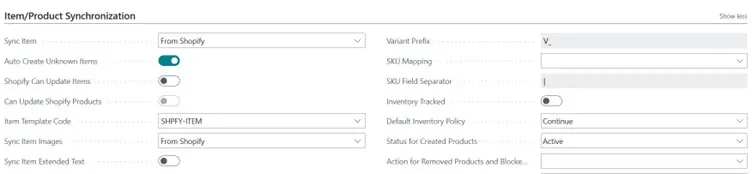
- Choose options like “Can update Shopify Products”, “Sync Inventory”, etc.
3. Syncing Items (including Vendors)
- Navigate to Shopify Products in BC
- Click Add Items, set filters (e.g., by vendor/category)
- Enable toggles for:
- Sync Product Images
- Sync Inventory
- Export Item Attributes, Variants, Barcodes
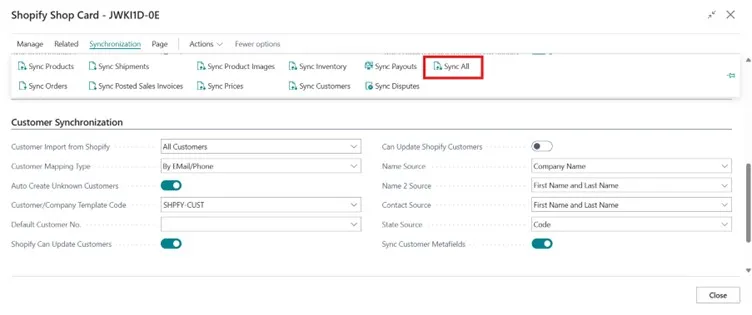
- After sync, optionally run Sync Product Images & Sync Inventory actions
Tip: Images and inventory can be synced separately—enabling better control .
4. Syncing Customers / Companies
DTC (Direct-to-Consumer)
- In BC, search Shopify Customers, click Add Customers, filter if needed
- This creates BC customer records and sends them to Shopify
B2B
- Use Shopify Companies, choose Add Company, replicate company and contact details to Shopify
- Manage access rights and catalog access per company
For ongoing sync:
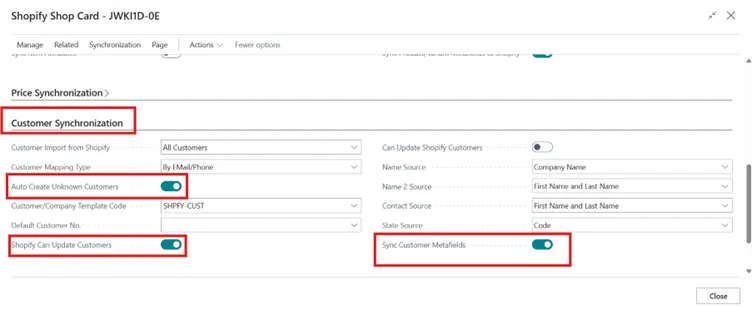
- Go to the Shop Card and hit Sync Customers or Sync Companies, or schedule via job queue
5. Order Synchronization & Document Flow
- New Shopify orders (POS or online) are imported under Shopify Orders in BC
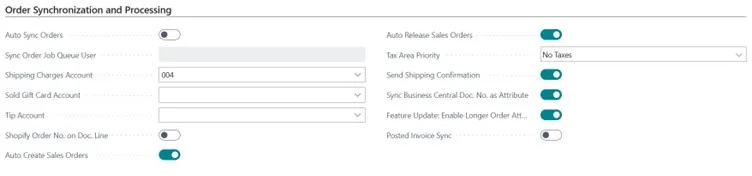
- If Auto Create Orders is enabled, BC generates sales orders or invoices automatically
- Map or assign customers to any unlinked orders manually
- Fulfillment updates and payment status are sent back to Shopify
- You also get full support for editing orders, cancellation, and refunds—all synced in both directions
6. Advanced Configuration & Best Practices
- Customer mapping logic: choose Default, By Email/Phone, or Bill-to mapping
- Multi-shop support: set separate Shop Cards for each Shopify store or channel (e.g., POS vs. online)
- Price, discount & catalogs: map customer price groups and push targeted pricing/discounts
- Bulk operations: enabled by default, with log and progress visibility in Bulk Operations page
Screenshots Walkthrough
- BC fields like Can Update Shopify Products, Sync Item Attributes toggles
- Add Items interface showing filter/selection in Shopify Products
- Connector settings in the BC role center add-on, including multi-shop option
- Synchronization flow diagram showing vendor→item→shop path
Summary Table
| Sync Aspect | Direction | Notes |
| Products/Items | BC ↔ Shopify | Variants, images, attributes |
| Inventory | BC → Shopify | Choose specific locations |
| Customers/B2C | BC → Shopify | Map by email/phone |
| Companies/B2B | BC → Shopify | Include catalog access |
| Orders | Shopify → BC | Auto create docs; sync fulfillment/details |

Final Thoughts
The built-in Shopify Connector in Dynamics 365 Business Central—bolstered by ISVs like Scaptify or Tinx—offers out-of-the-box automation for vendors, customers, sales orders, and inventory. It provides scalable synchronization for multiple Shopify Shops, with rich configuration options, job scheduling, and error handling.
Whether you’re targeting B2C or B2B operations, the tight integration means less manual work and more accurate data flow.