
Business Value
The Payables Agent in Business Central streamlines accounts payable operations by automating routine and time-consuming tasks. It intelligently retrieves vendor invoice attachments from email and SharePoint, then generates purchase invoice records in Business Central for review. Leveraging purchase history and company-specific accounting policies, the agent accurately registers invoices with minimal manual input. By reducing errors and saving valuable time, the Payables Agent empowers AP professionals, clerks, and accountants to concentrate on high-value activities—enhancing overall productivity and operational efficiency.
Payable Agent:
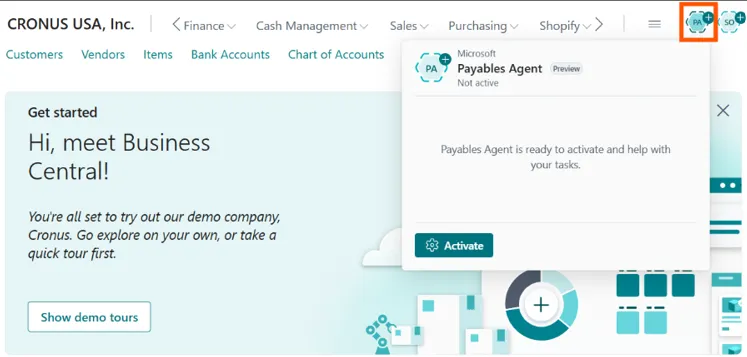
Automated Invoice Capture: Retrieves vendor invoice PDFs from Microsoft 365 email accounts or SharePoint folders.
Vendor Identification & Creation: Matches invoices to existing vendors or assists in creating new vendor records using extracted data.
Draft Review & Finalization: Supervisors can review AI-suggested invoice drafts, make adjustments, and finalize them for posting.
Productivity Boost: Frees up AP professionals to focus on strategic tasks by handling repetitive data entry and document matching
Setup & Activation
⇒ Navigate to Copilot & AI Capabilities in Business Central.
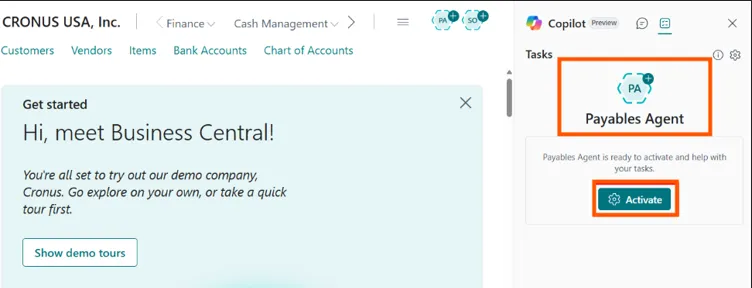
⇒ Activate the Payables Agent and configure a monitored mailbox for incoming vendor invoices.

Monitors incoming emails for vendor invoices, matches senders to registered vendors, and creates purchase document drafts for review. This agent uses generative AI review its actions for accuracy.
⇒ Setup Email account
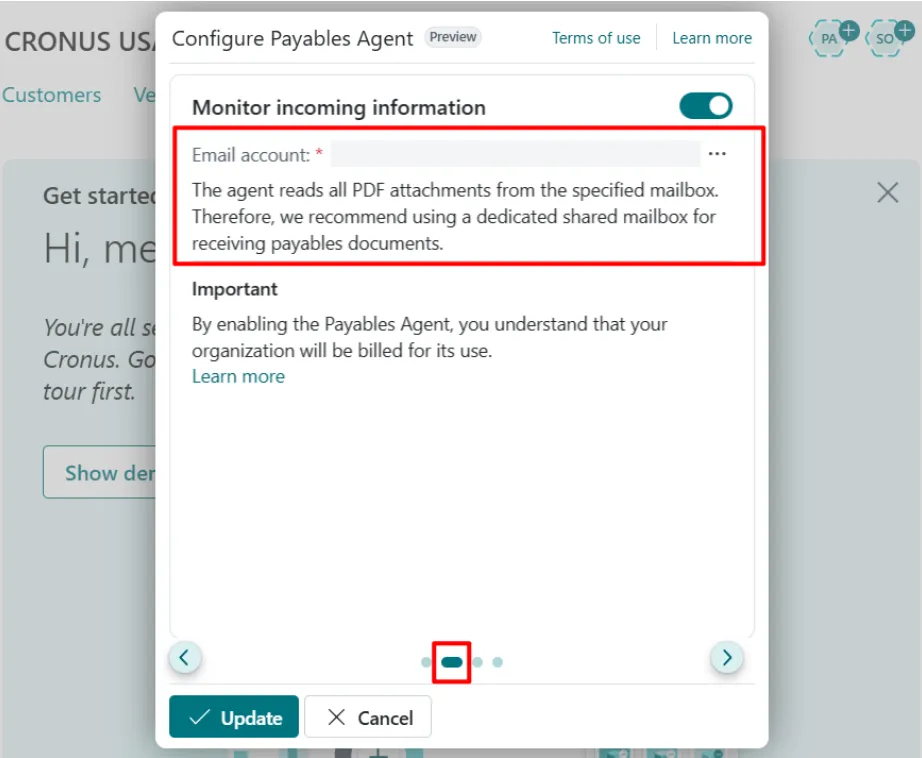
Define the Microsoft 365 mailbox that the Payables Agent will monitor for incoming vendor invoices.
⇒ Optionally, define custom fields for invoice creation to tailor the agent’s behavior to your business needs.
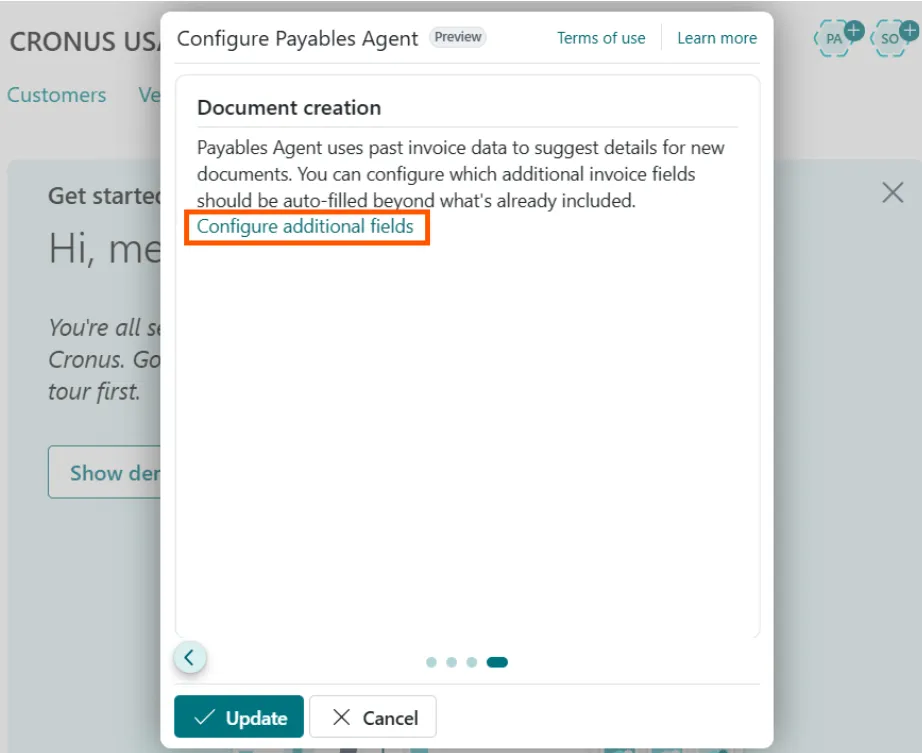
⇒ Configure additional fields: Note that this page is only accessible after clicking Update.
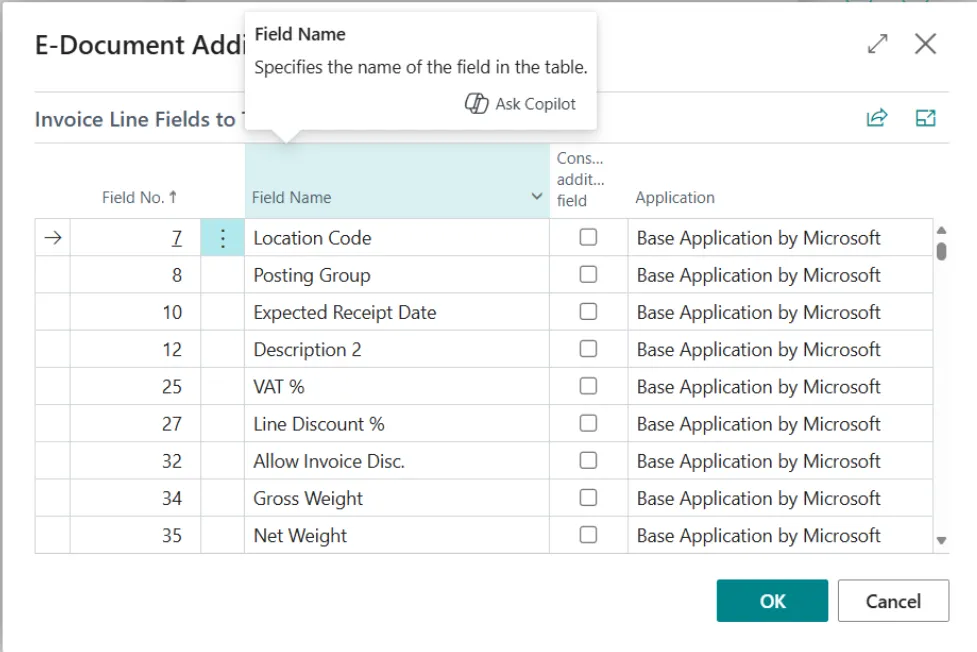
Finally, click OK in the lower right corner to complete the settings.
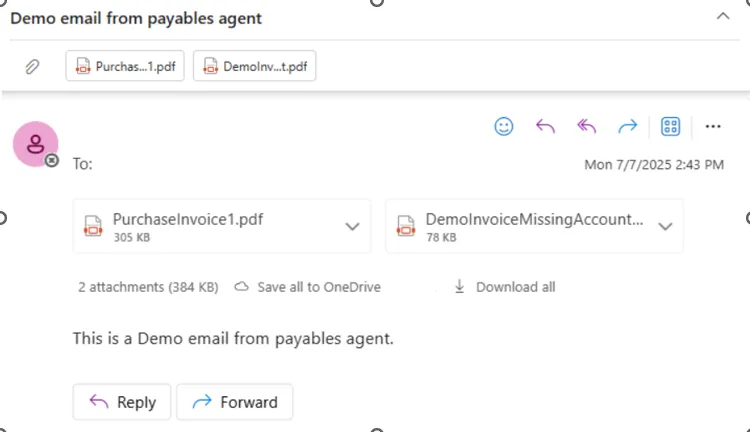
Once this step is completed, the Payables Agent will be active and ready to use. Below is an example of the image displayed when I received an email from the agent.