
Effective budgeting is at heart of the sound financial management. In Microsoft Dynamic 365 Business Central [BC], organization can seamlessly manage budget across general ledger budget, dimension and cost accounting – without relying on external tool.
This blog demonstrates how to upload, compare and track budgeting within BC. It enable finance team to maintain control, ensure accuracy and drive strategic decision using business central.
Upload Budget in Business Central
To upload the budget in the Business Central, navigate to Finance > General Ledger Budget.
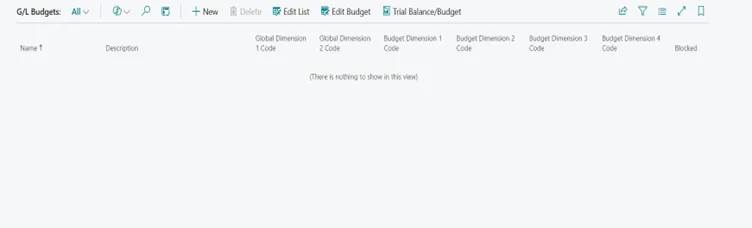
This page will open.
Now, to create the budget go to New and define the Dimension.

After you are done defining the dimension, go back. Your budget is created.

Click on the BUD – 2025, following page will open.
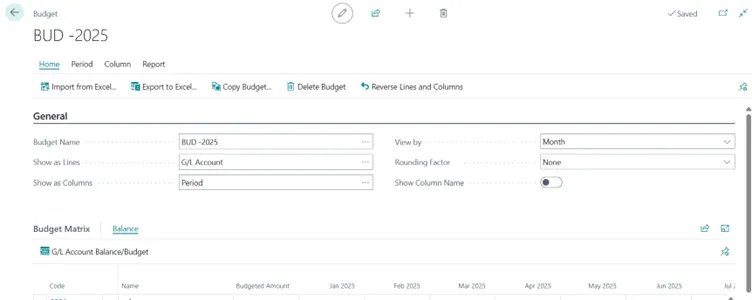
Click on the import file option, following box will open.
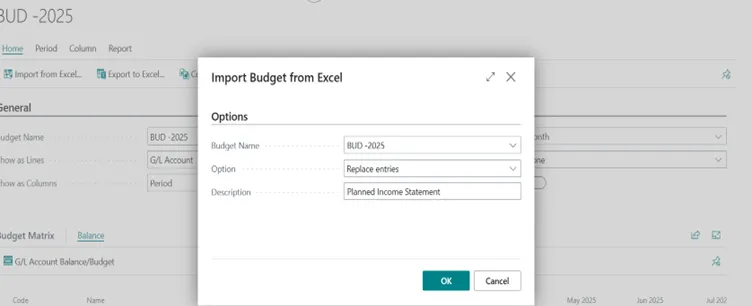
Fill the data and click on the okay to import the Excel file.

Now, Data are imported and apply.
Go to report to view the budget.

Click on the budget option, following page will open.
Enter the data and click on the print or preview to view the budget report.

Budget Report will look like following,

Compare the Budget with Actual
Comparing the Budget with Actual is essential for evaluating financial performance and identifying variance across account and period.
To compare the budget with actual, navigate to finance > financial reporting.

This Budget Variance report is customized report, so you need to click on the new to create the new report. Following page will open.

Entre the detail like shown in picture and create the new report.
Now, click on the Edit Definition. This allow user to customize the report layout.
Following option will be available.

Click on the Edit Report Definition. Following page will open.

Go to definition tab, you will get the option shown in image.

Choose, Edit Columns Definition option.

Above page will open. Entre the detail of columns you want to see in your Budget Variance report.
After that go back and click on the Edit Row Definition option in definition tab to define the row you want to see in report.

Above page will open.
Go to Insert > Insert G/L Account option.
Following page will open. Now select the row you want in your Variance between Budget and Actual Report.

Select all the raw you want in your Variance between Budget and Actual Report and click on okay.
In below image you can see that in the Variance between Budget and Actual (BUDGET VAR) report display all the row and columns selected as per data selected through Edit Row Definition and Edit Column Definition.

Now to print the report, go to Export to Excel/Print tab and select print option.

Click on print or preview & close option to view your report.

By this report you can see your budget amount and actual amount as well variance between them.
Track the Budget with Cost Account
In business central, the cost account module provide a structure way to track and analyse the budget related to internal operation, separately from financial accounting. This is specially useful for the organization that want to monitor the cost by the department, project, or other operational unit using cost centres and cost object.
By defining the Cost Type (linked to G/L account) and assigning them to Cost Centre (e.g. department or project), and Cost Object (e.g. product or service) user can create detailed Cost Budget. These budget can then be compared against actual cost entries to evaluate performance, identify inefficiency and support strategic decision making – all within business central without external tools.
Reporting and Monitoring
Business central provide the in build reporting tool that help the financial team monitor budget performance, analyse the variance, and make informed decisional. UsedS can access to standard report such as Trial Balance/Budget, Budget Analysis, and Cost Accounting Report to view financial data across period, dimension and cost centres.
Thus, Microsoft Dynamic 365 Business Central empower the organization to manage their budgeting entirely within the system. User can create detailed budget, compare them with actual and monitor financial performance across the department and cost centres.