

Entering data manually can be time-consuming and prone to errors—whether you’re a casual Business Central user or an expert entering records all day long. Microsoft Copilot, your AI-powered assistant, helps reduce repetitive tasks, spark productivity, and simplify workflows. With the Autofill feature, Copilot now intelligently suggests field values, allowing you to select rather than type.
Autofill is a new capability of Copilot in Business Central.
Available from Update 26.0:
- When creating or editing a record, Copilot suggests values for editable fields on the page.
- Works on card and document pages like Customers, Sales Orders, and Items.
- Does not apply to rows or columns, but can be used on custom pages.
- Suggestions are drawn from your company’s data—based on recent entries, frequently used values, or intelligent selections from lookup/option fields.
- In some cases, suggestions may be AI-generated depending on field type and context.
- You remain in control: Copilot only suggests values. You can review the source, accept, discard, or override the suggestion.
Enhancements with Update 26.3
- Improved accessibility with screen reader support
- On fields where Copilot suggests a value, you can now use Alt + Up arrow to show the info tip. Alt + Up toggles any available field information, such as the info tip, tooltip, or validation error.
Enhancements releasing from update 26.4
Copilot automatically searches the web for information and provides suggestions for customer or vendor contact details, and similar fields that typically contain publicly-available information.
- Initially, only Sandbox environments support this feature.
- To enable Copilot to get information from the web, administrators must first Enable Bing Search on the Copilot & agent capabilities page.
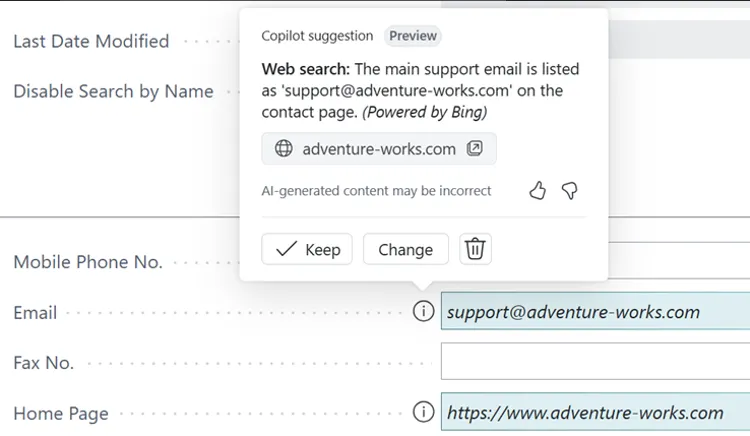
Example:
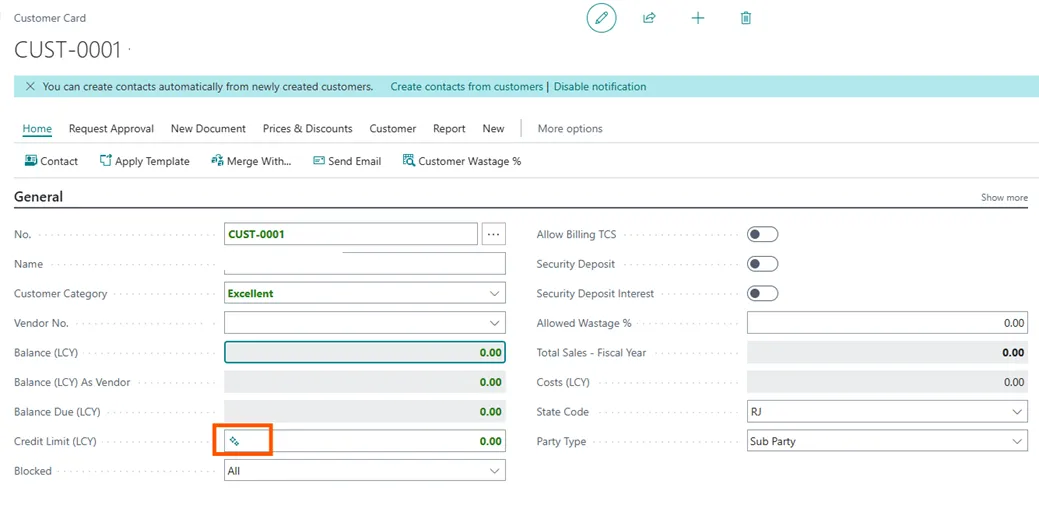
Open the Customer Card and look for the sparkle icon next to fields where Copilot can provide suggestions.
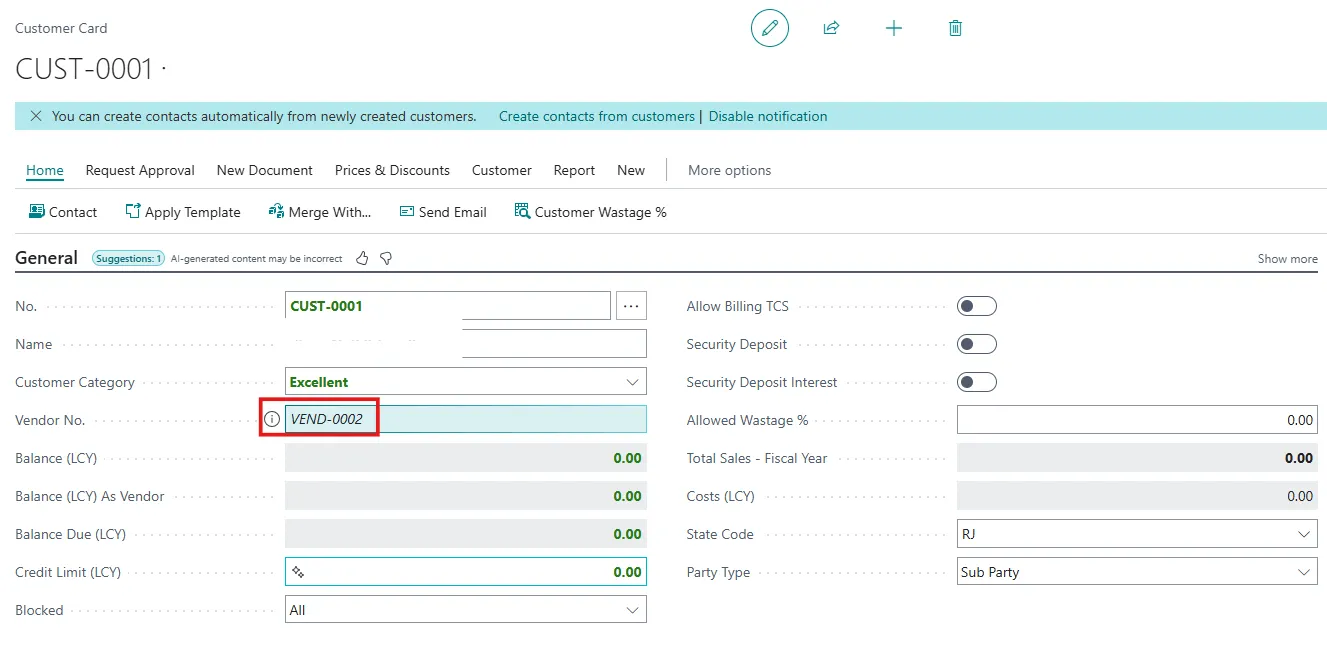
Copilot suggests values for multiple fields in the FastTab group. Use the information icon to see how Copilot created the suggestion.
To accept or modify the suggested value, click the suggestion button.
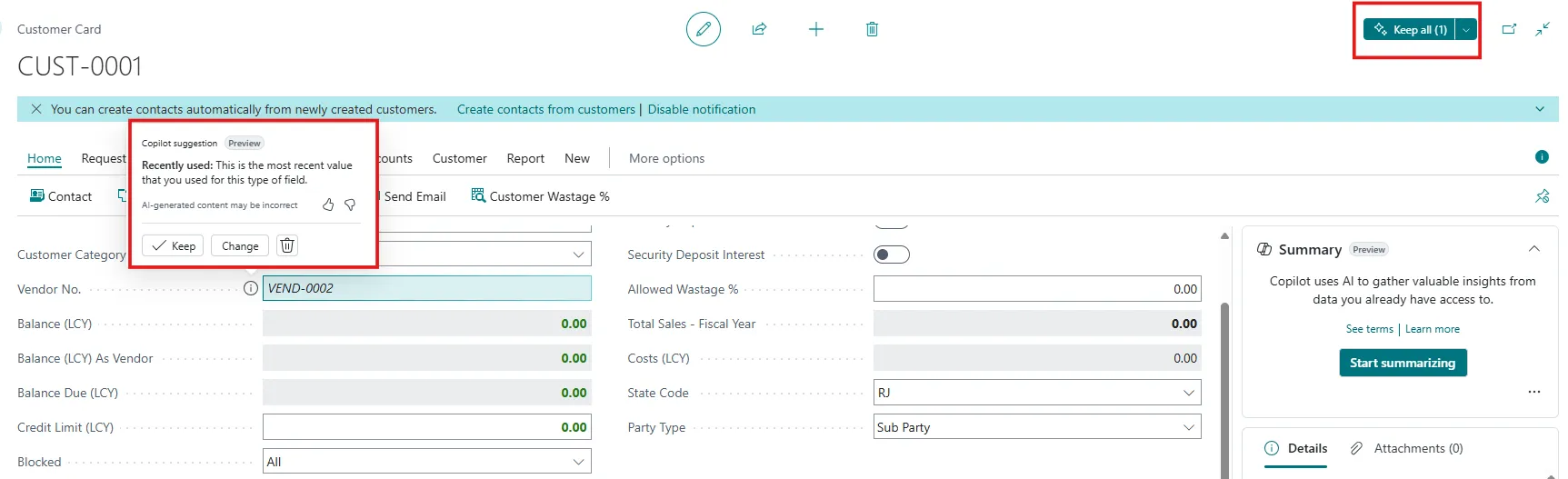
To confirm a single field’s suggested value, select the Keep option next to that field.
To apply all suggested values at once, click the Keep All button located in the top-right corner.