In Microsoft Dynamics 365 Business Central, production planning is driven by two core processes:
- Master Production Schedule (MPS)
- Material Requirements Planning (MRP)
These processes help businesses align supply with demand, ensuring timely availability of finished goods and raw materials. The Planning Worksheet is the central tool used to run these calculations, based on actual and forecasted demand.
1. Planning Worksheet Overview
- The terms “running the planning worksheet” or “running MRP” refer to executing system calculations for:
- MPS (Master Production Schedule)
- MRP (Material Requirements Planning)
- These calculations are based on:
- Actual demand (e.g., sales orders)
- Forecasted demand (e.g., demand forecasts)
- The system can calculate:
- Only MPS
- Only MRP
- Both MPS and MRP simultaneously
2. Master Production Schedule (MPS)
- MPS focuses on end items (finished goods).
- It considers:
- Sales order lines
- Forecasted demand
- Items involved in MPS are called MPS items.
- These items are dynamically identified during the planning run.
- MPS generates planned production orders to meet demand for finished goods.
3. Material Requirements Planning (MRP)
- MRP focuses on components, subassemblies, and raw materials.
- It is calculated only for items that are not MPS items.
- MRP ensures:
- The right quantity of materials
- At the right time
- In the right location
- MRP generates:
- Purchase Orders
- Production Orders (for subassemblies)
- Transfer Orders
4. Shared Planning Logic
- Both MPS and MRP use the same planning algorithms, which include:
- Netting: Matching supply against demand
- Reusing existing replenishment orders
- Generating action messages
- The system evaluates:
- What is needed (demand)
- What is available or expected (supply)
- Based on this, it provides action messages:
- Create new orders
- Change existing orders (date or quantity)
- Cancel unnecessary orders
5. Types of Orders Affected
- Action messages can apply to:
- Purchase Orders
- Assembly Orders
- Production Orders
- Transfer Orders
6. Demand-Supply Tracking
- Use the Order Tracking page to:
- View links between demand and supply
- Understand how and why each order was suggested
7. Planning Dependencies
- Planning results depend on correct setup of:
- Item Planning Parameters (e.g., reordering policy, lead time)
- Assembly BOMs
- Production BOMs
- Routings (work centers, machine centers)
Methods for Generating a Plan
Calculate Regenerative Plan
- Purpose: Performs a full recalculation of the material plan.
- Process:
- Deletes all existing planned supply orders.
- Replans all items in the database from scratch.
- Use Case: Ideal for comprehensive planning when major changes have occurred or periodic full planning is required.
Calculate Net Change Plan
- Purpose: Recalculates planning only for items affected by recent changes.
- Triggers for Net Change:
- Demand/Supply Changes:
- Modifications to quantities in:
- Sales Orders
- Demand Forecasts
- Assembly Orders
- Production Orders
- Purchase Orders
- Unplanned inventory level changes
- Planning Parameter Changes:
- Changes in:
- Safety Stock
- Reorder Point
- Routing
- Bill of Materials (BOM)
- Time bucket or lead time calculation
- Use Case: Efficient for daily or frequent planning runs with minimal system load.
Get Action Messages
- Purpose: Acts as a short-term planning tool.
- Function:
- Issues action messages to alert users of changes since the last plan run.
- Helps identify:
- Orders to create
- Orders to reschedule
- Orders to cancel
- Use Case: Useful for quick updates without running full or net change plans.
Important Note
- All planning methods generate worksheet entries assuming infinite capacity.
- Work center and machine center capacity are not considered during initial planning.
- Capacity constraints are handled separately during production scheduling.
To calculate the planning worksheet
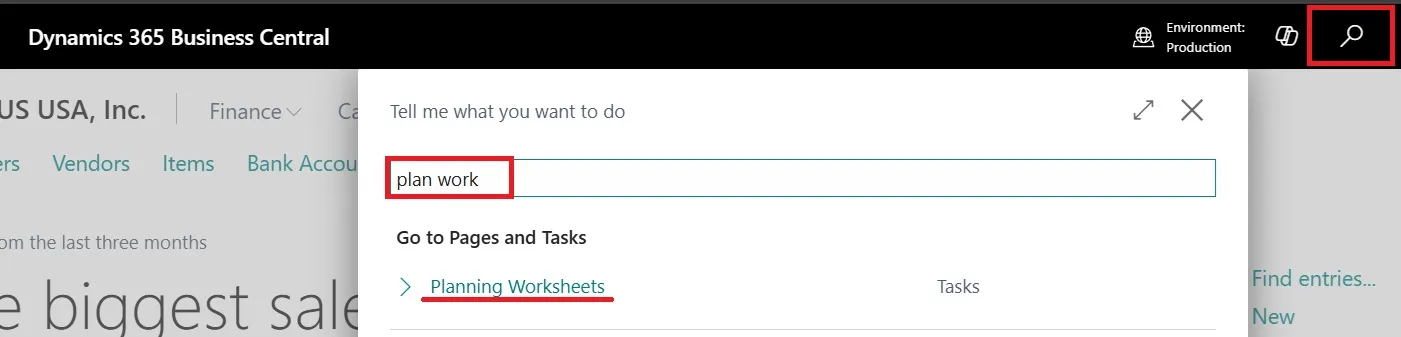
- From Global search enter Planning Worksheets, and then choose the related link.
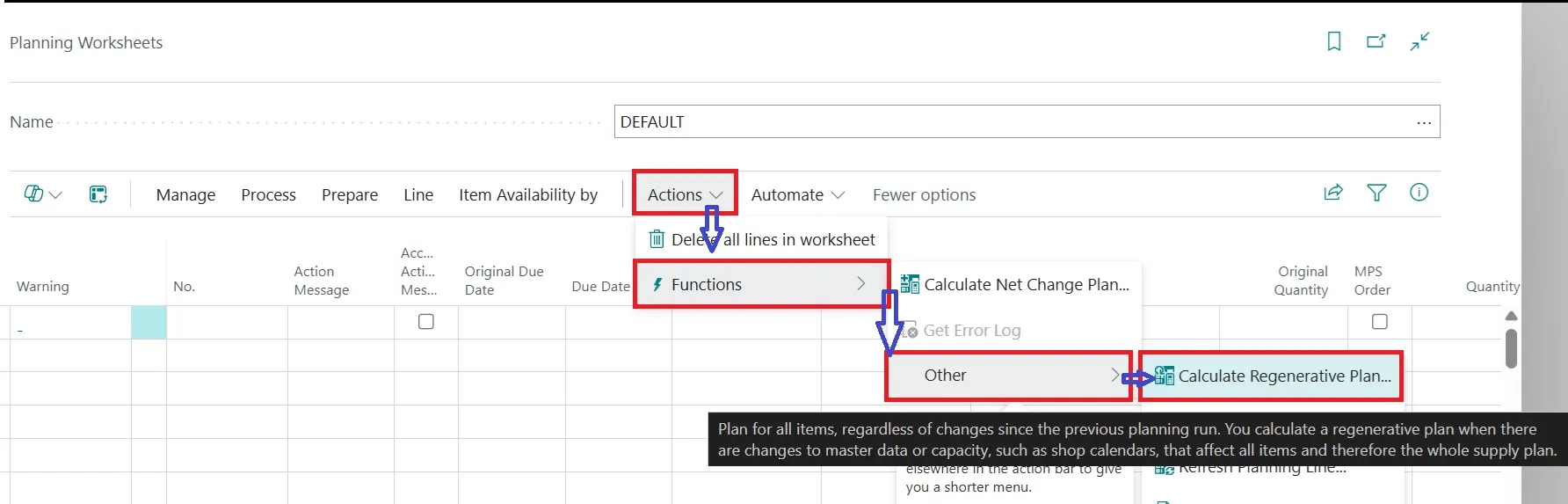
- Choose the Calculate Regenerative Plan action to open the Calculate Plan page.
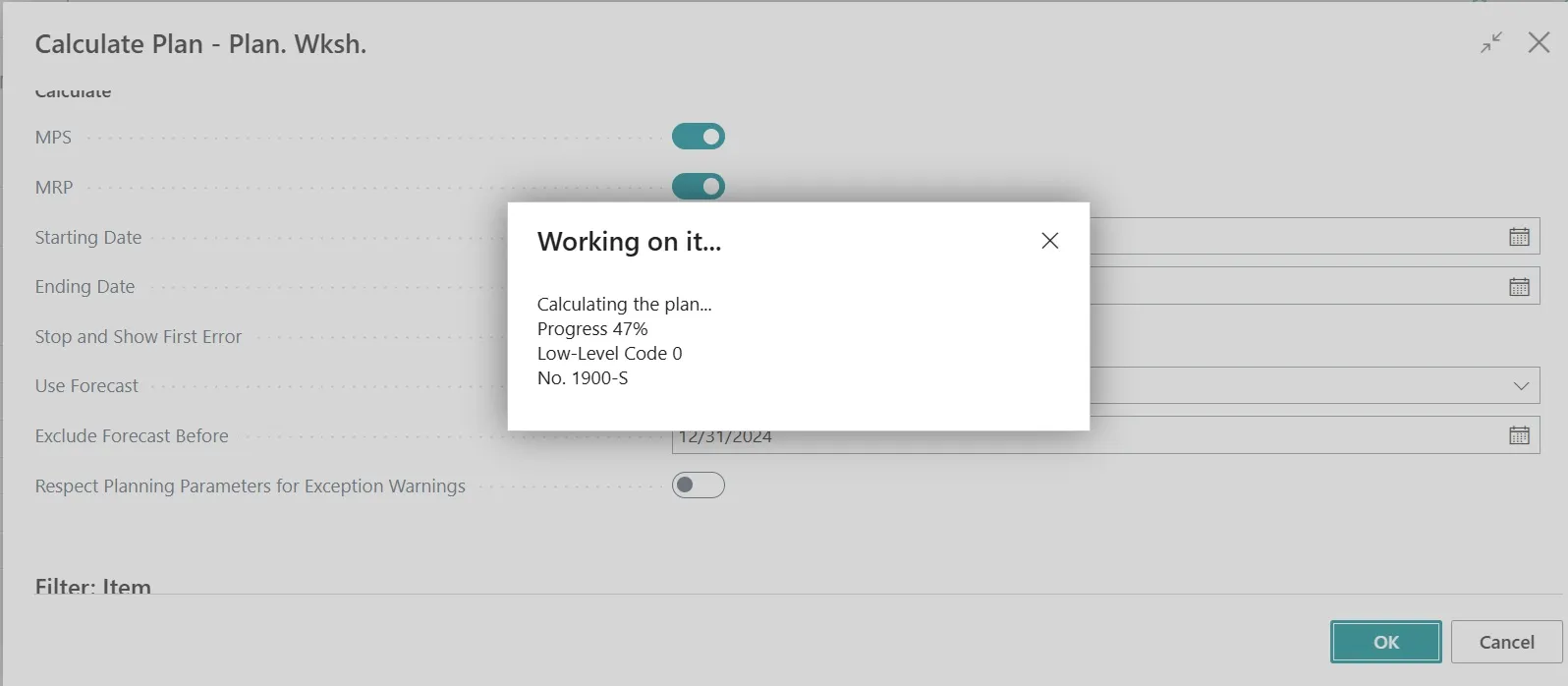
- On the Options FastTab, fill in the fields as described in the following image.
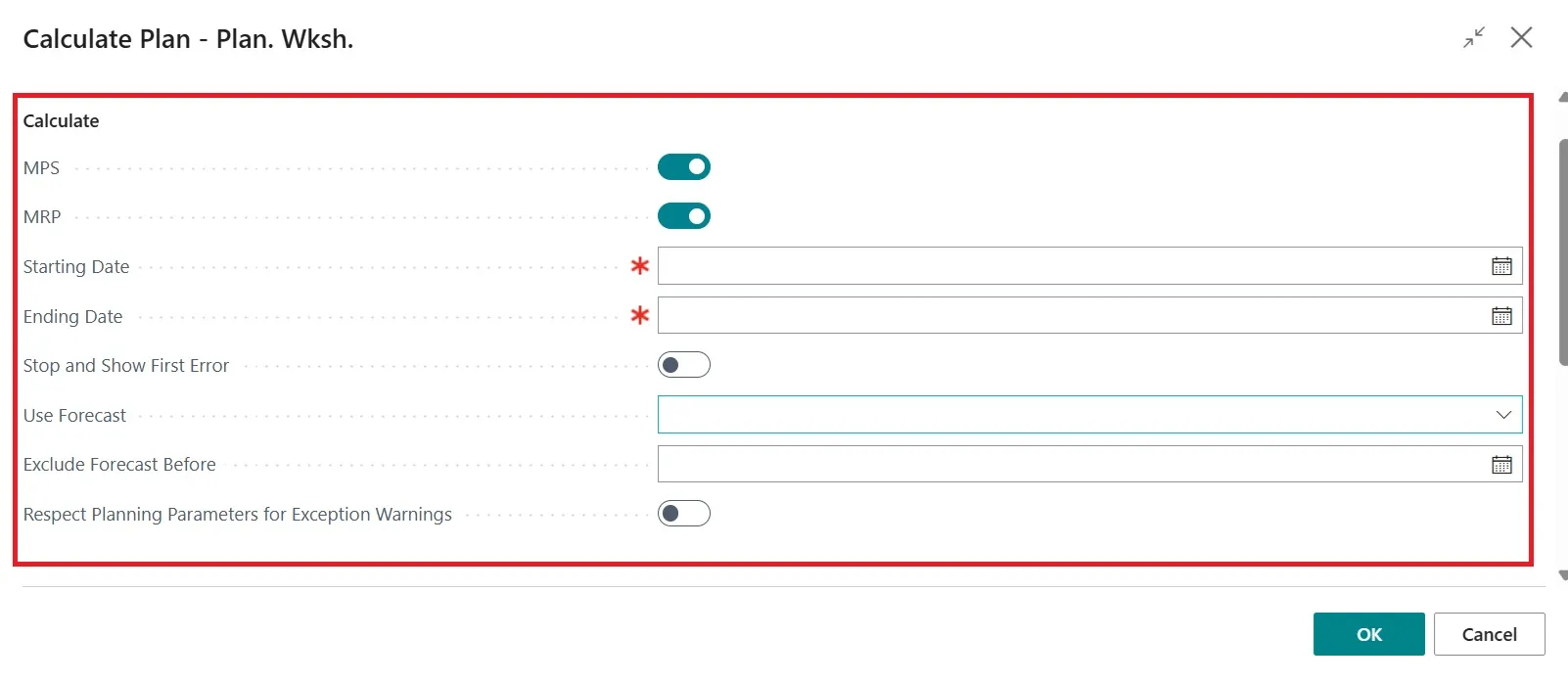 Following points to be consider before adding the data in these fields.
MPS (Master Production Schedule)
- Calculates production needs for end items.
- Considers:
- Sales Orders
- Demand Forecasts
- Safety Stock
- Reorder Points
- Open production component lines
- Ensures a complete view of inventory requirements for finished goods.
- Are items with open sales orders or demand forecasts included?
- Are safety stock and reorder points considered?
- Are open production component lines accounted for?
MRP (Material Requirements Planning)
- Calculates requirements for dependent items (components, subassemblies).
- Typically run together with MPS.
- To run both simultaneously:
- Go to Manufacturing Setup > Planning FastTab
- Enable Combined MPS/MRP Calculation
- Are dependent requirement items included?
- Is Combined MPS/MRP Calculation enabled in Manufacturing Setup?
Planning Horizon Parameters
a. Starting Date
- Used to evaluate inventory availability.
- If stock is below:
- Reorder Point → Forward-schedules replenishment.
- Safety Stock → Back-schedules replenishment to the starting date.
b. Ending Date
- Defines the end of the planning horizon.
- Demand/supply after this date is ignored.
- If an item’s reorder cycle exceeds this date, the planning horizon extends accordingly.
Planning Horizon Tips
- Too short: May delay orders for long lead-time items.
- Too long: May generate excessive data and noise.
- You can set different horizons for:
- Production
- Purchasing
- Is the Starting Date set correctly to evaluate inventory availability?
- Is the Ending Date defined to limit the planning horizon?
- Does the planning horizon cover total lead time for components?
- Are separate horizons set for production and purchasing (if needed)?
Error Handling
Stop and Show First Error
- If selected:
- Planning stops at the first error.
- Only successful lines are shown.
- If not selected:
- Planning continues despite errors.
- A summary and Planning Error Log are shown at the end.
- Is ‘Stop and Show First Error’ selected to halt on first error?
- Is error logging reviewed via the Planning Error Log page?
Forecast Settings
Use Forecast
- Select a forecast to include as demand in planning.
- Default forecast is set in Manufacturing Setup > Planning FastTab.
Exclude Forecast Before
- Enter a date to exclude older forecast demand from the planning run.
- Is a forecast selected for inclusion in planning?
- Is ‘Exclude Forecast Before’ date set appropriately?
Exception Handling
Respect Planning Parameters for Exception Warnings
- When selected:
- Planning respects defined parameters even if warnings exist.
- When not selected:
- Planning only covers exact demand, ignoring some parameters.
- Exception Warnings
- Is ‘Respect Planning Parameters for Exception Warnings’ selected?
- Are planning parameters applied even when warnings exist
- On the Item FastTab, set filters to run the planning based on the item, item description, or location.
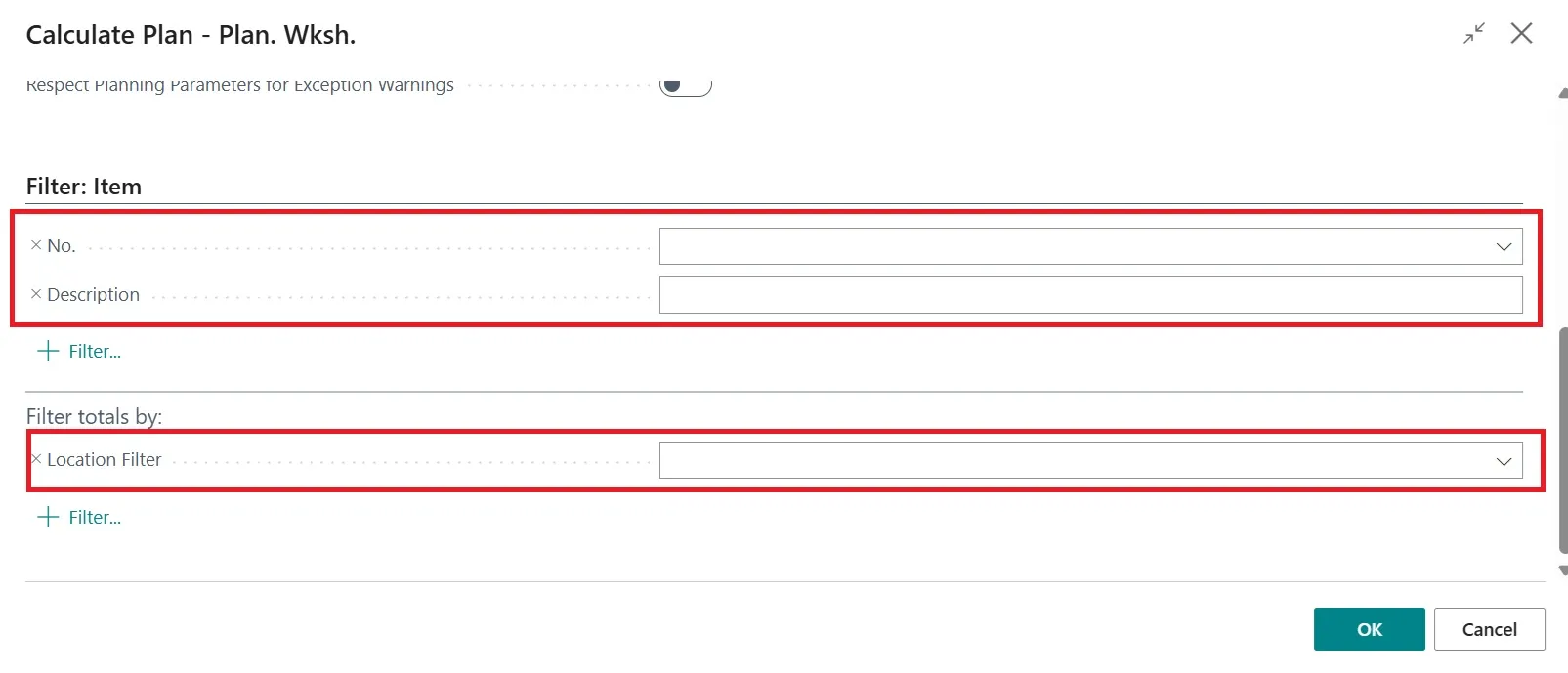
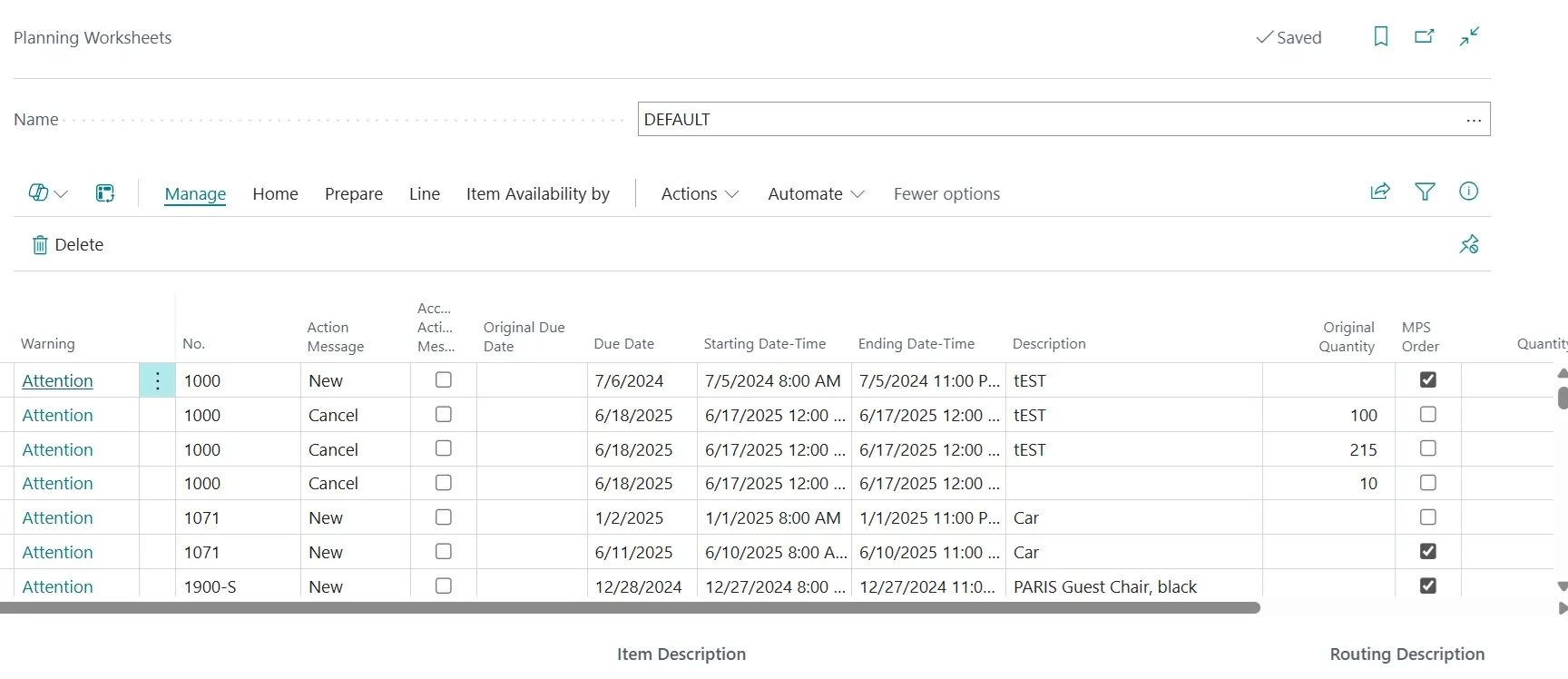
- Choose the OK button. The batch job runs and planning lines are added to the planning worksheet.
To Perform Action Messages
Step 1: Access the Action
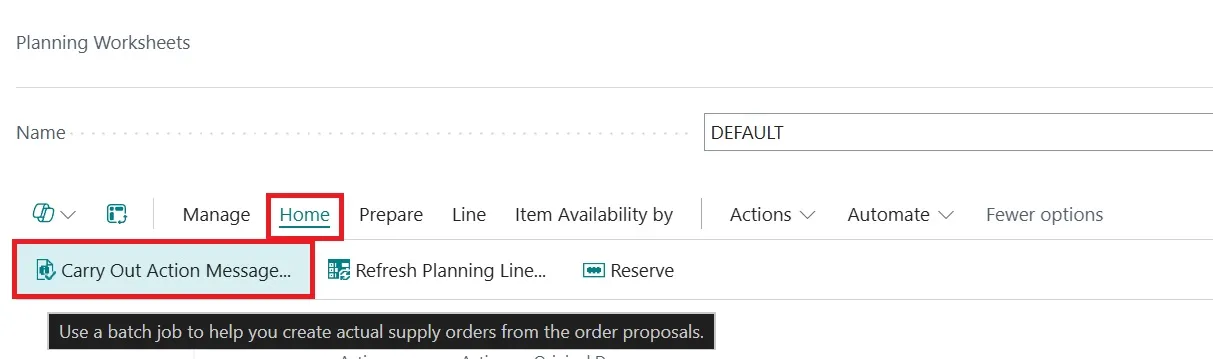
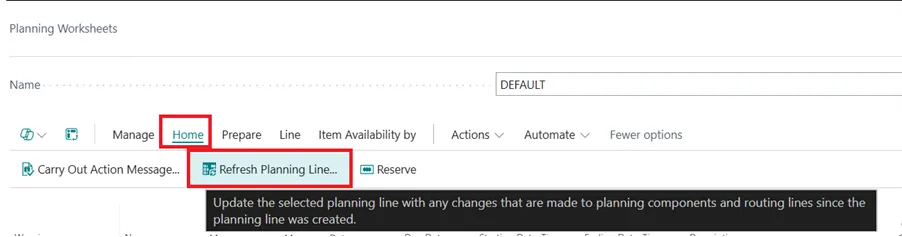
- Go to the Planning Worksheet page.
- Select Carry Out Action Message to begin processing planning proposals.
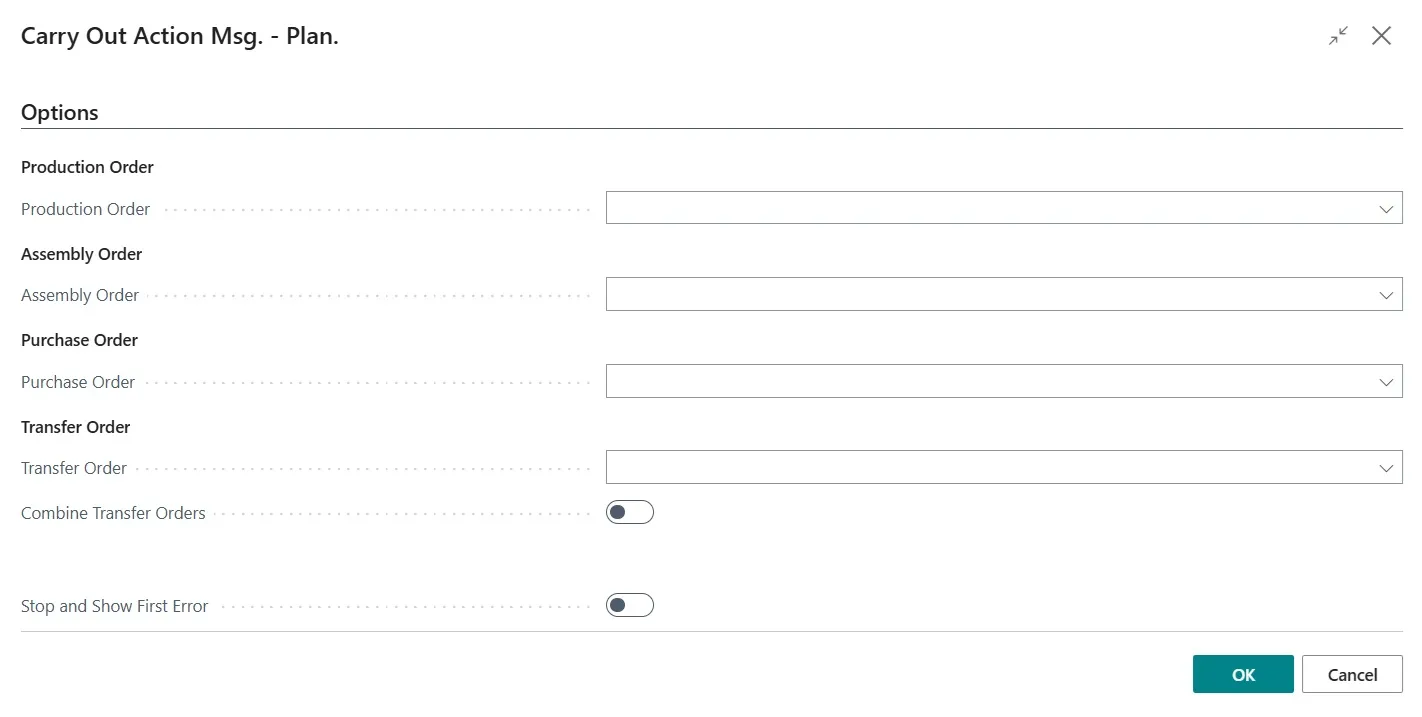
Step 2: Configure Options (Options FastTab)
| Field | Description |
| Production Order | Choose to create Planned or Firm Planned production orders. |
| Assembly Order | Specify creation of Assembly Orders from planning lines. |
| Purchase Order | Specify creation of Purchase Orders directly or copy to Requisition Worksheet. |
| Transfer Order | Specify creation of Transfer Orders directly or copy to Requisition Worksheet. |
| Combine Transfer Orders | Select to combine multiple transfer orders into one. |
| Stop and Show First Error | Stops the batch job at the first error and displays a message. |
Step 3: Filter Planning Lines
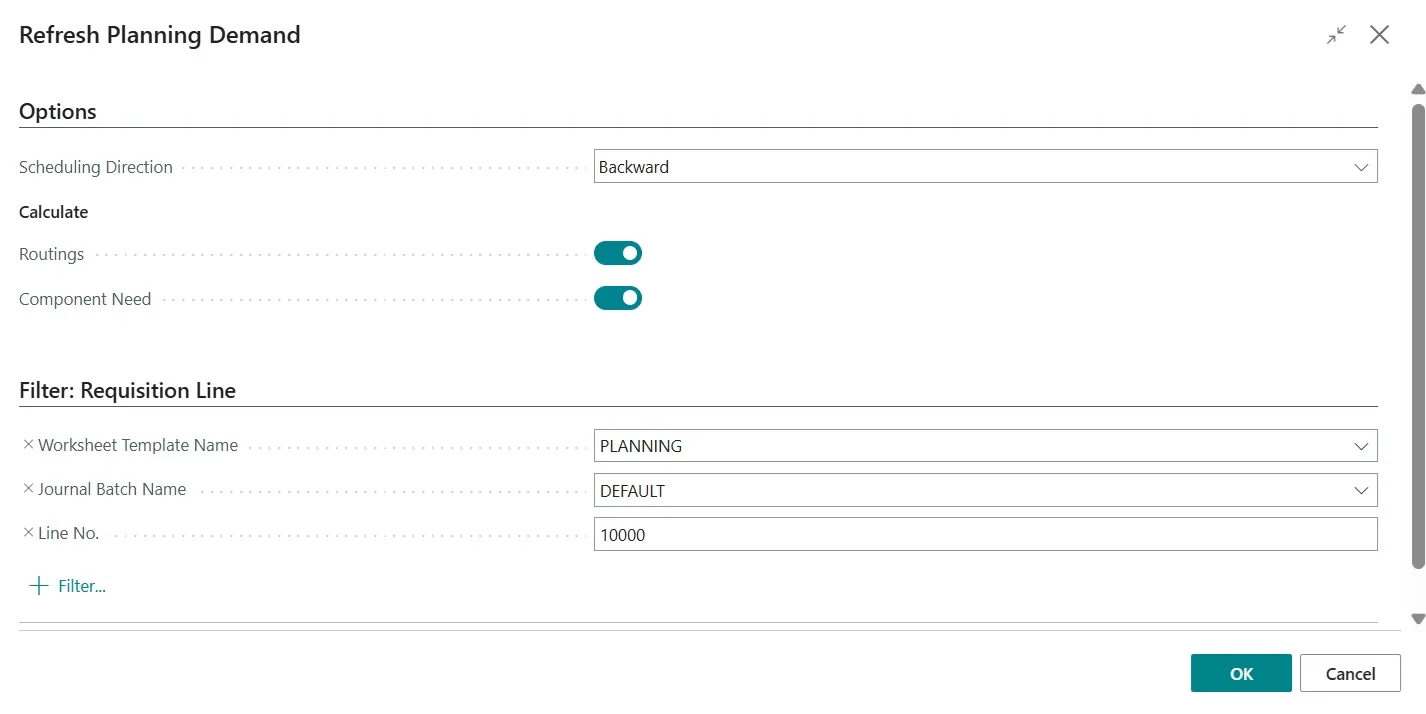
- Use the Planning Line FastTab to apply filters and limit which action messages are executed.
Step 4: Execute the Batch Job
- Click OK to run the batch job.
- The system:
- Deletes processed lines from the Planning Worksheet.
- Leaves unprocessed lines for later review or manual deletion.
Action Messages
Purpose
- Action messages are system-generated suggestions to help balance supply and demand when discrepancies are found in the order network.
- They are triggered by the Order Tracking system when existing orders cannot meet demand.
How It Works
- Action messages are generated one level at a time, based on each item’s low-level code.
- This ensures all items affected by supply or demand changes are considered.
- Dampeners can be set to suppress minor or insignificant messages (based on quantity or date thresholds).
Types of Action Messages
| Message | Description |
| New | Suggests creating a new order when existing orders can’t fulfil demand. |
| Change Quantity | Suggests adjusting the quantity of a supply order to match demand changes. |
| Reschedule | Suggests changing the date of a supply order to align with demand timing. |
| Reschedule & Change Qty. | Suggests changing both date and quantity to restore balance. |
| Cancel | Suggests cancelling a supply order if the related demand is deleted or reduced. |
Processing Action Messages
- After reviewing, select Accept Action Message to apply changes.
- Update schedules accordingly to reflect accepted suggestions.
Note
- Action messages apply to:
- Purchase Orders
- Transfer Orders
- Production Orders