

What Are Shopify Sales Channels?
Sales channels in Shopify represent different platforms or touchpoints where your products are sold. These can include:
- Your online store (Shopify storefront)
- Social media (like Facebook, Instagram)
- Online marketplaces (like Amazon or eBay via Shopify integrations)
- Point-of-sale (POS) systems
Before this update, all products published from Business Central to Shopify were pushed to all active sales channels by default. That meant less control and more manual work when businesses wanted to segment product offerings by channel.
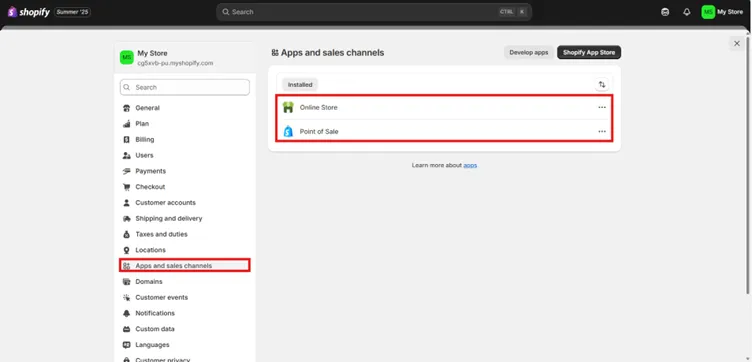
You can see these channel in the My store in shopify.
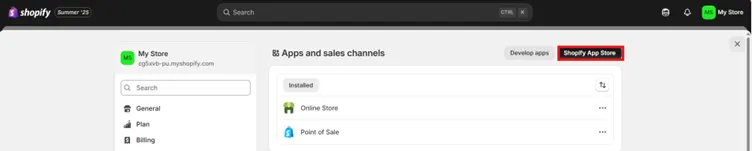
We are also able to see the various apps in the shopify app store to install on the shopify store and make its view broader to see the market.
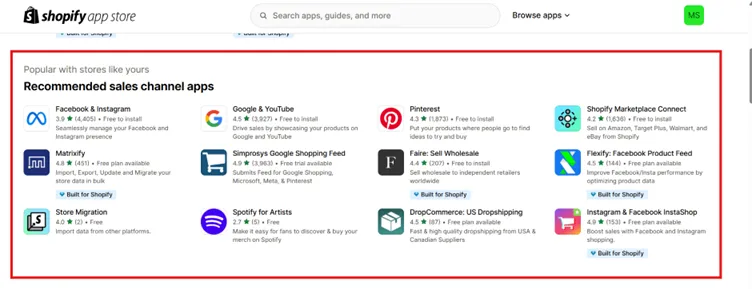
We are able to see the various sales channel in the shopify store and now as per the requirement we install them from this app store.
According to the setup the data on the shopify are automatically updated from the data on the business central but when we don’t want the shopify account to sync with the business central we import the data in the format of csv file as to get no impact on the data as there is no sync with business central.
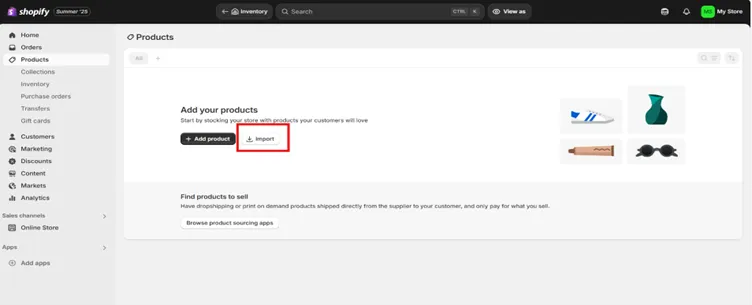
When we export data from the business central it is in the format of (.xls) format we need to convert it to (.csv) to import on the shopify.
Why This Matters
This update is a major productivity booster for companies using Business Central and Shopify together, especially those selling across multiple platforms.
Benefits:
- Targeted Selling: Focus specific products on specific audiences or regions.
- Simplified Workflows: Eliminate the need to adjust product visibility within Shopify after publishing from Business Central.
- Better Brand Control: Ensure only curated product selections appear on premium or niche sales channels.
- Compliance & Pricing Strategy: Easily manage regional availability where pricing or compliance differs by platform.
Bulk variant handling
This feature enhances the integration with Shopify by supporting bulk creation and updates of product variants. This improvement aligns with Shopify’s transition to bulk variant APIs, aiming to streamline product management and synchronization between the two platforms.
Key Features of Bulk Variant Handling in Business Central
Bulk Variant Creation and Updates: Business Central now supports creating and updating multiple product variants in a single operation, improving efficiency when managing large inventories.
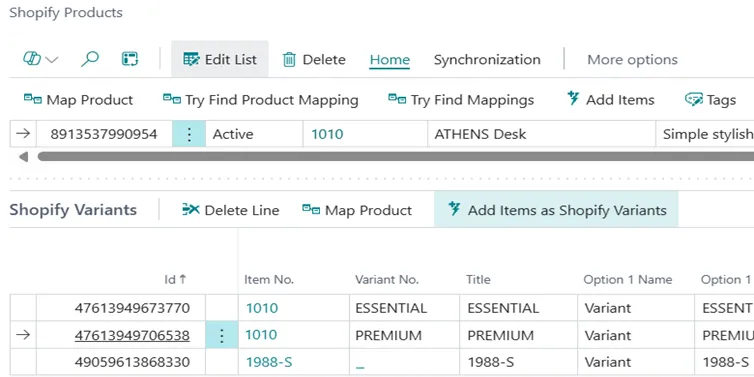
Enhanced Performance: By utilizing Shopify’s bulk variant APIs, the connector can process hundreds of updates in a single call, reducing the time and resources needed for synchronization.
Automatic Tax Handling: The “Price Including VAT” setting in the Shopify Shop Card page now reflects Shopify’s tax settings, ensuring accurate tax calculations and compliance across different markets.
Managing Product Variants in Shopify
For Shopify users, several tools and apps are available to manage product variants effectively:
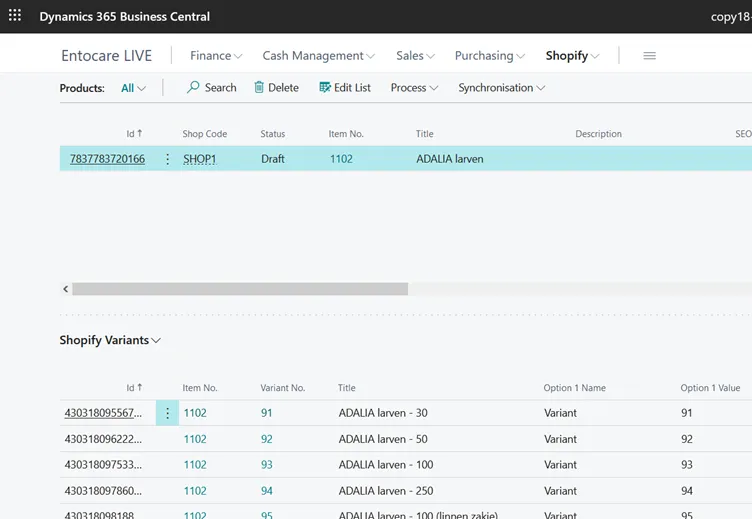
- PH Bulk Edit Variants & Prices: This app allows for bulk editing of product variants, including updating prices, SKUs, and inventory levels directly within the Shopify admin interface.
- Mixtable Spreadsheet Editor: A spreadsheet-based tool that enables users to add and edit product variants in bulk, offering a familiar interface for those accustomed to spreadsheet management.
- S-BULK Excel Like Product Edit: Provides an Excel-like interface for bulk editing product and variant data, supporting features like import/export and calculated fields.
Synchronizing Items and Inventory in Business Central
To synchronize items and inventory between Shopify and Business Central, users can configure the Shopify connector settings in Business Central:
- Barcode Mapping: Utilize the Barcode field to map Shopify variants to corresponding items in Business Central, facilitating accurate inventory tracking and sales order processing.
- Item Reference Management: Manage item references within Business Central to ensure that product variants are correctly mapped and synchronized with Shopify listings.
By leveraging these tools and features, businesses can efficiently manage product variants across Shopify and Business Central, ensuring consistent inventory and streamlined operations.
Shopify Metafields
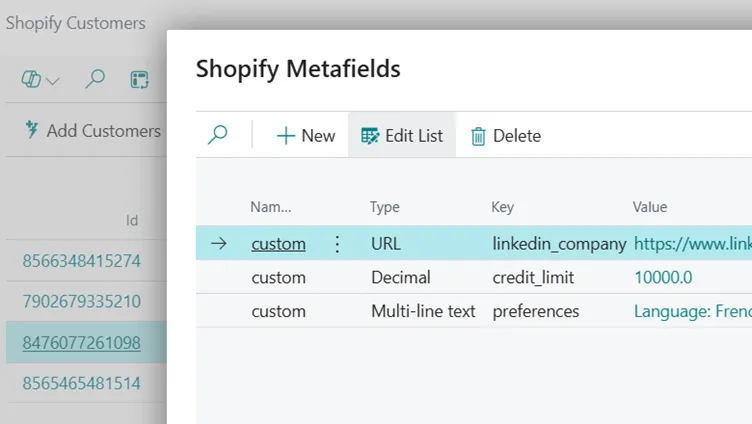
The Metafield Import/Export feature in Microsoft Dynamics 365 Business Central, introduced in the 2025 Wave 1 update, enhances the integration with Shopify by enabling the synchronization of custom data between the two platforms. This functionality allows businesses to manage additional information about Shopify resources, such as products, variants, customers, and companies, directly from within Business Central.
Key Features of Metafield Import/Export in Business Central
- Import and Export Metafield Data: Business Central now supports the import and export of data stored in Shopify metafields, facilitating the transfer of custom information between the two platforms.
- Extensibility Model for Mapping: An extensibility model is provided, allowing developers to map standard or custom fields, attributes, or other related entries in Business Central to metafields in Shopify. This enables businesses to tailor the integration to their specific needs.
- Shopify Metafields Page: Users can access and edit metafields through the Shopify Metafields page, which can be opened from the Shopify Products and Shopify Variants pages within Business Central.
- Synchronization Settings: To edit metafields, ensure that the Product Sync field is set to “Products to Shopify” and the “Can update Shopify products” toggle is turned on. When a new record is added, the connector sends a request to Shopify and stores the entry only upon receiving a response with the Shopify ID for the metafield.
Supported Metafield Content Types
Business Central supports various metafield content types, including:
- Text: Single-line text, Multi-line text
- Number: Decimal, Integer
- Date and Time: Date, Date and time
- Measurements: Dimension, Volume, Weight
- Other: True or false, Color, URL, Money
Note: Rich text is not supported.
Accessing and Managing Metafields
To manage metafields:
- Navigate to the Shopify Metafields page within Business Central.
- Ensure that the Product Sync field is set to “Products to Shopify” and the “Can update Shopify products” toggle is turned on.
- Add or edit metafield records as needed.
Conclusion
These features in shopify creates only the detailing of the existing things and a add-on feature to the use to grow the market in the most simple and reliable manner.