Employee Management is more than just maintaining records. It is about creating a structured approach to managing the entire employee lifecycle — from recruitment and onboarding to performance management, training, and career development.
Microsoft Dynamics 365 Business Central, offers essential HR functionalities. While it is not a full-fledged HR management system like Dynamics 365 Human Resources, it offers HR functionalities suitable for small to medium-sized businesses. In HR module of Microsoft Dynamics 365 Business Central, the Human Resources (HR) setup module helps organizations manage employee information and related administrative tasks.
Key feature of Human Resource Setup in business central
- Maintain details of the employee like their personal details [name, address etc] and employment detail [job title, department, employee skill and training, employment status and contract etc].
- Human resource setup help in monitor and record the employee absence, their absence type [sick leave, vacation etc] to generate report to analyse absence trend of employee.
- It track the financial transaction related to employee like reimbursement, bonus or other employee related expense.
How to set up human resource in business central
Go to Tell me and search Human Resource Setup.
Following page will open.
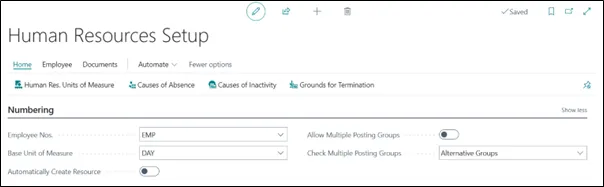
As you can see in the image there is multiple option as well field in this Human Resource Setup Card.
Let’s discuss them one by one,
1. Home
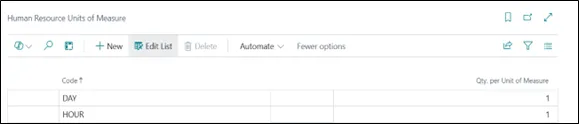
a. Human resource unit of measure help you set up unit of measure such as day or hour that you can select to define how your employee time is recorded.
b. Cause of absence help you to set up reason why an employee can be absence.

Total absence field show the total number of the absence for all employee.
c. Cause of inactivity show the reason why an employee can be inactive.

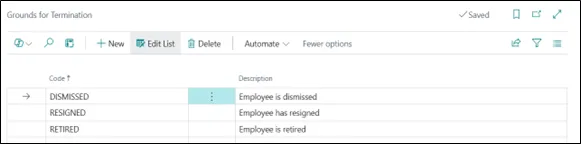
d. Ground of termination help you to set up the reason why an employee can be terminated.
2. Employee

a. Union helps you to set up different work union that employee may be member of, so that you can select union for employee, on employee card.

b. Relative option help you to set up type of relatives that you can select for employee, on employee card to maintain the data relate to their relative.

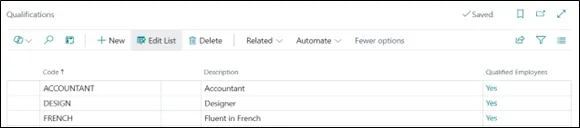
c. In Qualification option you can set different qualification like Design or Accounting.
d. Employee statistic group set up salary time, such as whether you provide the salary to your employee on hour or day or month basis.

3. Document

This action help you set, up different set up for employment contract, misc. article and some confidential information.
Numbering
Employee Nos. is about selecting the number series to use when assigning number to employee.
Base unit of measure tell how employee time is recorded. It can be hour, day or week.
Automatically create resource field help you to specify whether resource card is automatically created for an employee that is added to a project, service or assembly activity.
Allow multiple posting group specify whether the multiple posting group can be used for the same employee in the general journal or payment document.
It can be very useful when sometimes businesses want to post payable and receivable transactions to a different general ledger (G/L) account than the one that is specified on the employee posting group.
This can include scenarios where employee travel expenses need to be post to a different financial account than the one used for regular payroll transactions. i.e. in scenario where you want to post travel expense or other allowance in different account then one selected for payroll.
Employee posting group
Employee Posting Group is a setup that determines how financial transactions related to employees are posted to the General Ledger (G/L).
Go to tell me and search Employee Posting Group.

How it work?
Define the different posting group for employee.
Now, select the appropriate posting group (e.g., Salary) on the Employee Card under the Employee Posting Group field.
When you post a salary payment through the Payment Journal, the transaction will be posted to the Payables Account defined in the selected posting group (e.g., the account specified in the Salary group).
If you need to post other types of payments, such as travel expenses or bonuses, and want them to be recorded under different G/L accounts, you must first update the Employee Posting Group on the Employee Card to the relevant group (e.g., Reimburse Or Bonus) before posting the journal.
For example, you want to pay salary to employee.
You need to go to Employee Posting Group Card Page and create the posting group, Code: Salary, Payable Account: 32110, employee salary account.
Now assign the default posting group i.e. Salary posting group to employee in Employee Posting Group Field on Employee Card.
Go to Payment Journals and create a new line:
- Account Type: Employee
- Account No.: Ester
- Amount: 25000 (for Salary)
- Bal. Account Type: Bank Account
- Bal. Account No.: BANK01
Post the journal. Salary that you have recorded on payment journal line is posted to Payable account you have selected in Employee posting group for salary. You can go to General Ledger Entries to check the entries.
Employee Card
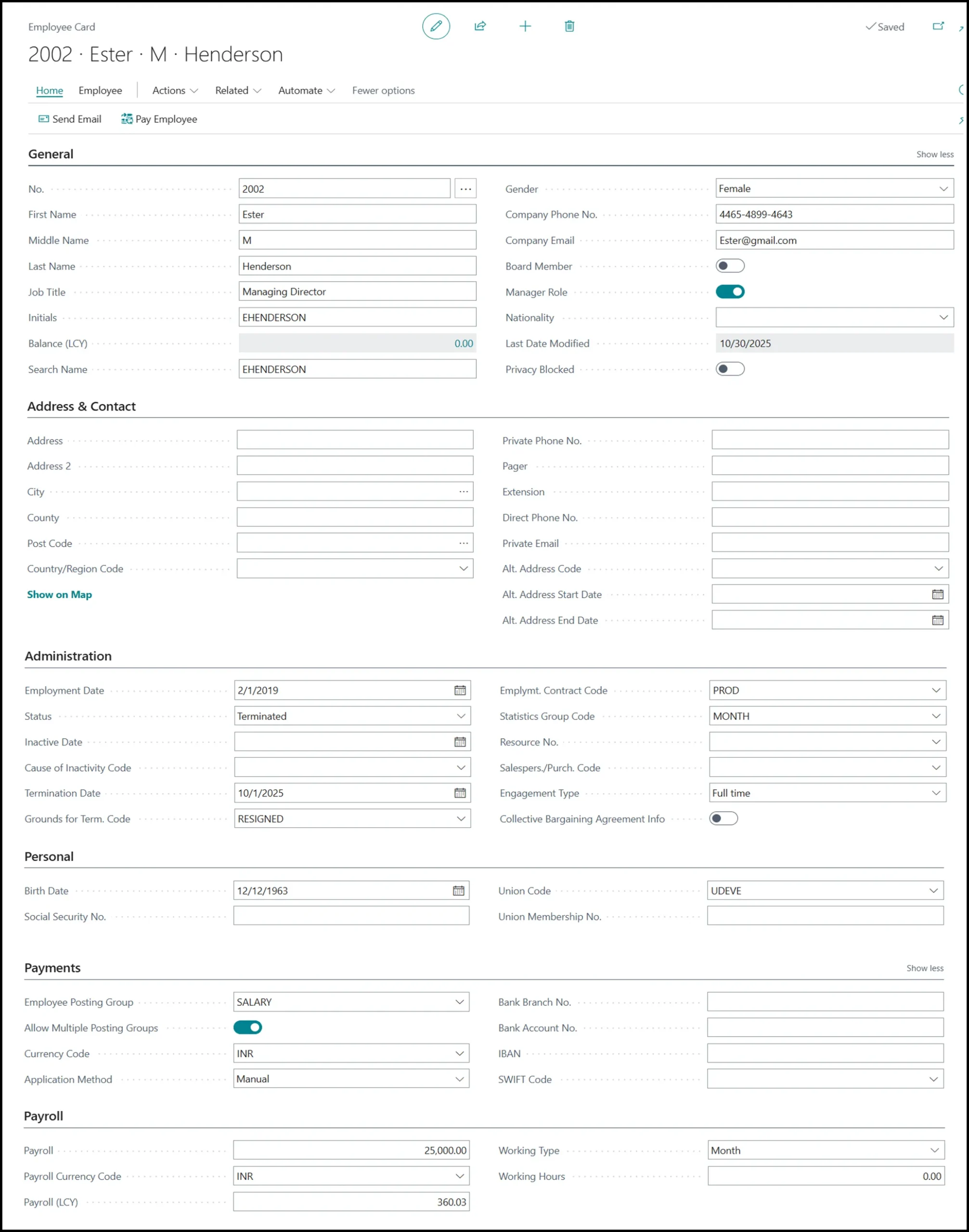
Employee card is card page where you manage all the key information related to an individual employee.
Go to tell me and search for employee,
Employee page look like below.
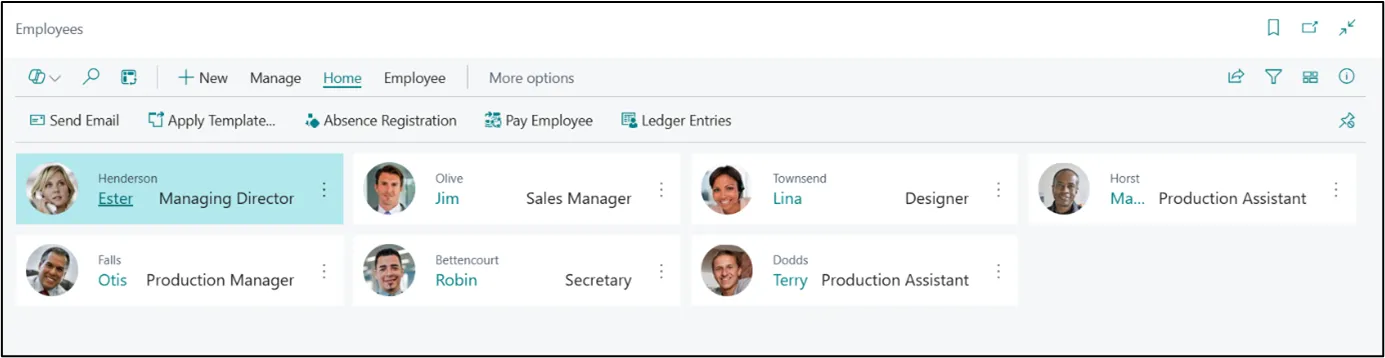
Once you click on +New, Employee Card page will open.
Employee Card page is where all information related to individual employee are recorded. Employee general and personal data like their name, Address, gender, birth date, phone number, personal email as well their employment data like their job title, company email provided to them, whether they are on manager role or part of board member are recorded.
Their administration detail, their employment date, as well termination date and termination code, status on employment, their payment and payroll related detail are maintained.
Employee card page look like below,
Thus, The Human Resource Setup and Employee Card in Microsoft Dynamics 365 Business Central provide a foundational framework for managing employee-related data and transactions such as payroll, employee date and skill, track absence etc.