Microsoft has officially rolled out the 2025 Release Wave 1 for Dynamics 365 Business Central, bringing a range of powerful new features and system improvements. As part of this update, the Microsoft Learn YouTube series provides guided walkthroughs to help users make the most of these enhancements. One of the standout additions is the ability to reverse production order transactions, giving businesses greater flexibility to correct errors and maintain accurate financial and inventory reporting.
Understanding the Reversal Tool in Business Central:
Manufacturing processes can occasionally deviate from expectations—whether due to incorrect output, unused components, or data entry mistakes. Such discrepancies can impact both financial and inventory records. With the enhanced reversal functionality, users can now retroactively correct these issues, even for production orders that have been marked as finished. This includes reopening orders, adjusting ledger entries, returning components to inventory, and maintaining accurate reporting across the system.
When you mistakenly post production transactions, you probably want to cancel the transactions. In some cases, you also want to close the order. From the Released Production Order page, you can open the Item Ledger entries or Capacity Ledger entries pages. Use the Reverse Production Order Transaction action to reverse the transactions.
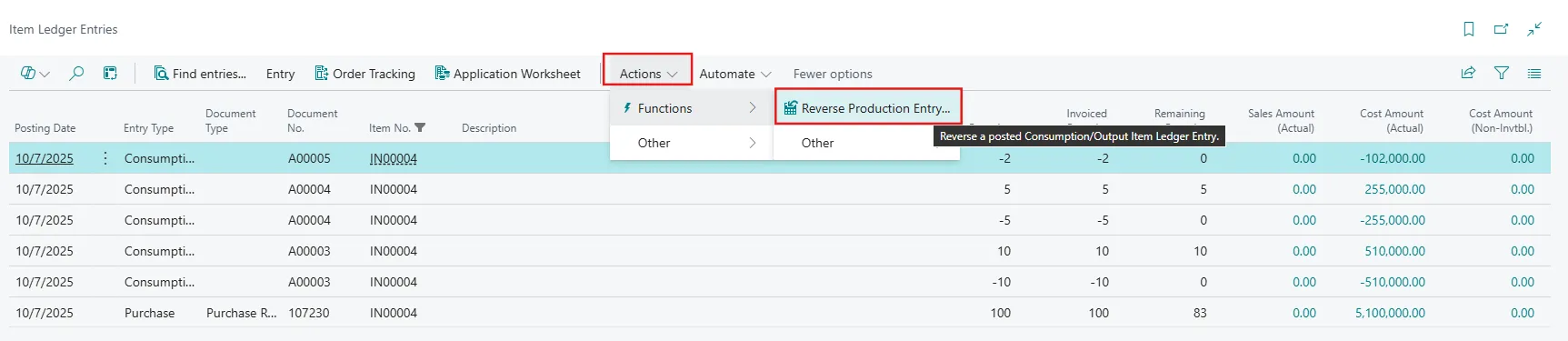
How to Reverse a Production Order Transaction
1. Open the production order that contains the error you want to correct.
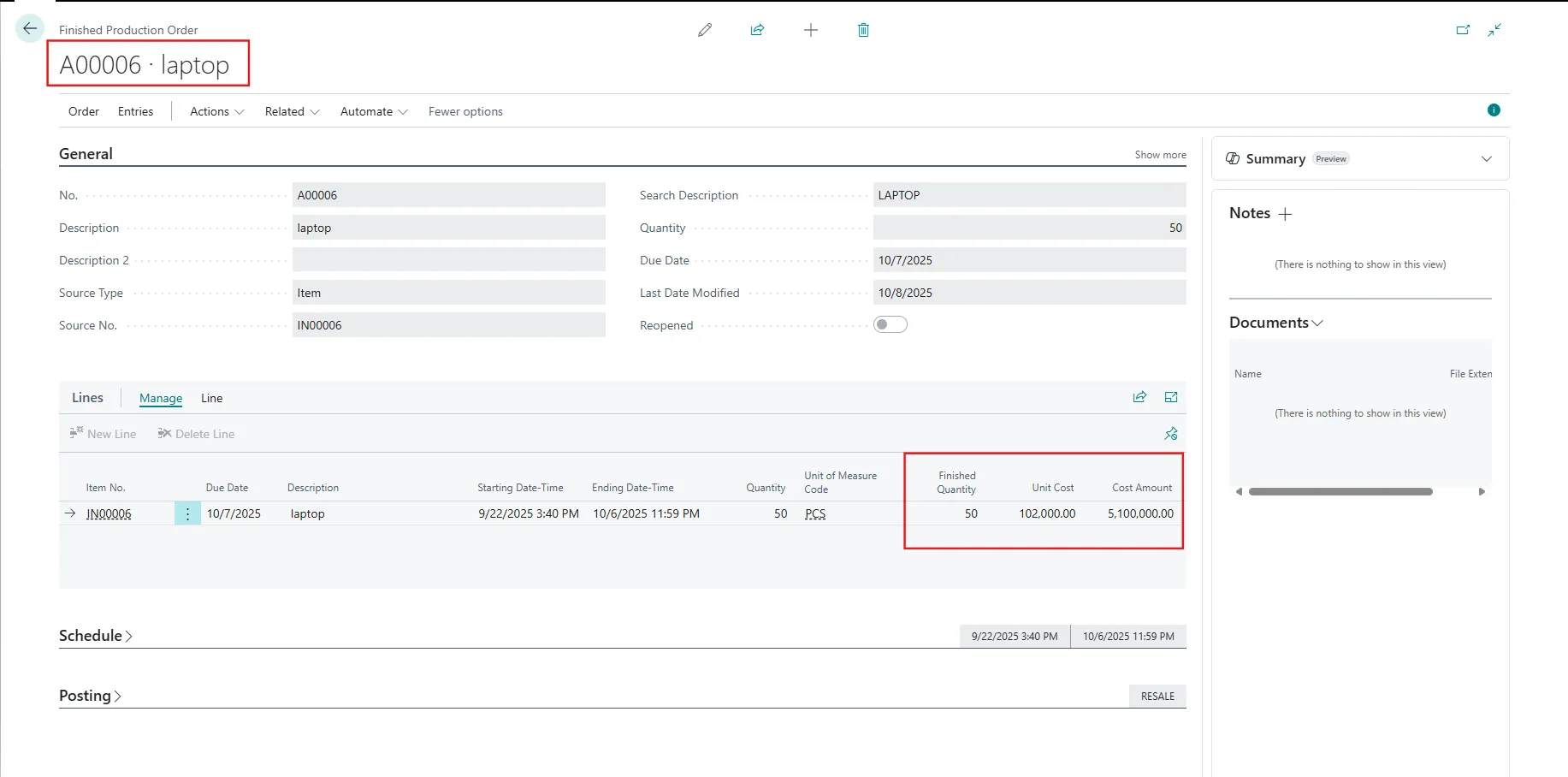
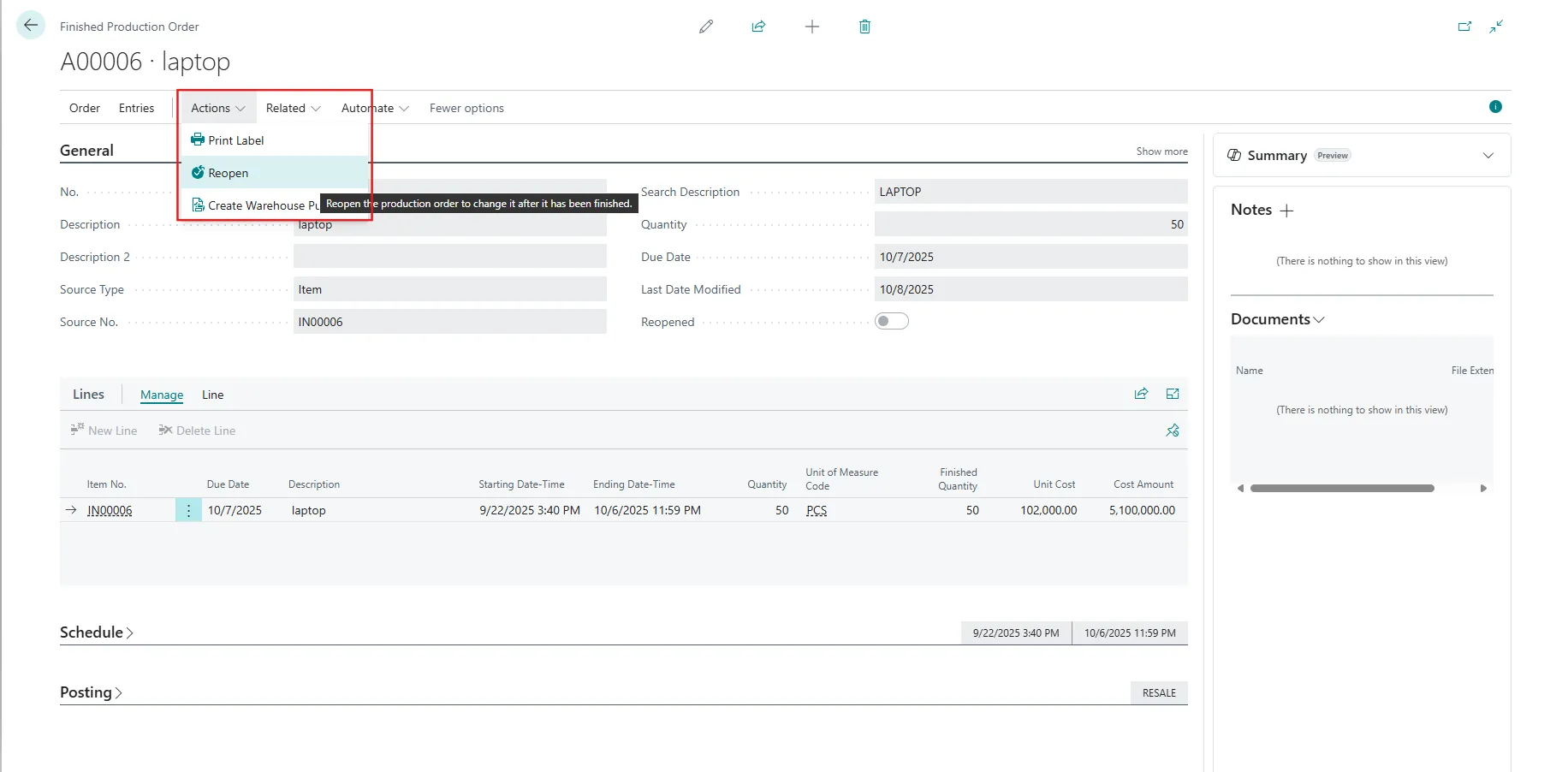
2. Go to Actions → Reopen to reactivate the production order.
3. Once Reopen → select the entry from item leger entry and click on the reverse production entry.
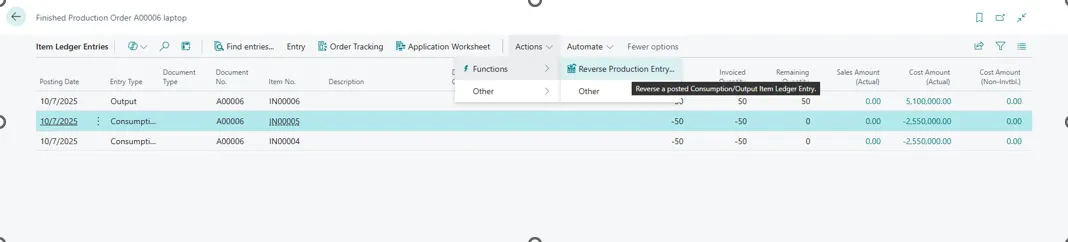
- For item ledger entries of the Consumption type, the action creates item journal lines of the Consumption type. The action copies values from the original transaction. It uses the opposite sign in the Quantity field. It applies to the original entry and posts the item journal.
- For item ledger entries of the types Output or Capacity entries, the action creates item journal lines of the type Output. For the lines, the action copies values from the original transaction, uses the opposite sign in the Quantity, Scrap Quantity, Setup Time, and Run time fields, applies to the original entry (only for item ledger entries), and posts the item journal. The action also removes the Finished status from the related production routing line.
- You have to do same thing for the all the entries to reverse the whole transection.
The system enables the Reverse Production Order Transaction action only for entries that are related to the production order. The action uses the original posting date.
The system doesn’t support the action under the following conditions:
- The output entry is already applied to an outbound transaction.
- Consumption or output involves warehouse handling. Bins are supported.
- Entries are created through subcontracting purchase orders. You can undo receipt in the Posted Purchase Receipt page
4. Offset all the entries:
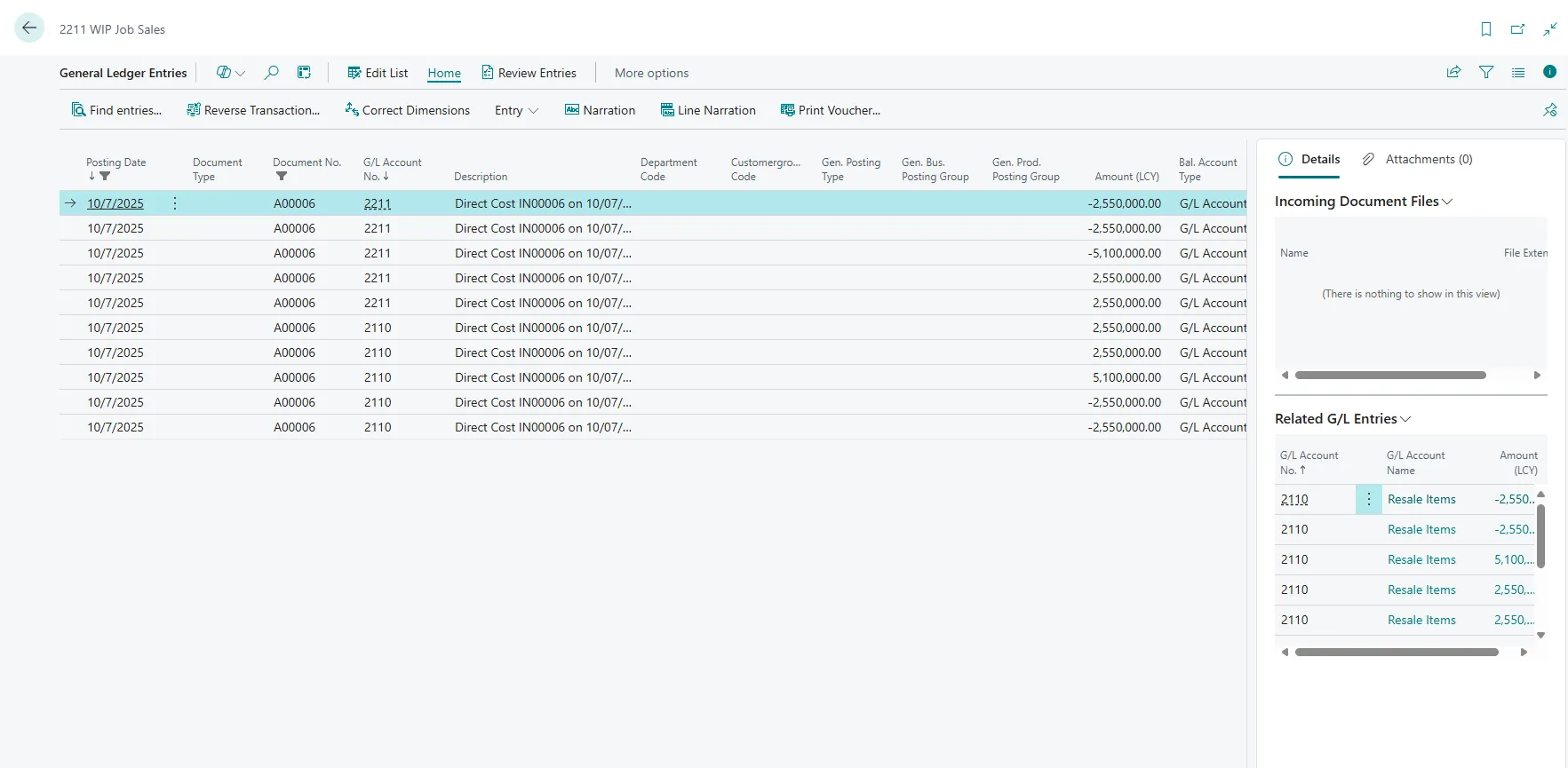
5. Repeat this process for any additional mistakes, and once complete, change the order status back to Finished.