
In the ever-evolving world of manufacturing, agility and accuracy are key. Whether you’re racing to meet a tight deadline or correcting a misstep on the shop floor, your production system needs to be as dynamic as your operations.
Microsoft Dynamics 365 Business Central introduces two powerful features that empower manufacturers to stay ahead: rescheduling production orders within a safety lead time and cancelling production orders that have consumption. Let’s explore how these capabilities work together to streamline your production process and safeguard your bottom line.
1. Rescheduling with Safety in Mind
Production timelines are rarely static. Delays, urgent customer requests, or unexpected bottlenecks can throw off even the most carefully planned schedules. That’s where Safety Lead Time comes in.
Why It Matters?
Safety lead time acts as a buffer between your production end date and the due date. It ensures that even if things don’t go exactly as planned, you still have a cushion to meet delivery commitments. It also allows you to start production earlier when needed, reducing the risk of late shipments.
How It Works?
A. To enable this feature:
- Navigate to the Manufacturing Setup page.
- Turn on the Manual Scheduling toggle.
- Optionally, set a value in the Safety Lead Time for Manual Scheduling field.
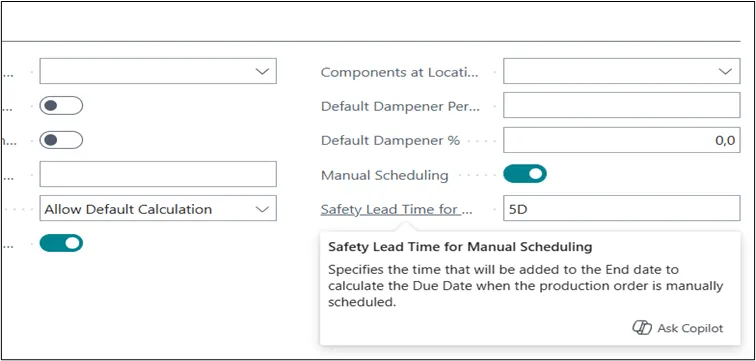
When you create a production order either manually or through the planning engine, the system calculates a buffer using the following priority:
- Safety Lead Time on the Stockkeeping Unit Card
- Safety Lead Time on the Item Card
- Default Safety Lead Time in Manufacturing Setup
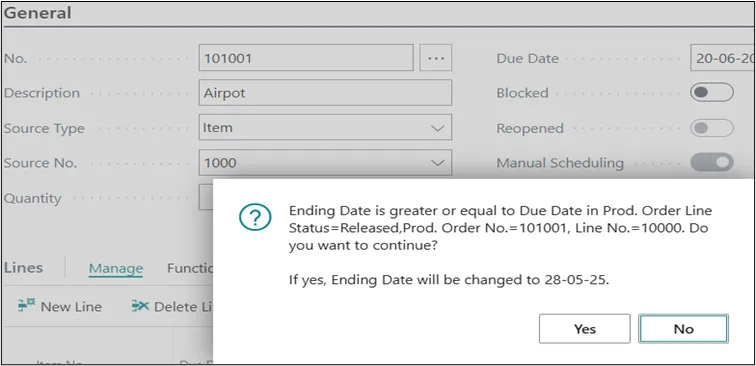
You can adjust the due date or end date of a production order. If the new end date plus the safety lead time exceeds the due date, a confirmation dialog will alert you. This ensures that manual changes don’t inadvertently compromise your delivery timelines.
2. Reversing Consumption: Fix Mistakes Without the Mayhem
In the dynamic world of manufacturing, errors in production posting are inevitable. Whether it’s incorrect consumption, output, or capacity entries, businesses need a reliable way to correct mistakes without compromising inventory accuracy or financial integrity. Microsoft Dynamics 365 Business Central now offers enhanced capabilities to reverse production transactions and manage actual scrap, ensuring your operations stay clean and compliant.
Business Impact:
Even when production doesn’t go as planned, maintaining accurate records is non-negotiable. Business Central empowers manufacturers to:
- Revert incorrect consumption or output transactions
- Return unused raw materials
- Correct operational reporting errors
- Write off accumulated Work in Progress (WIP) due to actual scrap
These features reduce manual adjustments, improve audit trails, and ensure your inventory and financials reflect reality.
Feature Details:
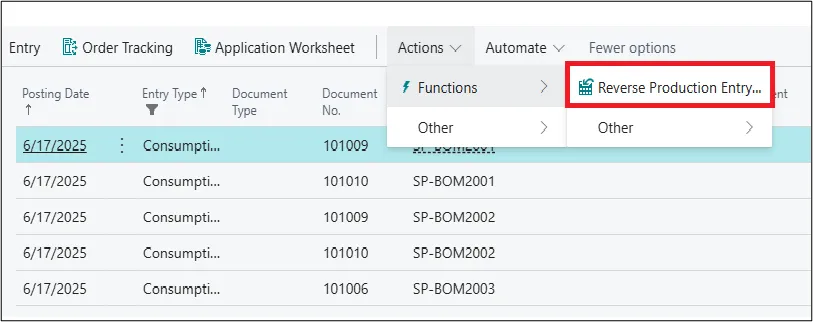
Mistakenly posted production transactions can now be reversed directly from the Released Production Order page. Here’s how it works:
1. How to Reverse Transactions
From the Released Production Order page:
a) Open Item Ledger Entries or Capacity Ledger Entries
b) Select Reverse Production Order Transaction
What Happens During Reversal
- Creates item journal lines of type Consumption
- Copies original values but uses the opposite sign in the Quantity field
- Applies to the original entry and posts the journal
- Creates item journal lines of type Output
- Reverses Quantity, Scrap Quantity, Setup Time, and Run Time
- Removes the Finished status from the related production routing line
- The reversal uses the original posting date and applies only to entries linked to the production order.
When Reversal Is Not Supported
The system restricts reversal under these conditions:
a) Output is already applied to an outbound transaction
b) Transactions involve warehouse handling (bins)
c) Entries originate from subcontracting purchase orders
You can undo subcontracting receipts before invoicing:
a) Go to Posted Purchase Receipt
b) Select the line and choose Undo
c) This creates a mirror line with the opposite quantity and a capacity ledger entry
d) If linked to the last routing operation, it also creates an Output item ledger entry
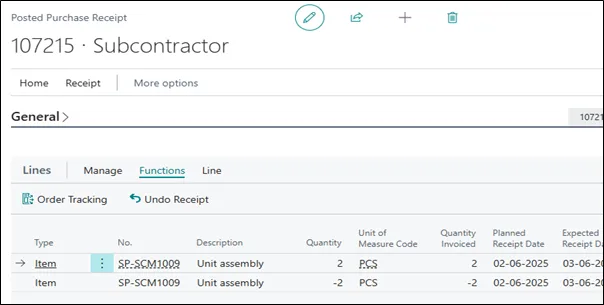
Important Note: If the receipt consumed components via flushing, the undo action won’t revert those. Use an Output Journal or the Reverse Production Order Transaction to correct them.
Closing Orders with Scrap: Finish Without Output
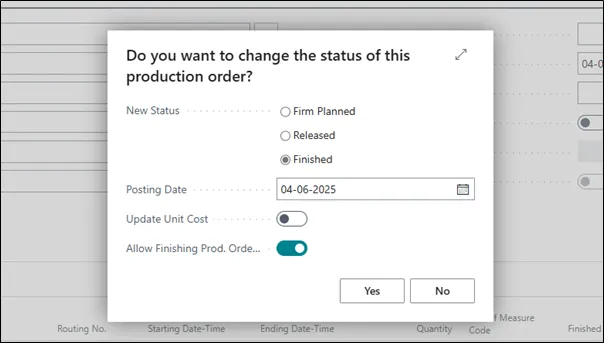
In cases of actual scrap where no output is possible, Business Central allows you to close the production order and write off WIP.
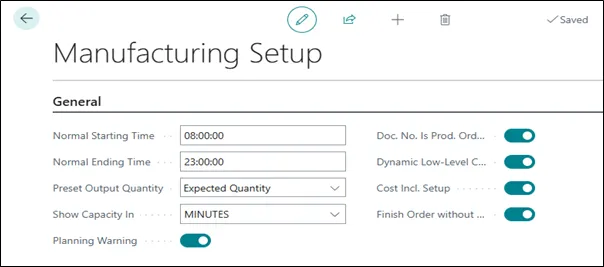
a. Setup Instructions
1. Go to Manufacturing Setup
2. Activate the Finish Order Without Output toggle
Note: Once enabled, this setting cannot be turned off.
3. On the Change Production Order Status page, enable
b. Allow Finishing Prod. Order with no output
When closing such orders:
- The system posts accumulated WIP to your Inventory Adjustment Account
- This account is defined by:
- Gen. Bus. Posting Group on the production order
- Gen. Prod. Posting Group on the produced item
Conclusion:
Microsoft Dynamics 365 Business Central empowers manufacturers with smarter tools to stay agile and accurate. By enabling safety lead time for rescheduling and offering robust reversal capabilities for production errors, businesses can confidently adapt to changes, correct mistakes, and maintain clean inventory and financial records, all while safeguarding delivery timelines and operational integrity.